

With a DomainsOnline client account you can order hosting and domains, see and pay your invoices and send us support tickets. Creating one takes about two minutes.
Watch the video (1 min 59 s, with narration) – or follow the steps below.
Step by step
-
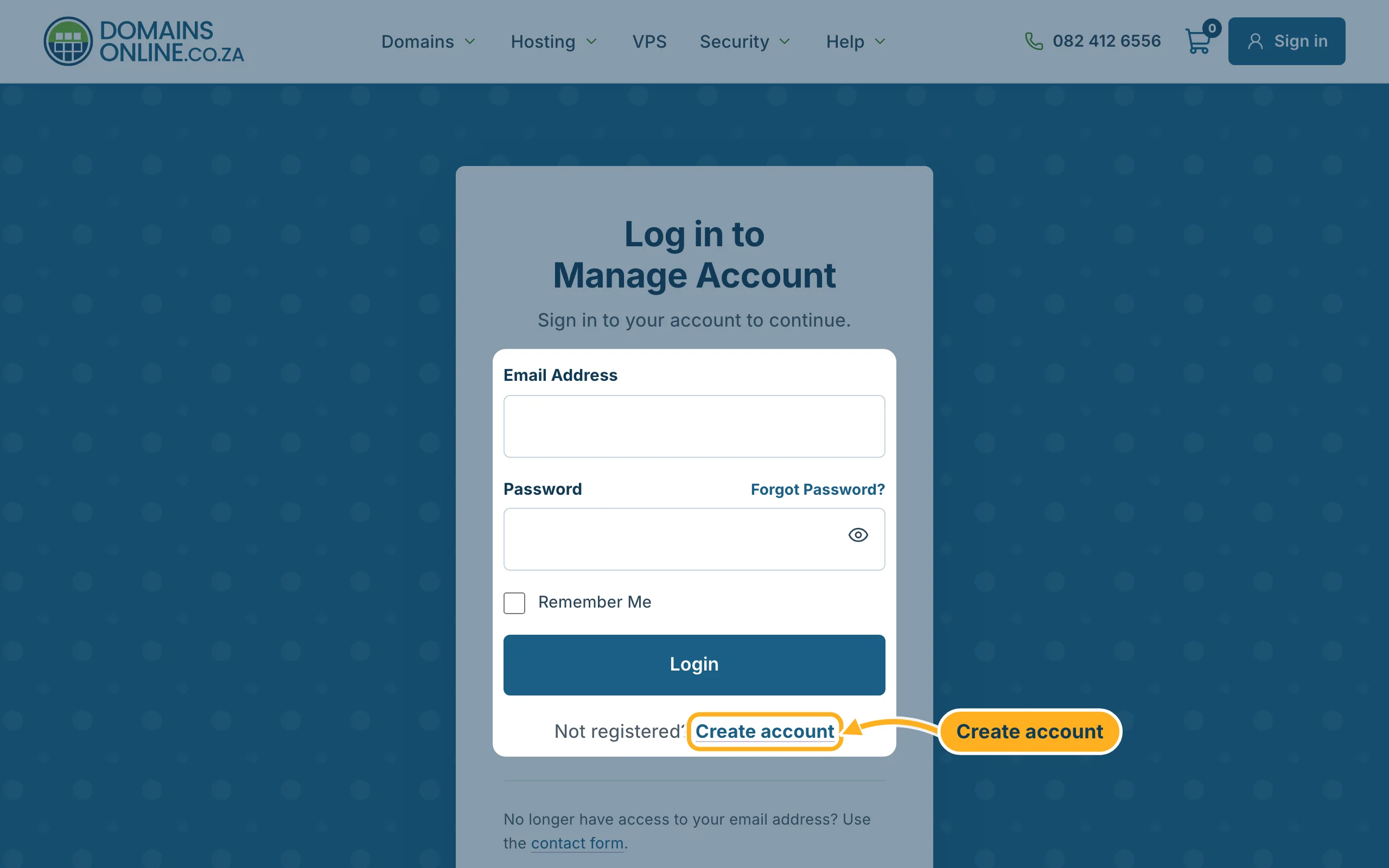
Open the login page (or click Sign in at the top right of our website) and click Create account.
-
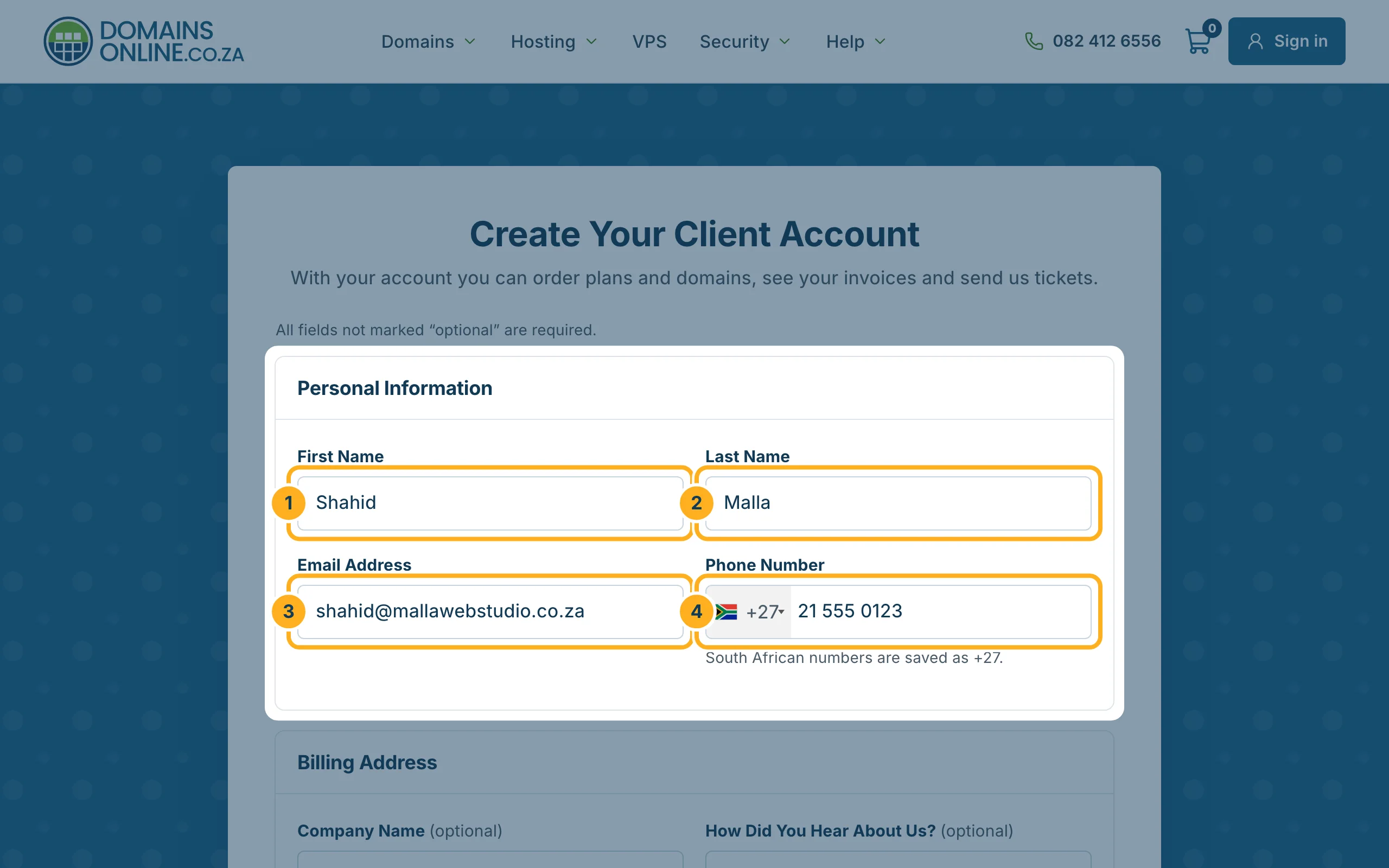
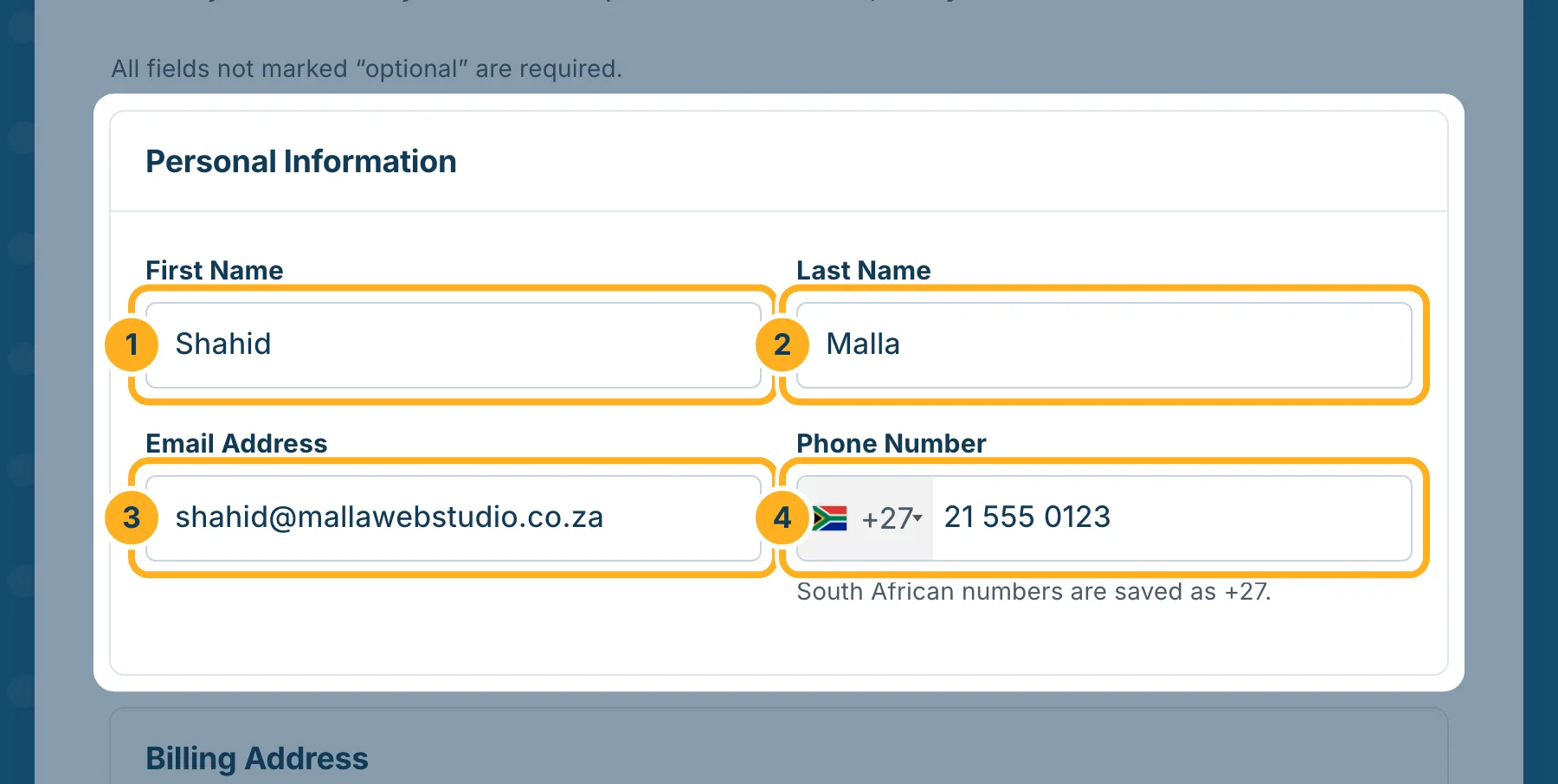
Under Personal Information, fill in:
- First Name
- Last Name
- Email Address – use an address you read often: your invoices, renewal reminders and the link to reset your password go there.
- Phone Number – South African numbers are saved with +27.
-
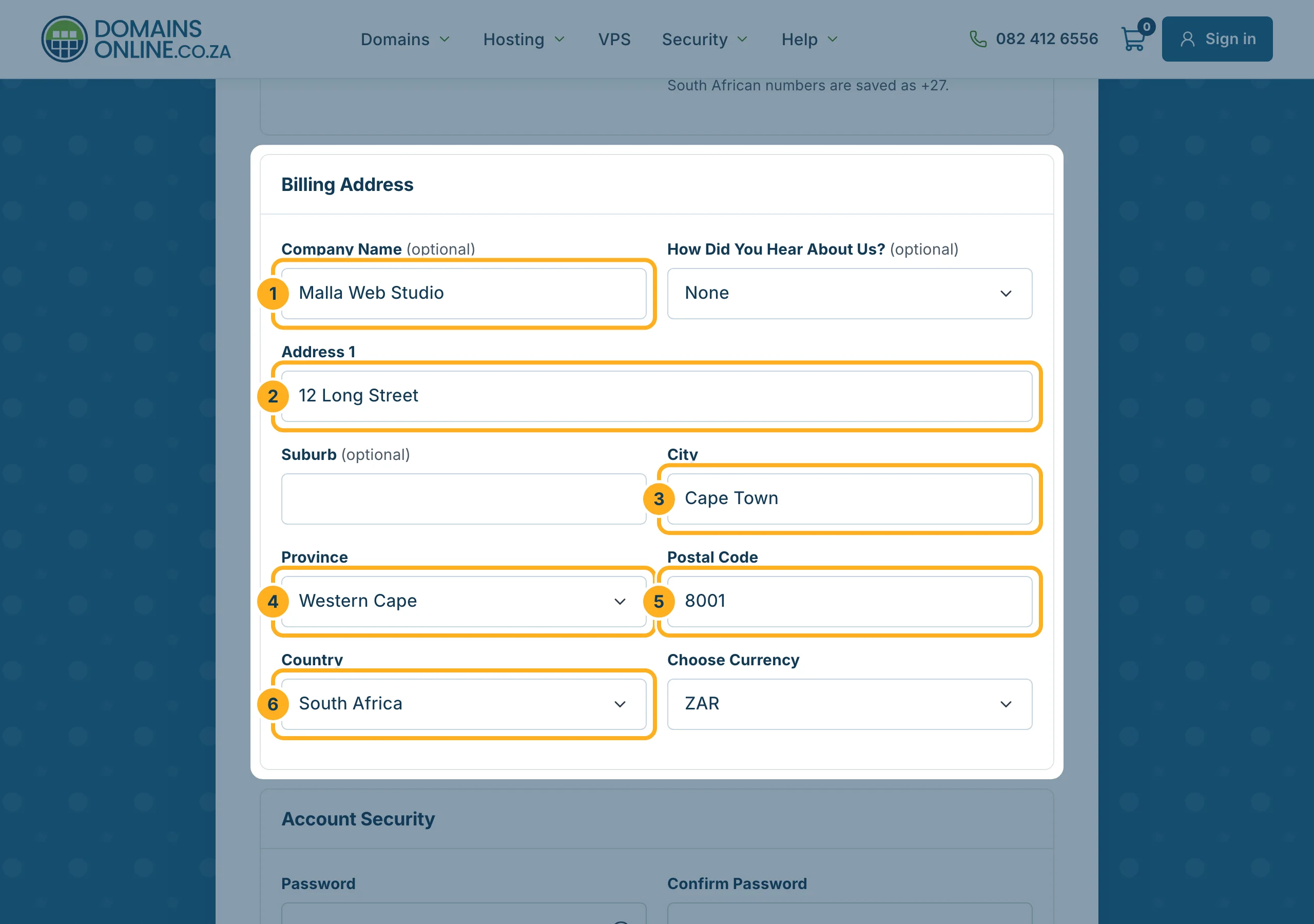
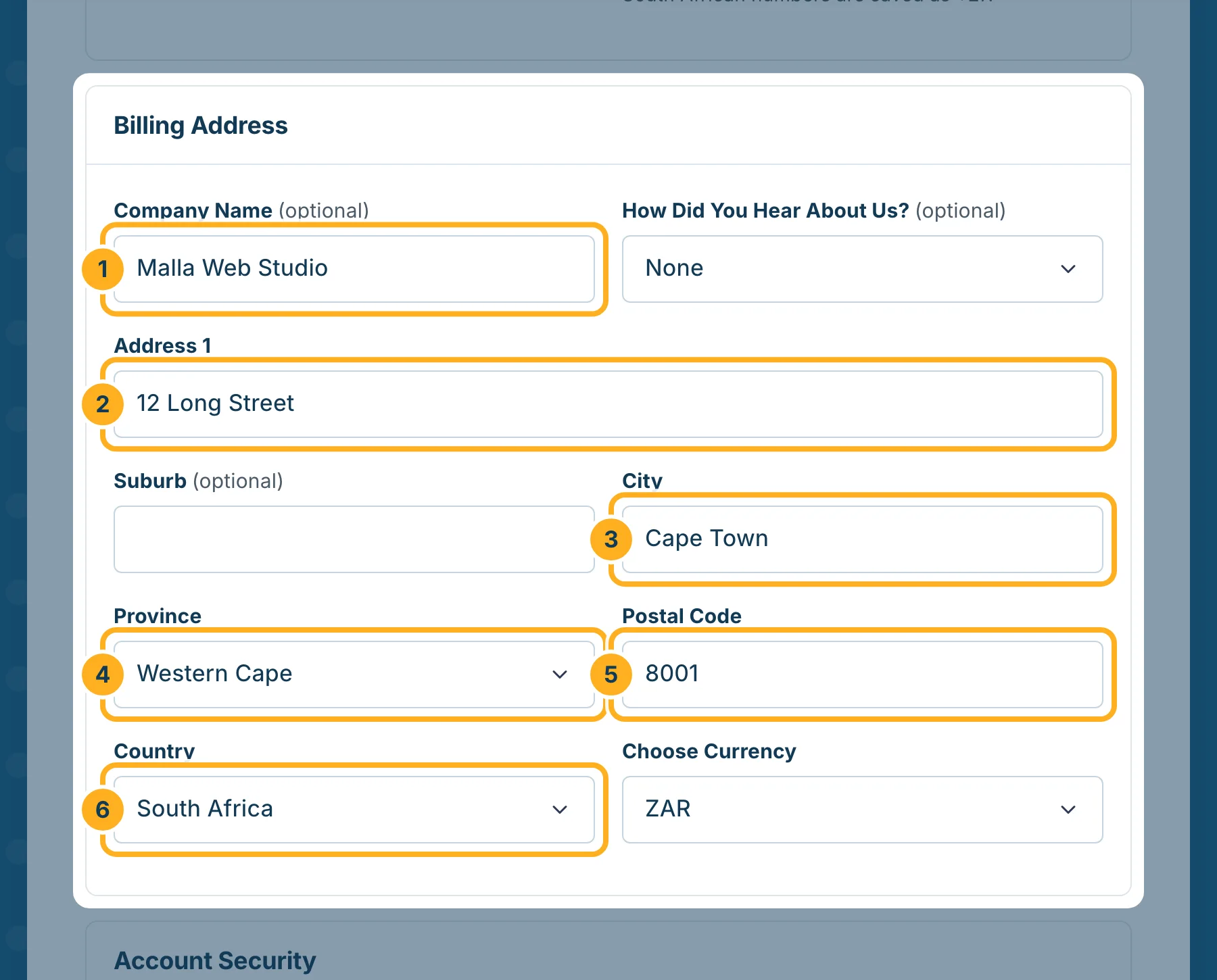
Under Billing Address, enter the address that should appear on your invoices:
- Company Name – only if you order for a business (optional).
- Address 1 – street and number. Suburb is optional.
- City
- Province
- Postal Code – four digits.
- Country – South Africa is already selected.
Leave Choose Currency on ZAR to see prices and receive invoices in rand. The currency of an account can't be changed in the client area later.
-
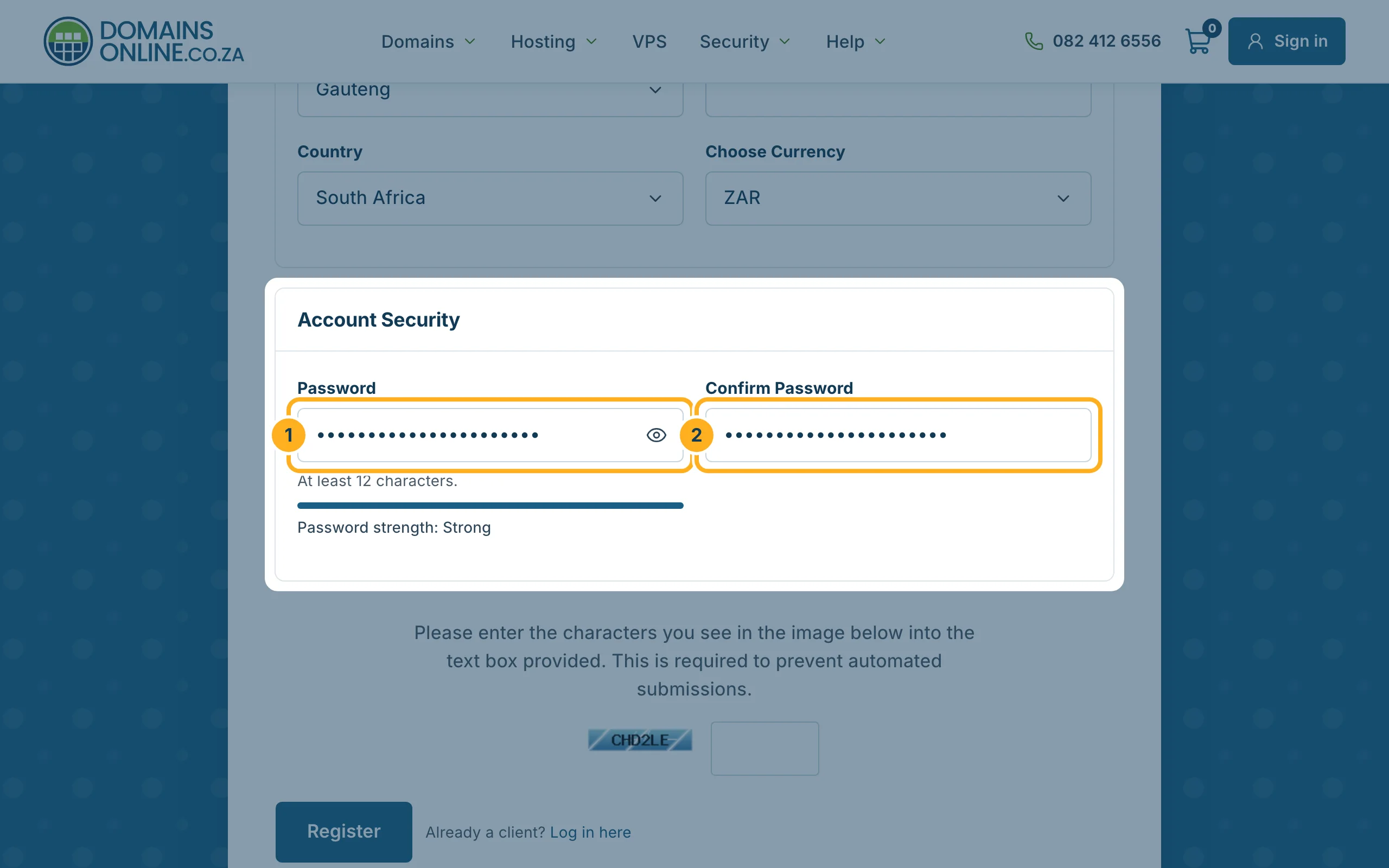
Under Account Security, choose a Password of at least 12 characters and type it again under Confirm Password. The bar below the field shows how strong it is. Click the eye symbol to check what you typed.
-
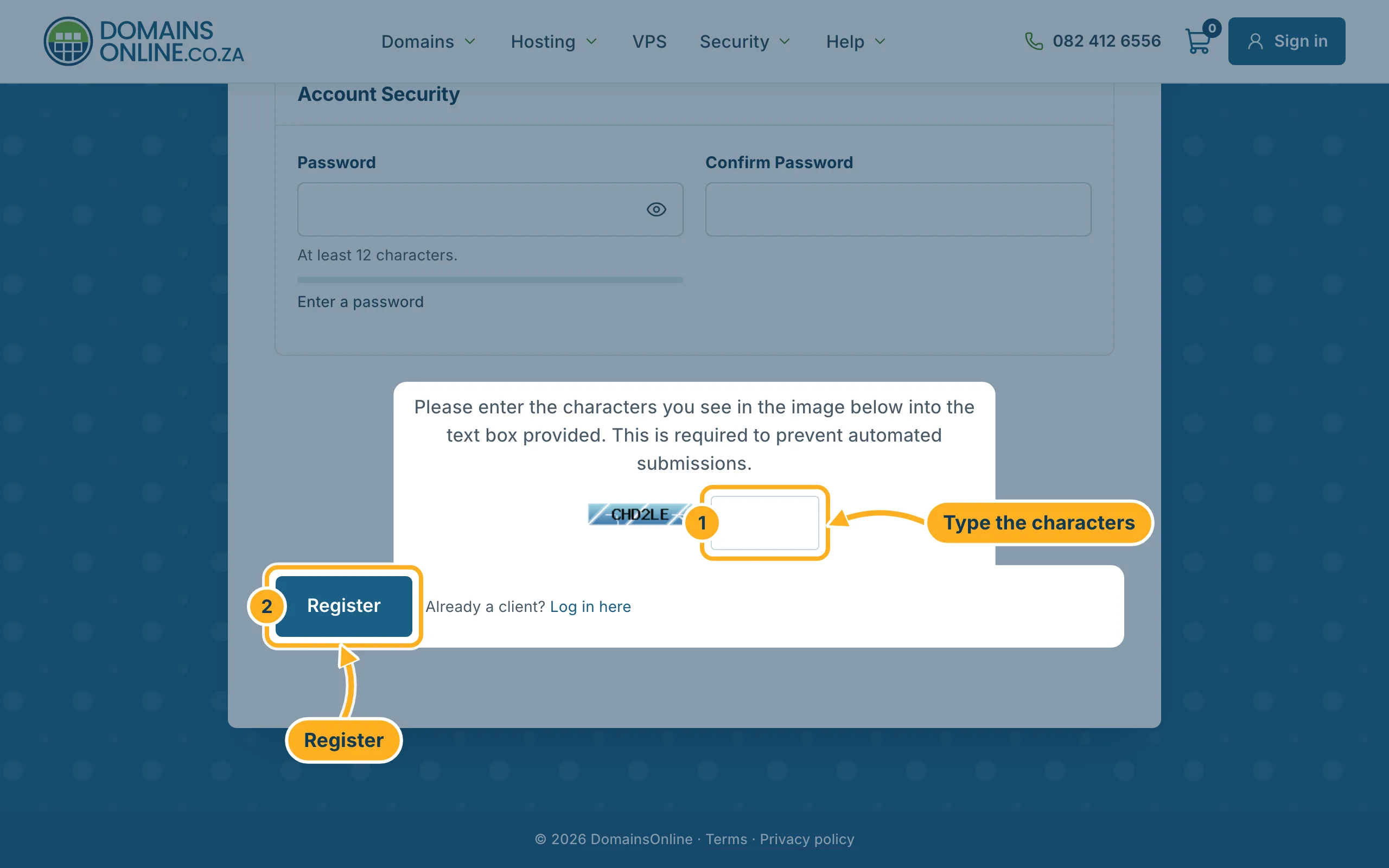
Type the characters from the picture into the box next to it, then click Register.
After registering: confirm your e-mail address
You are signed in straight away. We also send you an e-mail with a link to confirm your e-mail address. Open it and click the link – until then, the client area reminds you at the top of the page. See Verify your e-mail address.
Something not working?
- “A user already exists with that email address”: you already have an account. Sign in, or set a new password with Forgot your password? Set a new one.
- The form shows a red message under a field: correct that field and click Register again. Your other entries stay filled in, but you have to type the password and the characters from the picture again.
- You can't read the characters: reload the page to get a new picture.
Related articles
- Sign in and sign out
- The DomainsOnline client area at a glance
- Change your details and billing address
Need help? Send us a message – you don't need an account for that – or call us on 082 412 6556.
