

After you create an account or change the e-mail address you sign in with, we send you a link to confirm the address. This shows us that the address is really yours and that our e-mails reach you.
Watch the video (38 s, with narration) – or follow the steps below.
Step by step
-
Open the e-mail from DomainsOnline in your mailbox and click the verification link in it.
-
A page opens with the message Your email address has been verified. From there you continue to the client area.
Check whether your address is verified
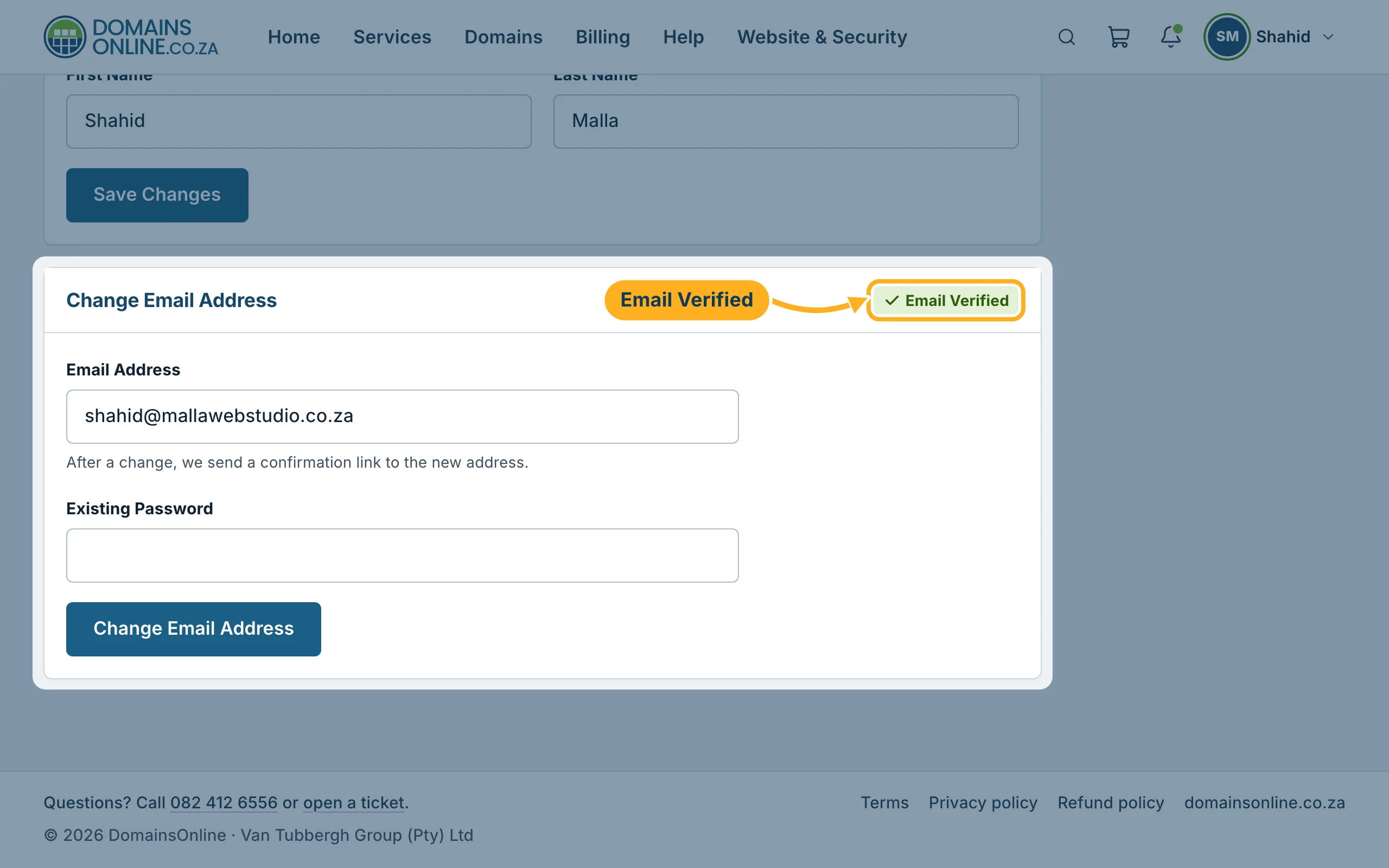
Click your initials and name at the top right of the client area, then click your name at the top of the menu to open Your profile. The section Change Email Address shows Email Verified once you have clicked the link, or Email Not Verified while the confirmation is still open.
No e-mail, or the link has expired?
As long as your address is not verified, the client area shows a note at the top of the page: Please check your email and follow the link to verify your email address. Next to it is the button Resend Verification Email. Click it to get a new link, then use the link in the newest e-mail.
- The e-mail doesn't arrive: look in your spam or junk folder. Check on Your profile that the address has no typing error – if it has, correct it: Change the e-mail address you sign in with.
- “Your email verification link has expired”: sign in and click Resend Verification Email to get a new link.
- The link opens a page asking you to log in: sign in first, then request a new link.
Related articles
Need help? Open a ticket or call us on 082 412 6556.
