

A contact is a person who receives e-mails from us for your account – for example your bookkeeper, who should get the invoices. Contacts have no login of their own.
Watch the video (1 min 27 s, with narration) – or follow the steps below.
Add a contact
-
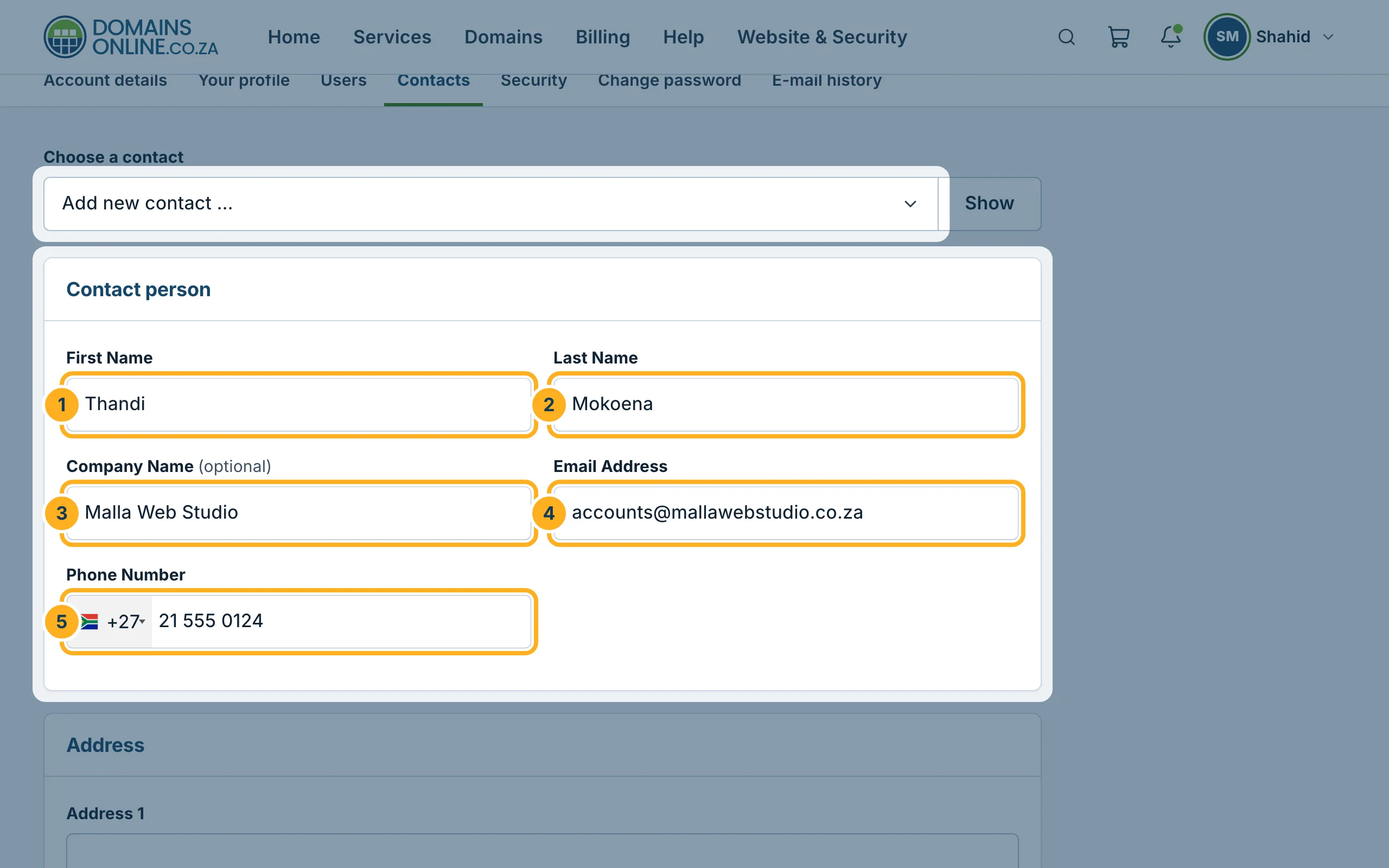
Sign in to the client area, click your initials and name at the top right and choose Contacts. If you have no contacts yet, the page Add a contact opens straight away. Otherwise choose Add new contact … under Choose a contact and click Show.
-
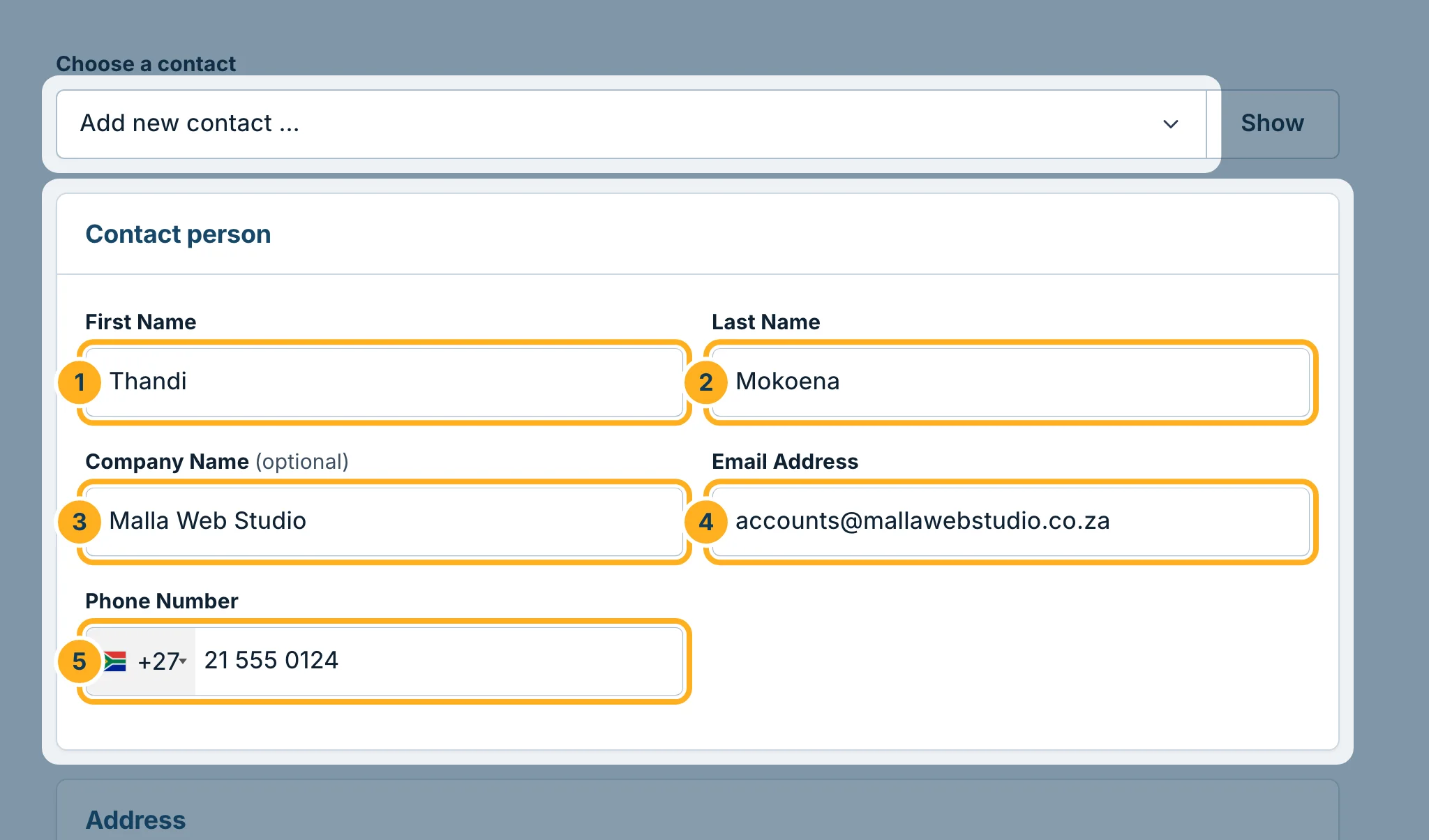
Under Contact person, fill in:
- First Name
- Last Name
- Company Name – optional.
- Email Address – where this contact's e-mails go.
- Phone Number – with +27 for South Africa.
-
Under Address, fill in the contact's address: Address 1, Postal Code, City, Province and Country. Address 2 is optional.
-
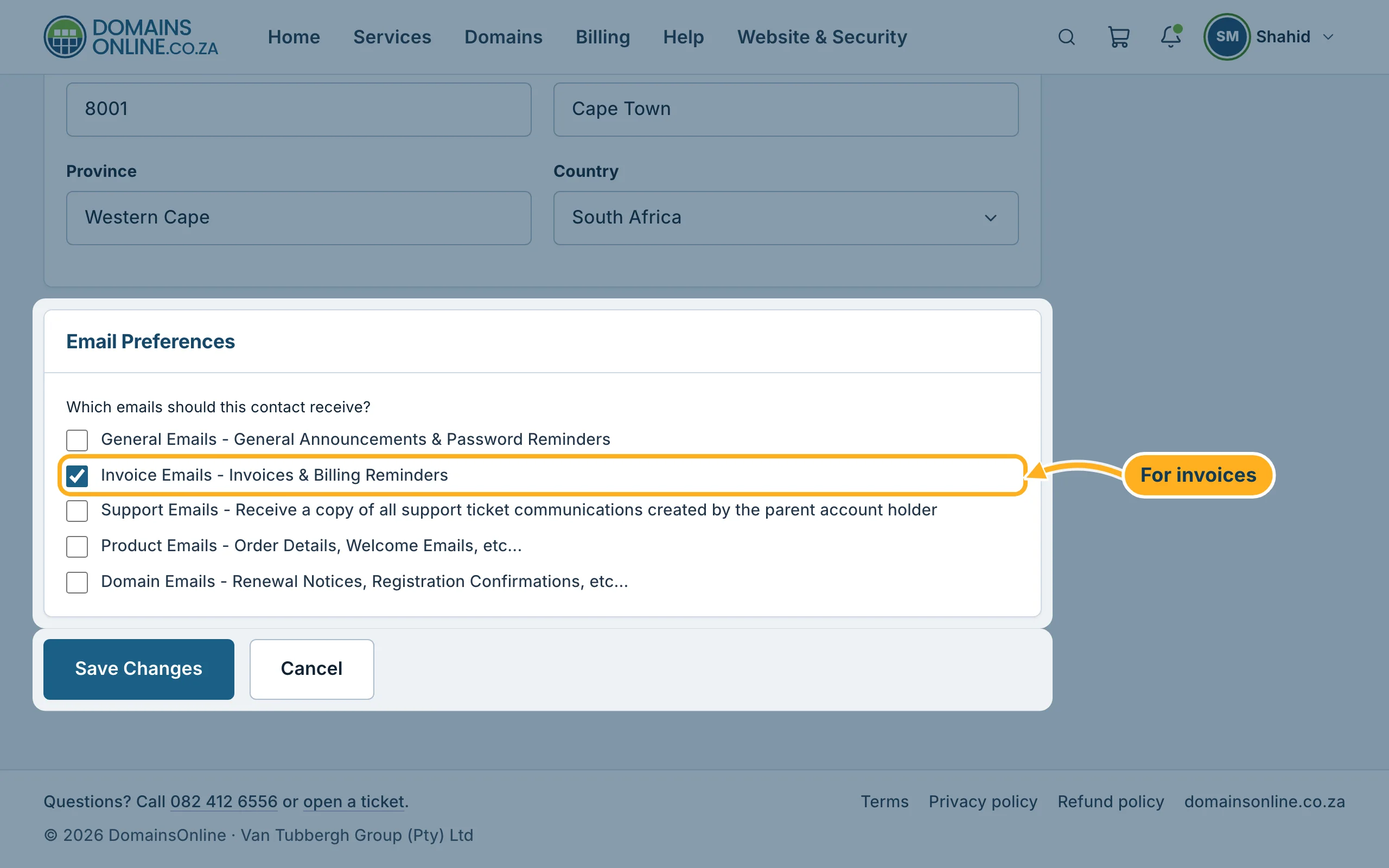
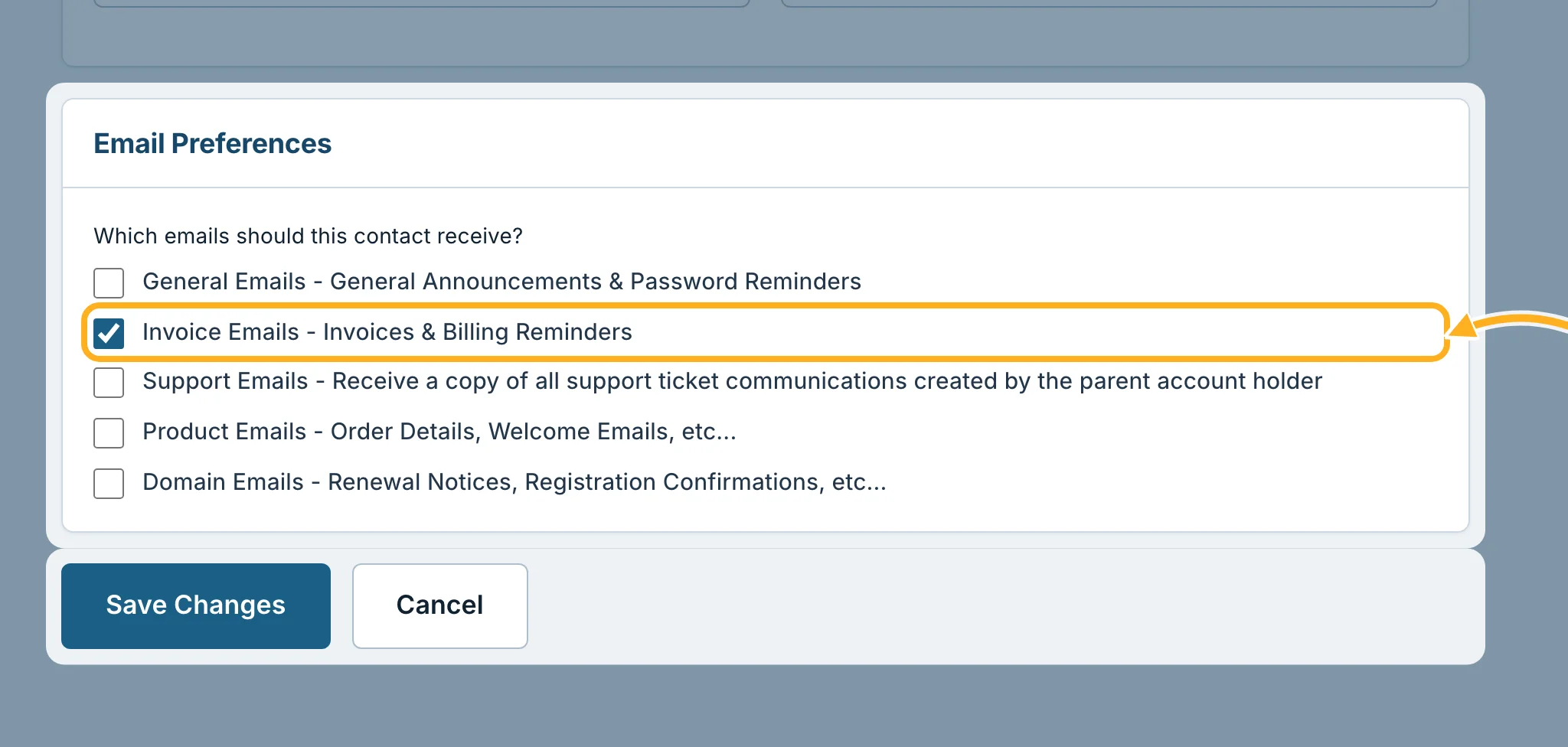
Under Email Preferences, tick which e-mails this contact should receive – for a bookkeeper usually Invoice Emails. Then click Save Changes.
Make the contact your billing contact
To address your invoices to the contact, open Account details and choose the contact under Default Billing Contact, then click Save Changes. See Change your details and billing address.
Change or delete a contact
Open Contacts, choose the contact under Choose a contact and click Show. Change the details or e-mail preferences and click Save Changes, or click Delete Contact to remove the contact from your account.
Related articles
- Invite other users and choose what they may do
- Choose which e-mails you receive
- Change your details and billing address
Need help? Open a ticket or call us on 082 412 6556.
