

All your invoices are in the client area under Billing. You can open each one, download it as a PDF or print it – for example for your bookkeeping.
Watch the video (1 min 0 s, with narration) – or follow the steps below.
Step by step
-
Sign in to the client area and open the list of your invoices:
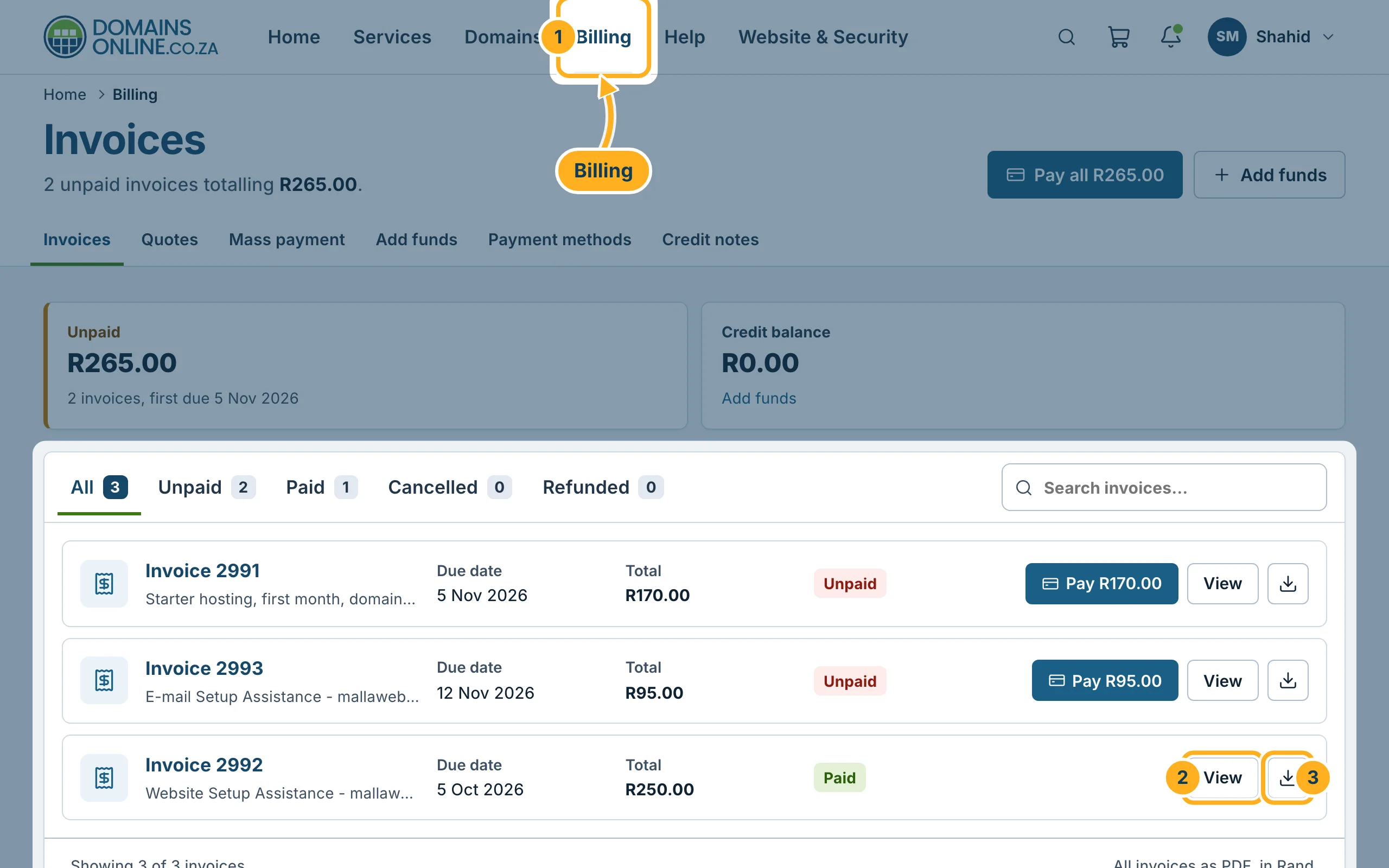
- Click Billing in the top menu. The page Invoices lists every invoice with its due date, total and status (Unpaid or Paid).
- Click View next to an invoice to open it.
- Or click the download symbol next to it to save the PDF straight away.
The tabs All, Unpaid, Paid, Cancelled and Refunded above the list show only invoices with that status. With Search invoices… you find an invoice by its number, amount or what it is for.
-
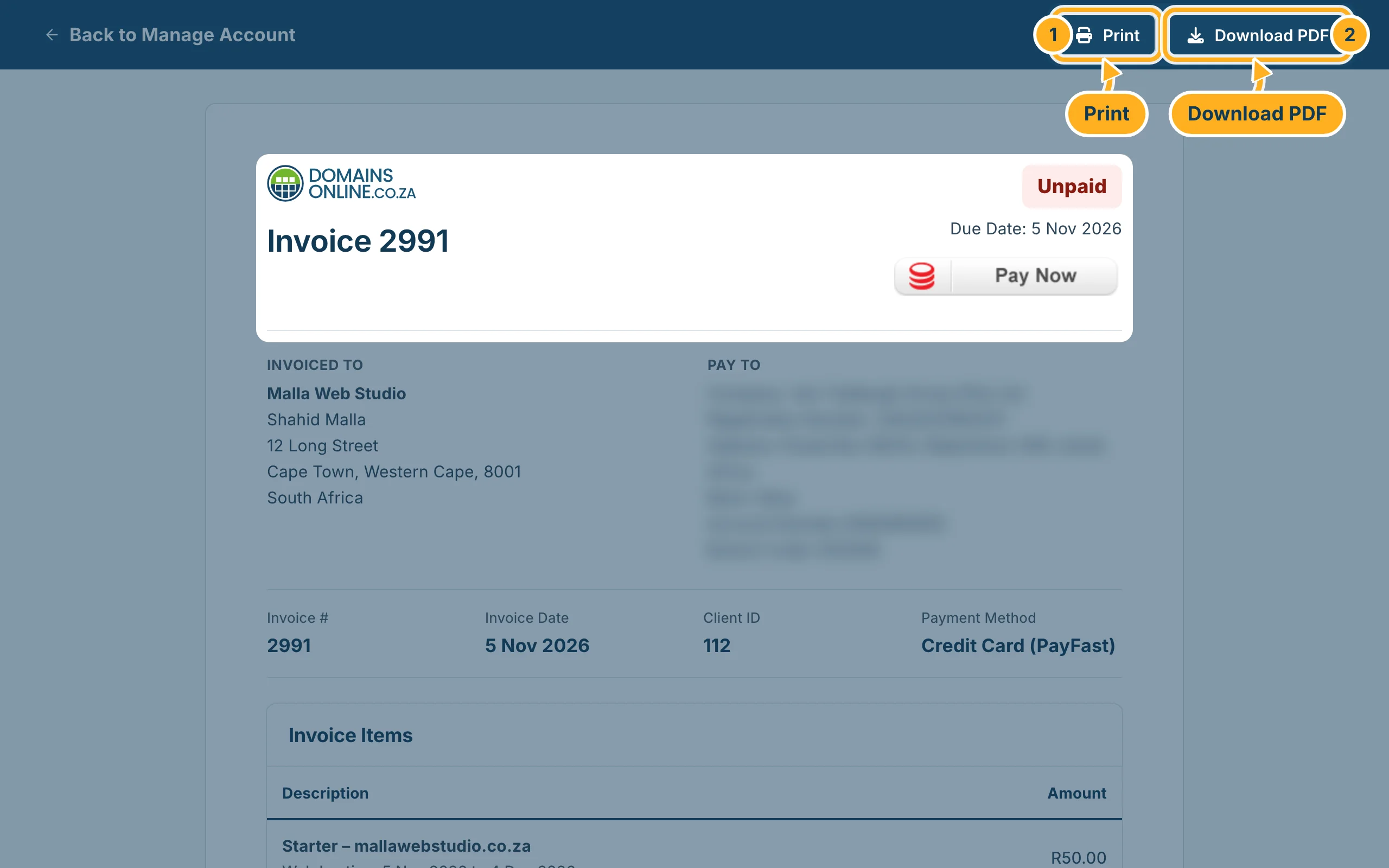
The invoice opens on its own page. At the top right:
- Print opens your browser's print window. The buttons at the top are not printed.
- Download PDF saves the invoice as a PDF file.
With Back to Manage Account at the top left you return to your invoice list.
What the invoice shows
- Unpaid or Paid at the top right, and the Due Date.
- Invoiced To – your company name, name and billing address from your account details.
- Invoice #, Invoice Date, Client ID and Payment Method.
- Invoice Items – each service or domain with the period it covers, for example “Web hosting, 5 Nov 2026 to 4 Dec 2026”.
- Payments – the payments made on this invoice, and the Balance still to pay.
All amounts are in rand.
Something not working?
- The name or address on the invoice is wrong: correct it in your account details – see Change your details and billing address. If an invoice that already exists must show the new details, open a ticket in the Billing department.
- An invoice is missing from the list: click the tab All. If you have more than one client account, check that you are in the right one – see Switch between client accounts.
- The PDF doesn't open: look in your downloads folder. You need a PDF viewer; most browsers and phones have one built in.
Related articles
Need help? Open a ticket in the Billing department or call us on 082 412 6556.
