

You pay DomainsOnline invoices online with PayFast, a South African payment service. You enter your payment details on PayFast's own page, not in our client area.
Watch the video (29 s, with narration) – or follow the steps below.
Step by step
-
Sign in to the client area and click Billing in the top menu. Next to an unpaid invoice, click the pay button, for example Pay R170.00, or View. Both open the invoice.
-
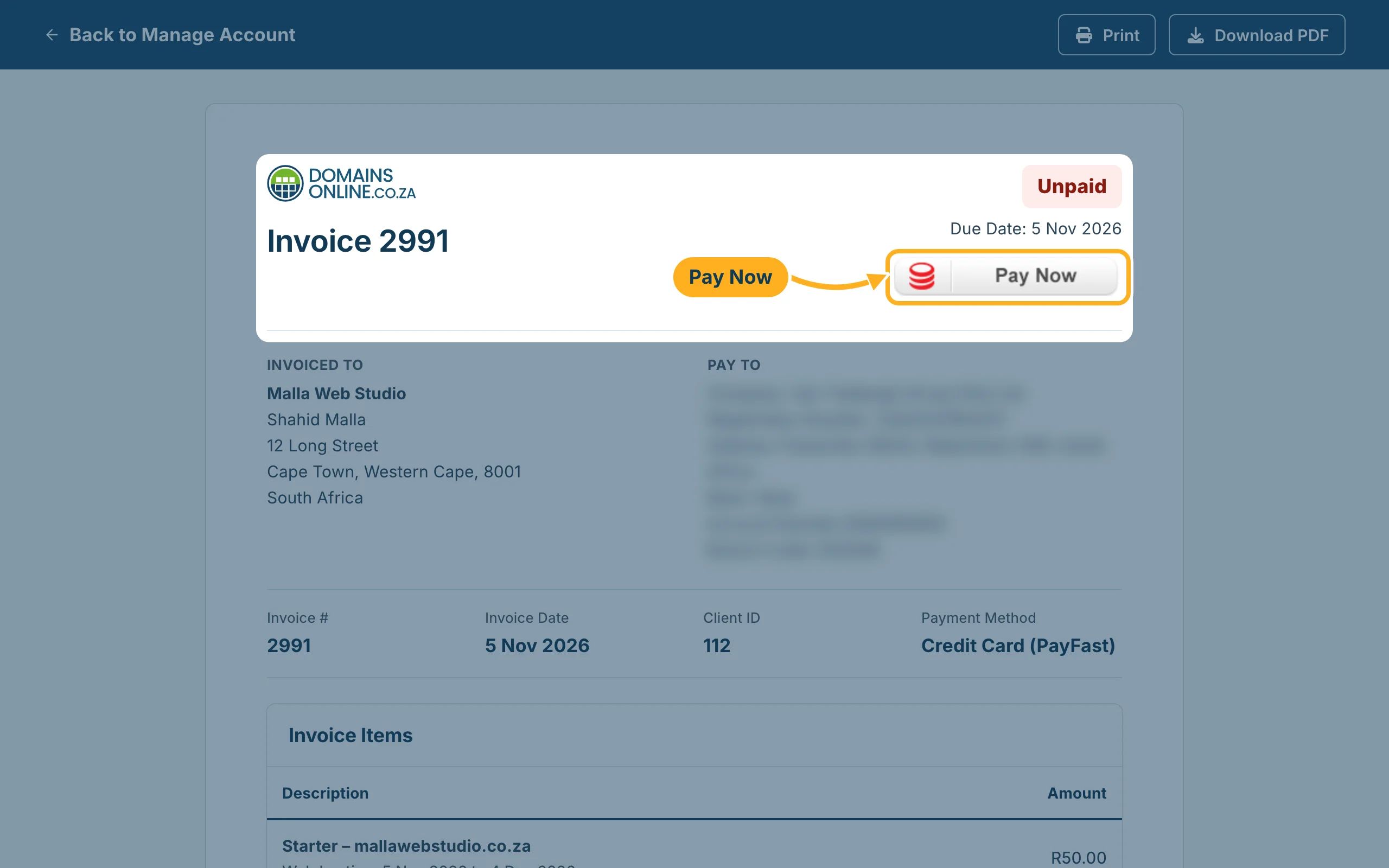
Check the invoice: the items, the Total and the Due Date. The Payment Method is Credit Card (PayFast). Then click Pay Now at the top right.
-
PayFast's payment page opens. Choose how you want to pay and follow the steps on PayFast's page.
-
When you have finished – or if you cancel – PayFast takes you back to the invoice. As soon as PayFast has confirmed the payment, the invoice shows Paid and the payment is listed under Payments.
Something not working?
- There is no Pay Now button: the invoice is already paid. Check its status at the top right.
- The payment didn't go through: the invoice stays Unpaid. Click Pay Now again and try once more, or choose another way to pay on PayFast's page.
- You paid, but the invoice still shows Unpaid: open a ticket in the Billing department and give the invoice number. Don't pay a second time.
Related articles
Need help? Open a ticket in the Billing department or call us on 082 412 6556.
