

For a larger or special order we can prepare a quote for you. You find your quotes in the client area under Billing. When you accept a quote, we send you the invoice.
Watch the video (59 s, with narration) – or follow the steps below.
Step by step
-
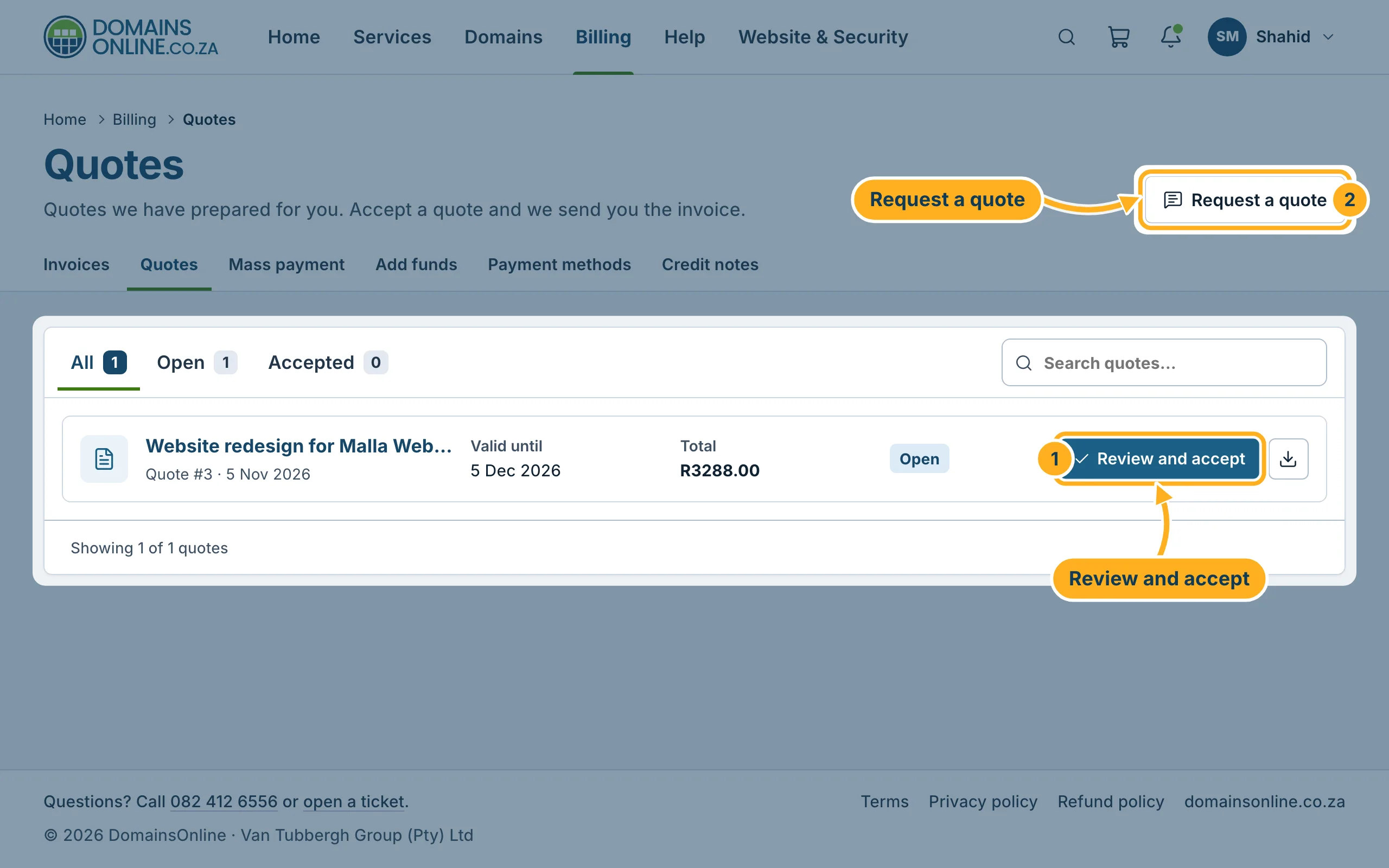
Sign in to the client area, click Billing in the top menu and then the tab Quotes. Each quote shows its title, number, date and how long it is valid.
- Click Review and accept to open a quote. The download symbol next to it saves the quote as a PDF.
- To ask for a new quote, click Request a quote. This opens the ticket form – choose the department Sales and describe what you need.
The tabs All, Open and Accepted filter the list.
-
Read the quote: the Quote Items with their amounts and the Total, the Date Created, the date it is Valid Until and our Notes. At the bottom you can Print it or Download PDF.
-
If you agree, click Accept Quote at the top right. A window asks you to tick I have read and agree to the Terms and to confirm with Accept Quote.
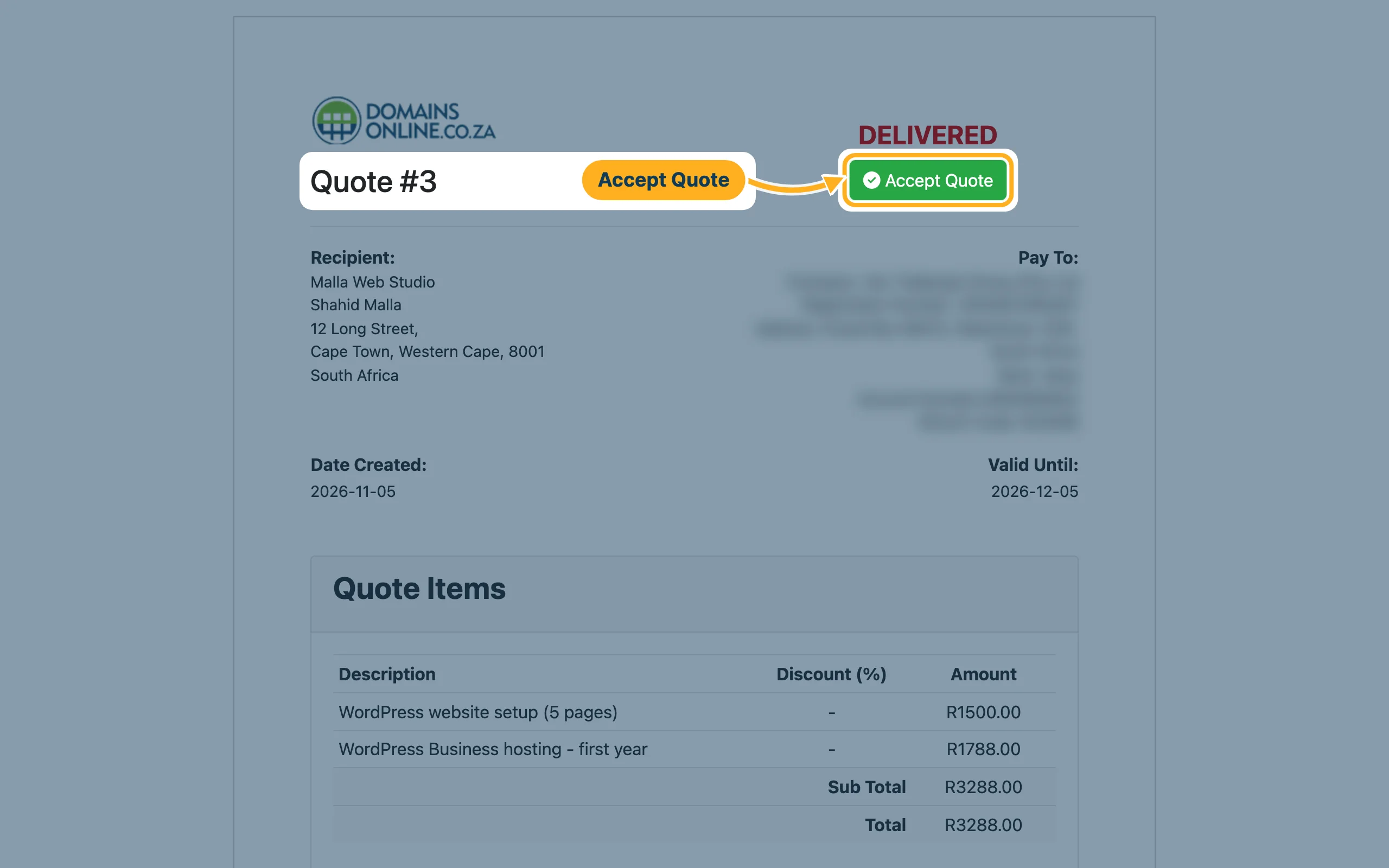
After you accept, we send you the invoice for the quote. Pay it like any other invoice – see Pay an invoice with PayFast.
Related articles
Questions about a quote? Open a ticket in the Sales department or call us on 082 412 6556.
