

The nameservers decide where your domain's DNS records are kept – and so where its website and e-mail point. Use our nameservers when your website or e-mail is hosted with us. Use another provider's nameservers when they are hosted there.

Watch the video (1 min 31 s, with narration) – or follow the steps below.
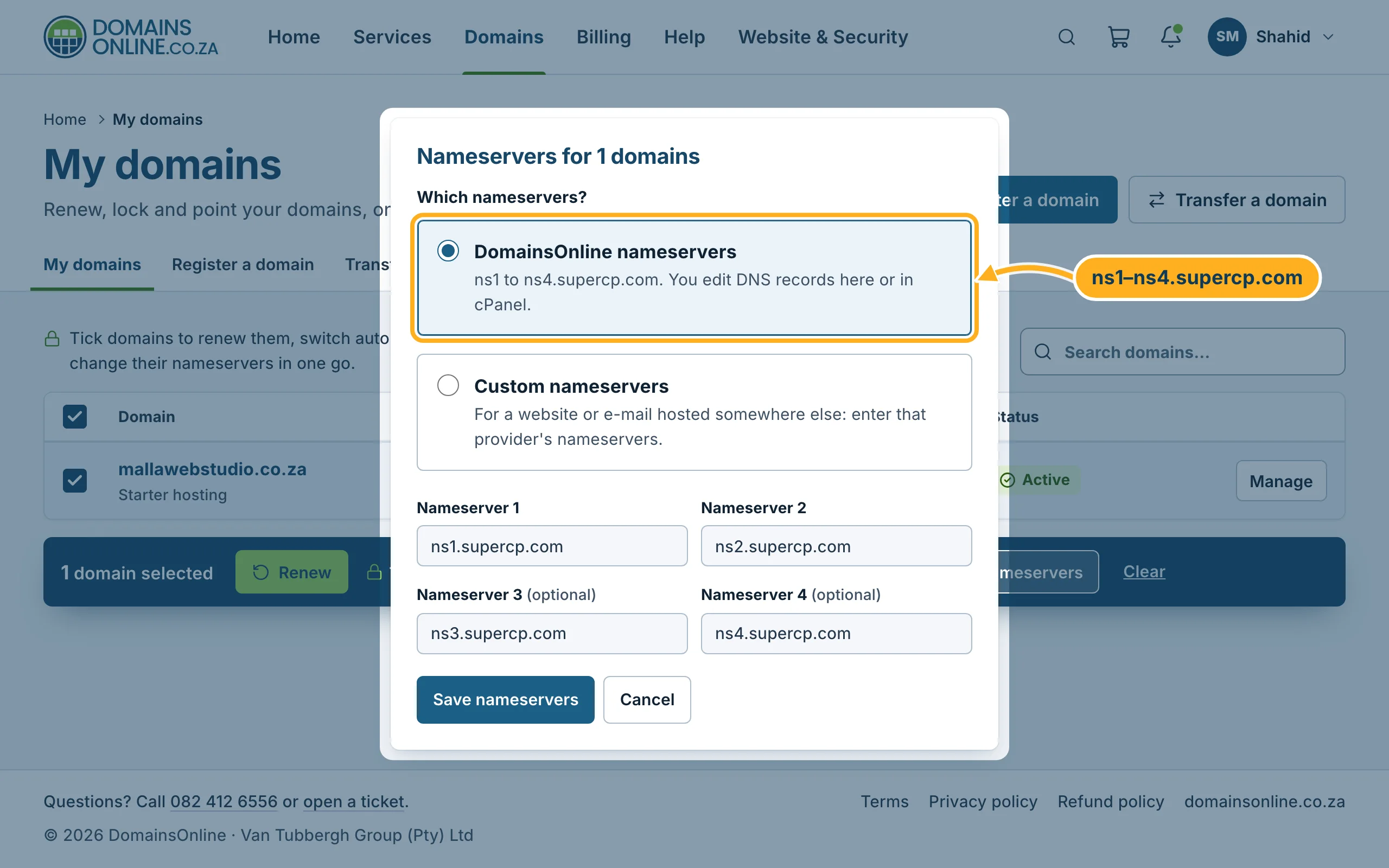
Our nameservers: ns1.supercp.com, ns2.supercp.com, ns3.supercp.com and ns4.supercp.com.
Before you switch to another provider: make sure that provider already has the records your website and e-mail need. Otherwise they stop working until the records are set up there.
Step by step
-
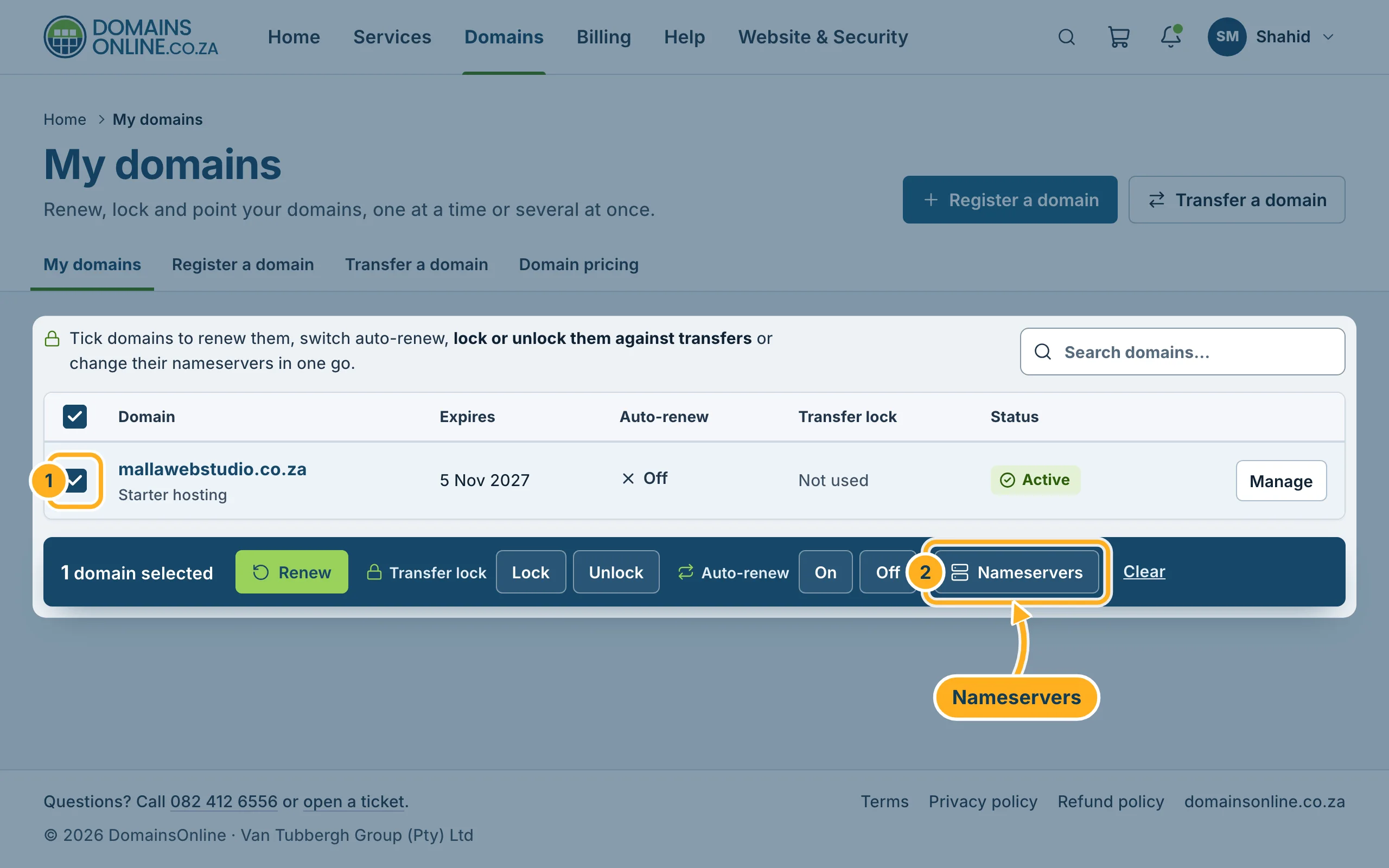
Click Domains in the menu at the top.
- Tick the box in front of the domain. You can tick several domains to give them all the same nameservers.
- Click Nameservers in the bar that appears below the list.
-
The window Nameservers for … opens. Under Which nameservers?, choose:
- DomainsOnline nameservers – for a website or e-mail hosted with us. The four fields below fill in ns1 to ns4.supercp.com for you.
- Custom nameservers – for a website or e-mail hosted somewhere else.
-
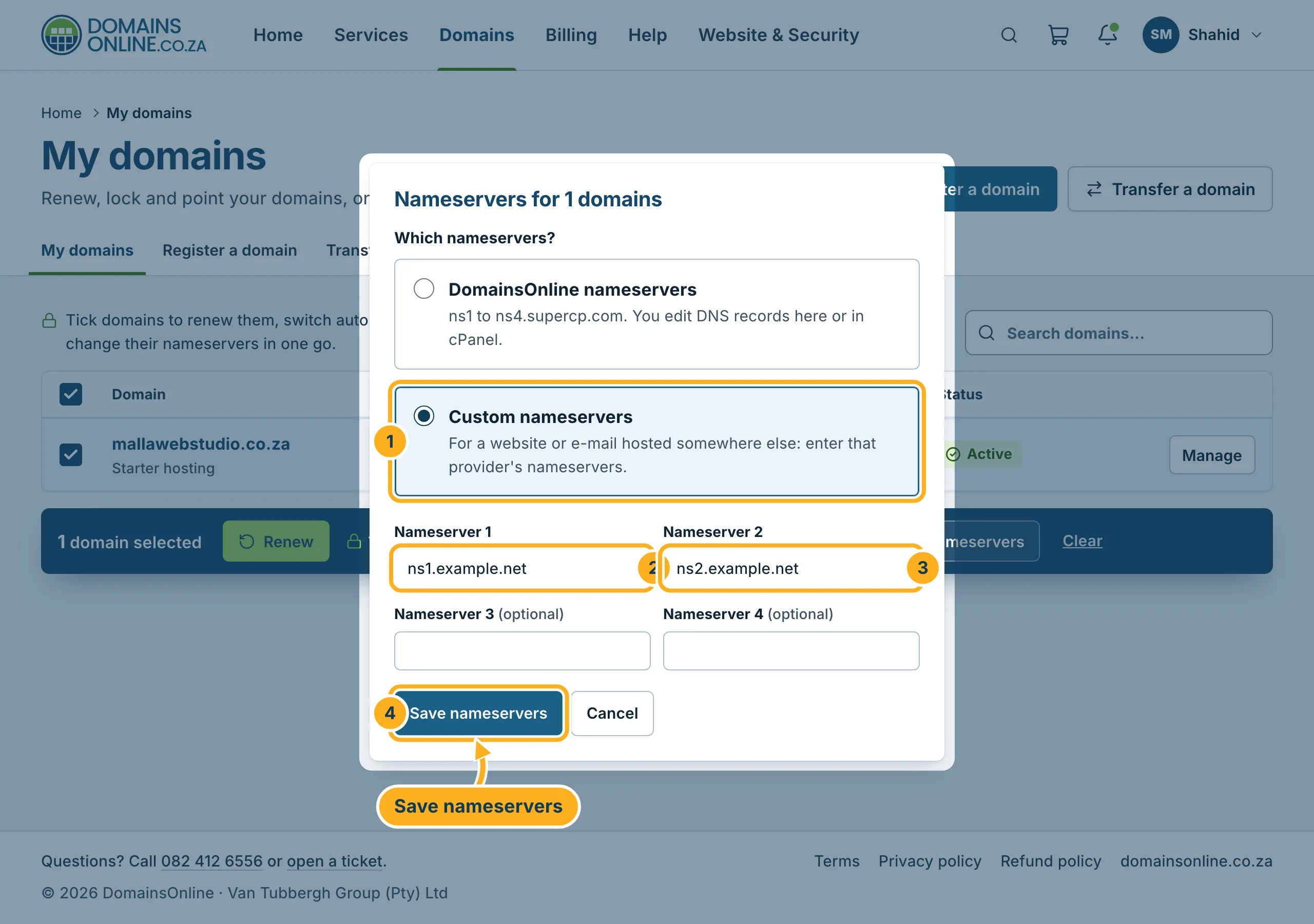
For other nameservers:
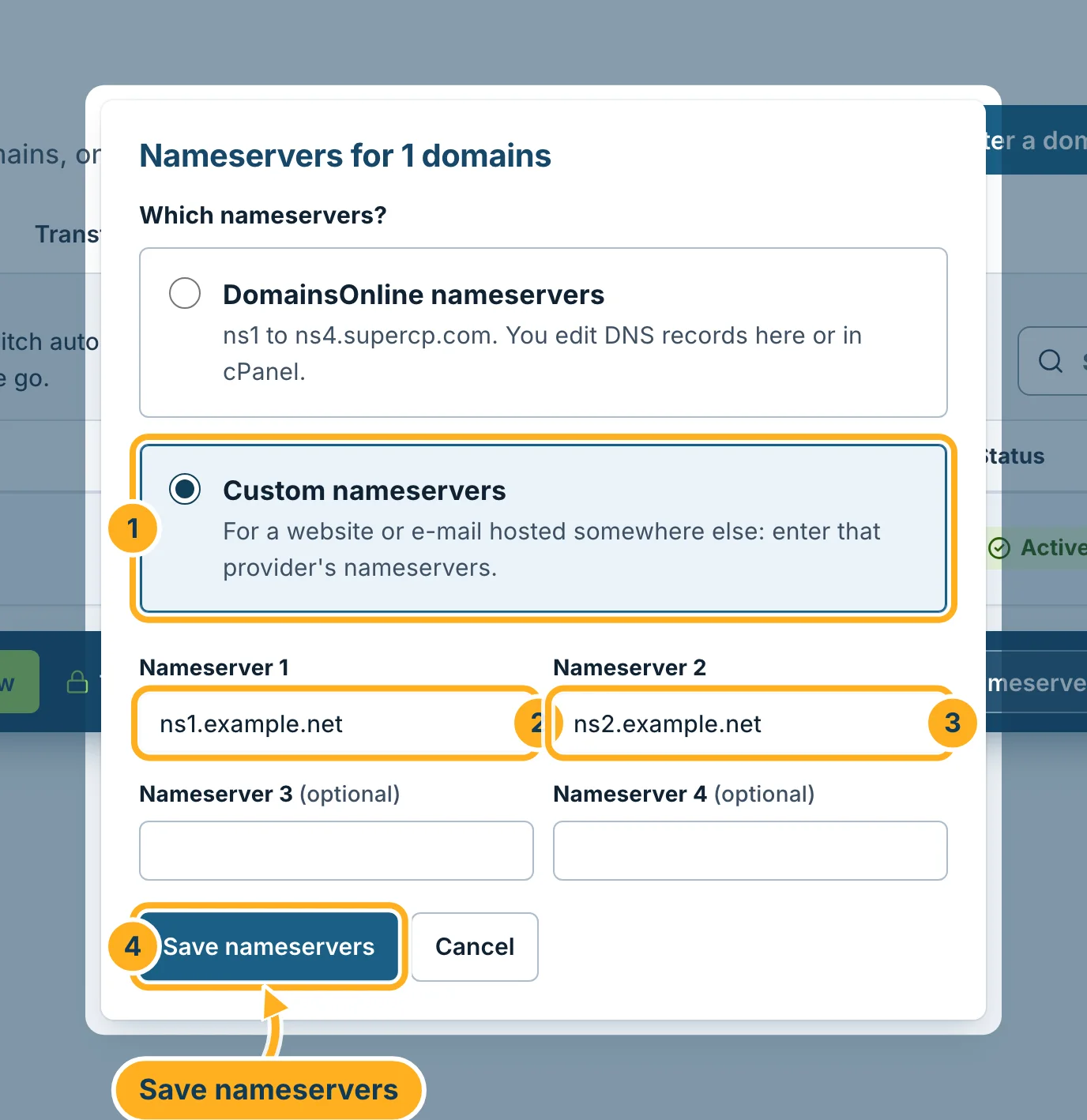
- Choose Custom nameservers.
- Type the first nameserver your provider gave you into Nameserver 1.
- Type the second one into Nameserver 2. Nameserver 3 and Nameserver 4 are optional – fill them in if your provider gave you more.
- Click Save nameservers. To leave without changes, click Cancel.
The domain's page then shows Custom next to Nameservers when the domain uses another provider's nameservers. A new nameserver setting takes a while to reach every network – see Why isn't my domain working yet? (DNS propagation).
Something not working?
- An error message after saving: check the spelling of each nameserver against what your provider sent you – no
http://, no spaces. If it still fails, open a ticket and copy the message into it. - Website or e-mail stopped working after the change: the new provider is missing records. Add them there, or switch back to the DomainsOnline nameservers.
Related articles
- Use a domain you have with another provider
- Edit DNS records (A, CNAME, MX, TXT)
- Why isn't my domain working yet? (DNS propagation)
Need help? Open a ticket or call us on 082 412 6556.
