

Updates close security holes. Out-of-date WordPress sites, plugins and themes are the most common way into a website, so keep them current. You can check and update in Softaculous or in the WordPress dashboard.
Watch the video (1 min 21 s, with narration) – or follow the steps below.
In Softaculous
-
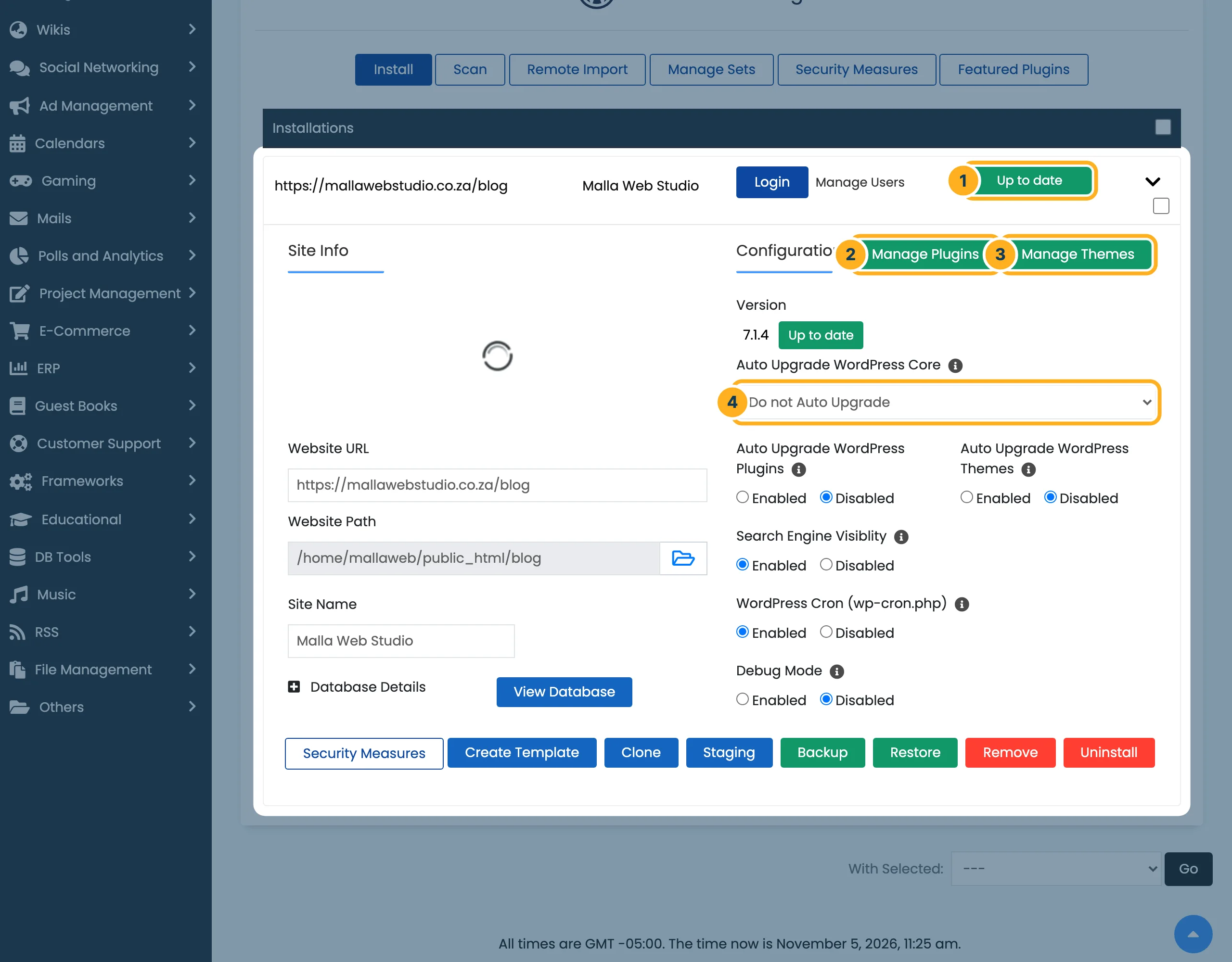
In cPanel, click WordPress Manager by Softaculous under Software (see Log in to your WordPress dashboard). Click the arrow at the right of your site to open its details.
-
Check the version and choose how updates are made:
- The status next to your site: Up to date means that WordPress itself is on the newest version.
- Manage Plugins – lists the plugins of the site.
- Manage Themes – lists the themes of the site.
- Auto Upgrade WordPress Core – choose whether Softaculous updates WordPress itself: Do not Auto Upgrade, Upgrade to Minor versions only (security and bug fixes) or Upgrade to latest version available (Major as well as Minor). Below it, Auto Upgrade WordPress Plugins and Auto Upgrade WordPress Themes can be set to Enabled or Disabled.
In the WordPress dashboard
-
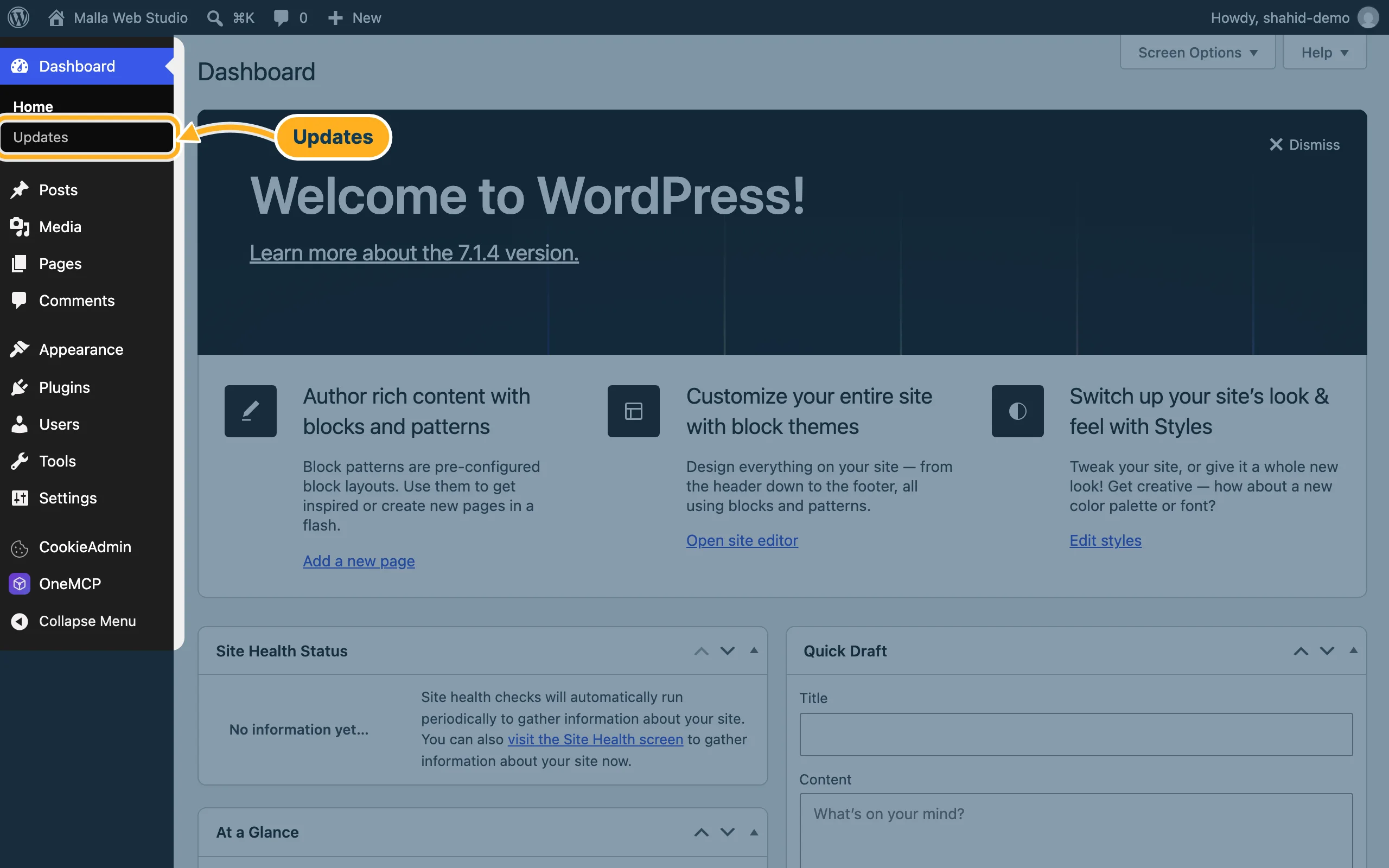
Open the dashboard (see Log in to your WordPress dashboard) and click Updates under Dashboard in the menu on the left. WordPress shows there whether new versions of WordPress, your plugins or your themes are available, and you can install them from that page.
-
After updating, open your site and check the most important pages, for example the home page and the contact form.
Something not working?
- The site shows an error after an update: see WordPress is slow or shows an error – first aid, or restore the backup you made before.
- A plugin has had no updates for a long time: it may no longer be maintained. Look for a maintained plugin that does the same job, and delete the old one.
Related articles
- Back up and restore WordPress with Softaculous
- WordPress is slow or shows an error – first aid
- Scan your site for malware (Imunify360)
Need help? Open a ticket or call us on 082 412 6556.
