

To read and send your mail in an app on your computer or phone, the app needs a few server settings. cPanel shows them for every mailbox on the Connect Devices page.
Watch the video (1 min 26 s, with narration) – or follow the steps below.
The settings at a glance
- Username: your full e-mail address, for example info@mallawebstudio.co.za
- Password: the password of the mailbox (not your client area or cPanel password)
- Incoming server: sg1-sr6.supercp.com – IMAP port 993, or POP3 port 995, with SSL/TLS
- Outgoing server: sg1-sr6.supercp.com – SMTP port 465, with SSL/TLS
- Sign-in: IMAP, POP3 and SMTP all require authentication – use the same username and password for incoming and outgoing mail.
Always check your own Connect Devices page as described below: if it shows a different server name, use that one.
Find the settings in cPanel
-
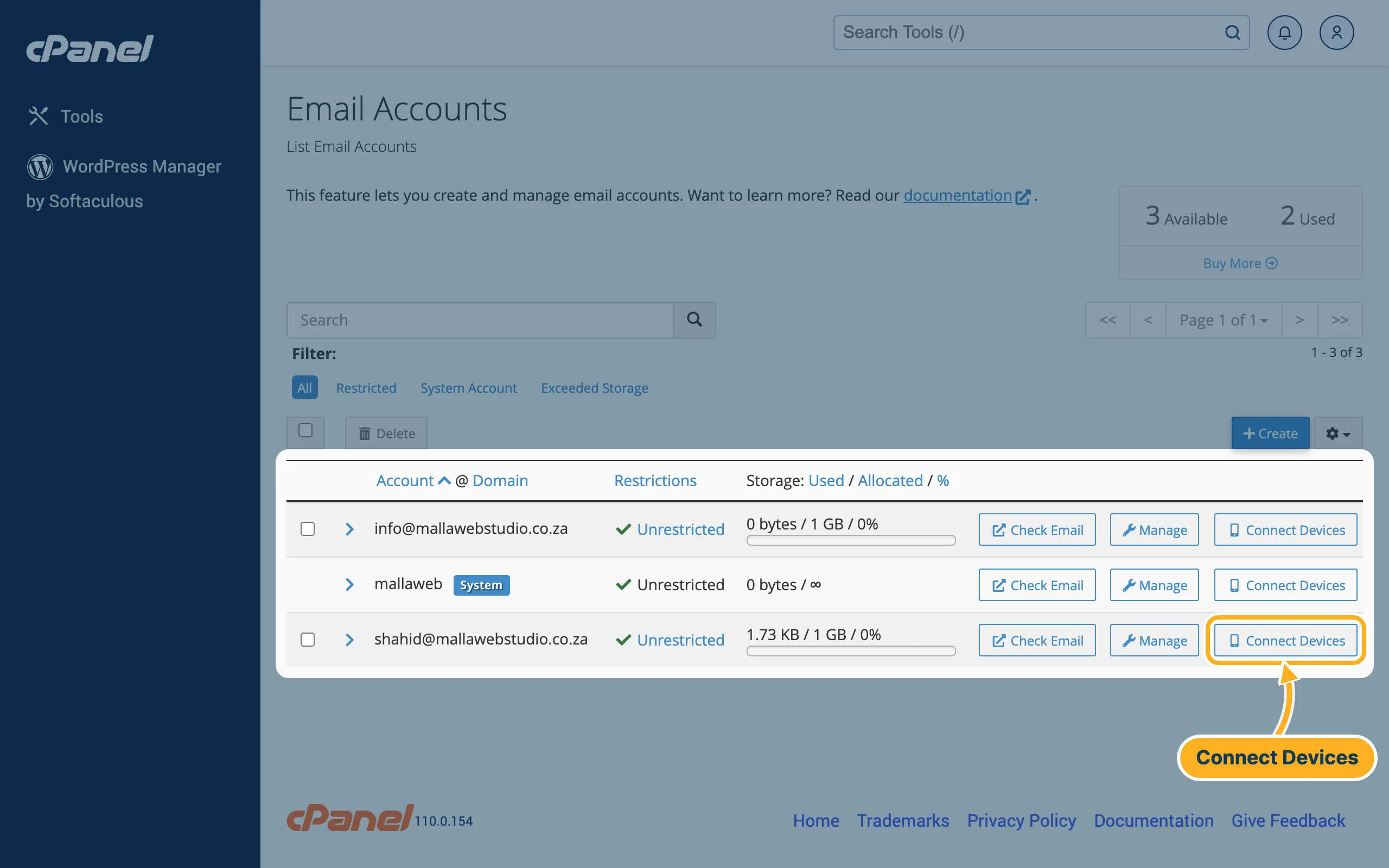
Log in to cPanel (see Log in to cPanel from the client area) and click Email Accounts in the Email section. Next to the mailbox you want to set up, click Connect Devices.
-
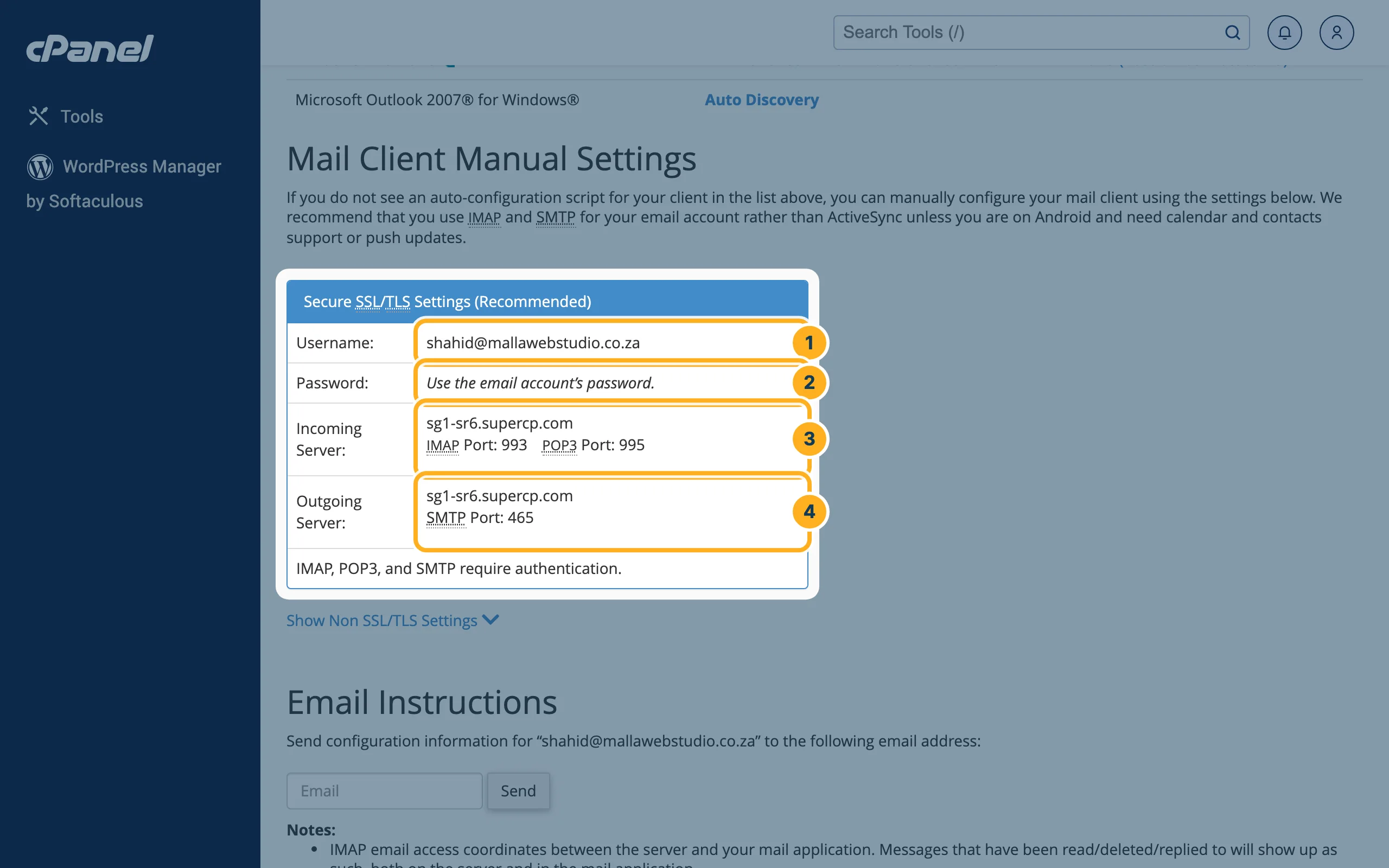
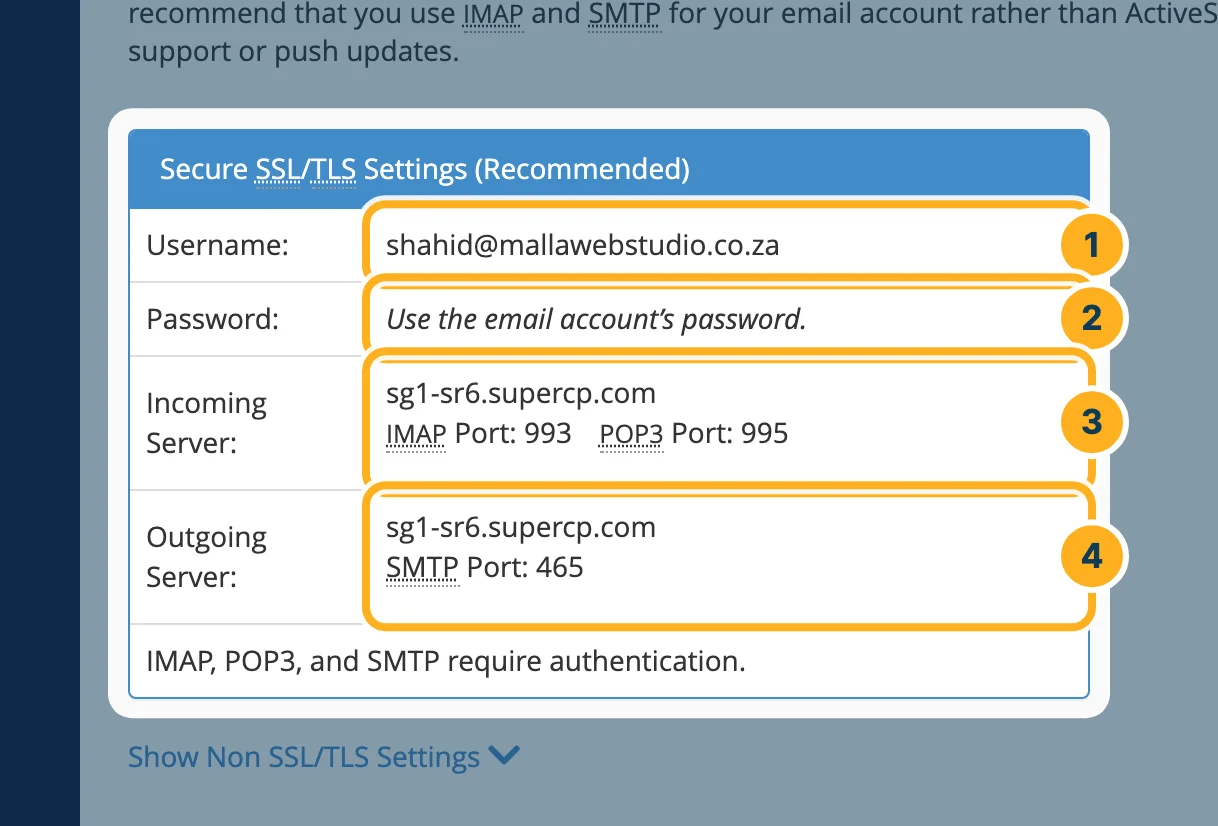
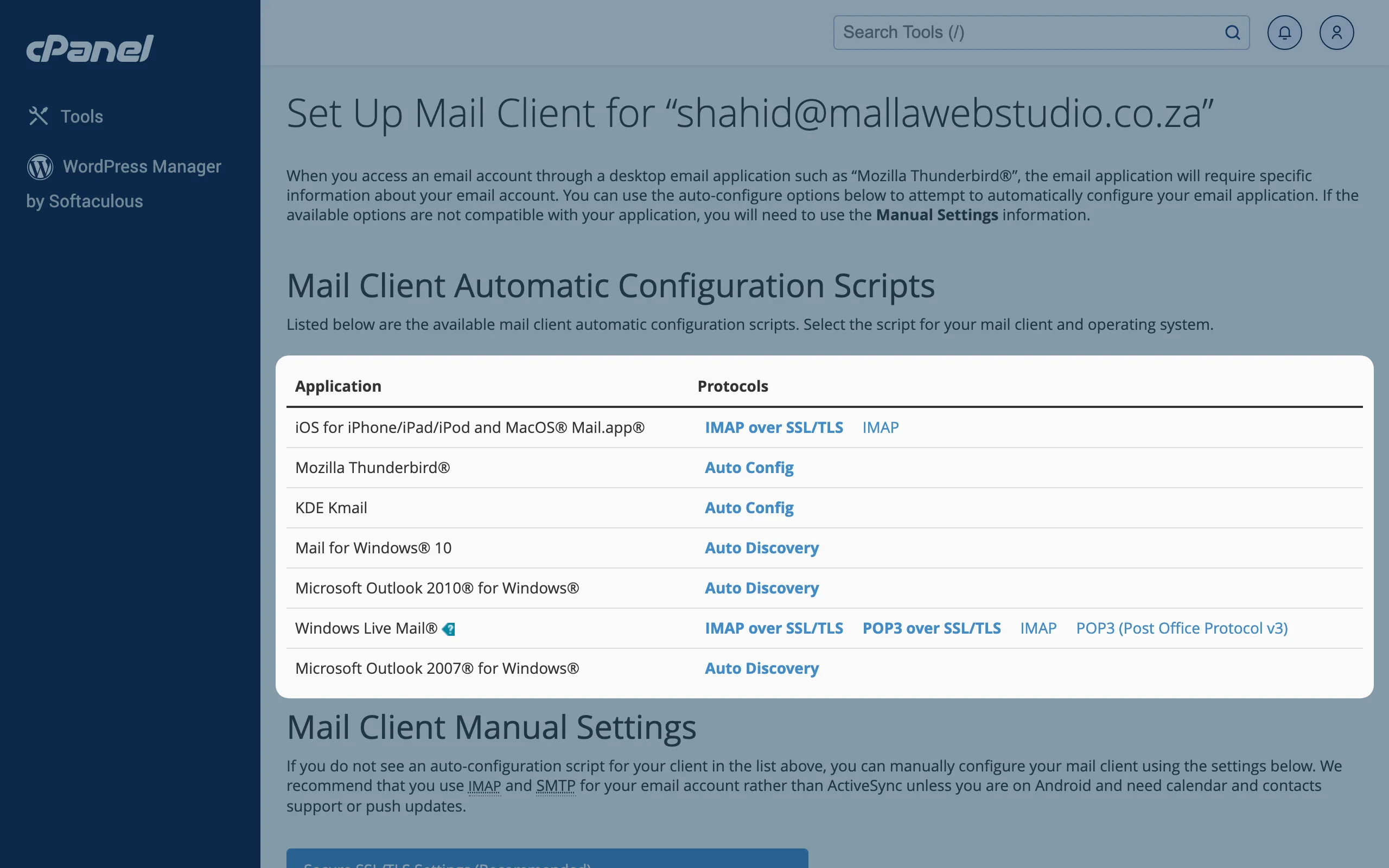
The page Set Up Mail Client opens. Under Mail Client Manual Settings, the box Secure SSL/TLS Settings (Recommended) shows:
- Username – the full e-mail address.
- Password – "Use the email account's password."
- Incoming Server – the server name with the IMAP and POP3 ports.
- Outgoing Server – the server name with the SMTP port.
IMAP or POP3?
- IMAP (recommended): the mail stays on the server. What you read, delete or move on one device shows the same way on all others and in webmail.
- POP3: the app downloads the mail and doesn't sync anything back. Messages you read in the app still show as unread on the server and on your other devices.
cPanel also lists Non-SSL settings under Show Non SSL/TLS Settings. They are marked "NOT Recommended" – don't use them, because your password and mail would travel unencrypted.
Automatic set-up files
At the top of the same page, under Mail Client Automatic Configuration Scripts, cPanel offers set-up files for some mail apps, for example iOS for iPhone/iPad/iPod and MacOS® Mail.app® and Mozilla Thunderbird®. You can use them instead of typing the settings. If your app isn't in the list, use the manual settings above.
Step-by-step guides for your device
Something not working?
- The app says the password is wrong: check that the username is the full e-mail address. If you're not sure about the password, set a new one – see Change a mailbox password.
- You can receive but not send: check that the outgoing server uses port 465 with SSL/TLS and that sign-in is switched on for it.
- You don't know your mailbox yet: see Create an e-mail account. You can also read your mail in the browser without any set-up – see Read your mail in webmail.
Related articles
Need help? Open a ticket or call us on 082 412 6556.
