

Set a new password for one of your e-mail addresses, for example when someone forgot it or when it may have been seen by others. You do this in cPanel – you don't need the old password.
Watch the video (1 min 5 s, with narration) – or follow the steps below.
Step by step
-
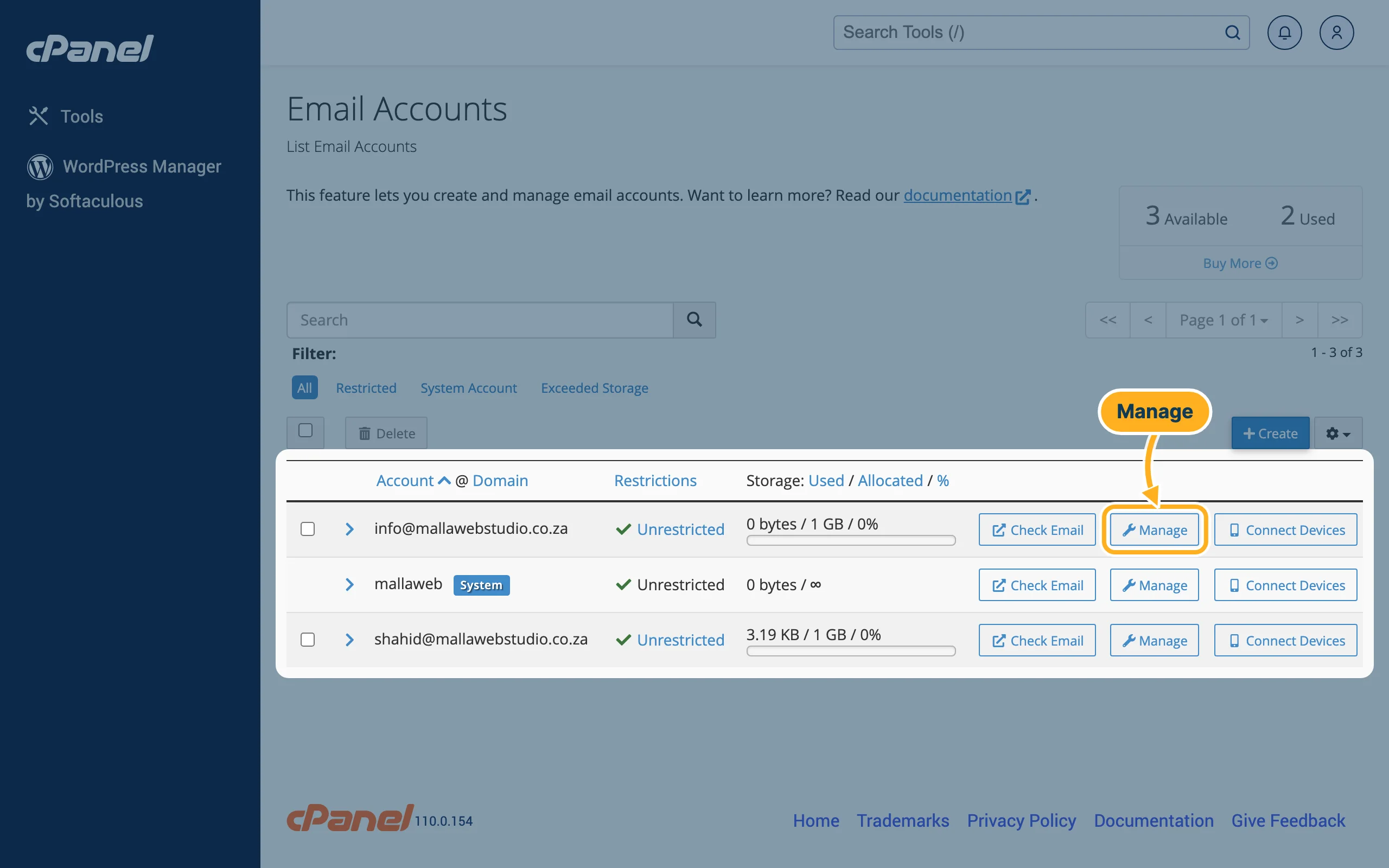
Log in to cPanel (see Log in to cPanel from the client area) and click Email Accounts in the Email section. Next to the mailbox, click Manage.
-
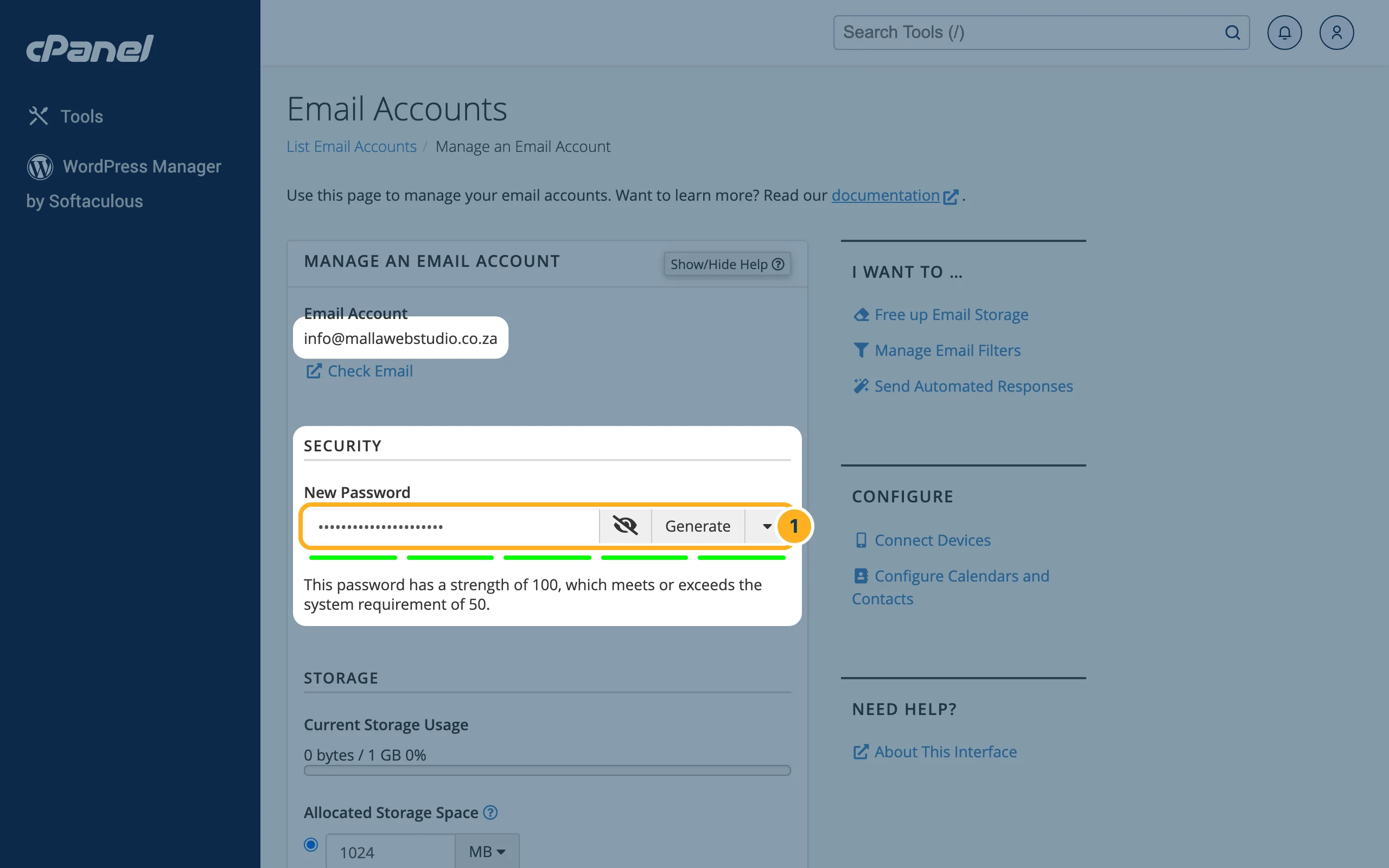
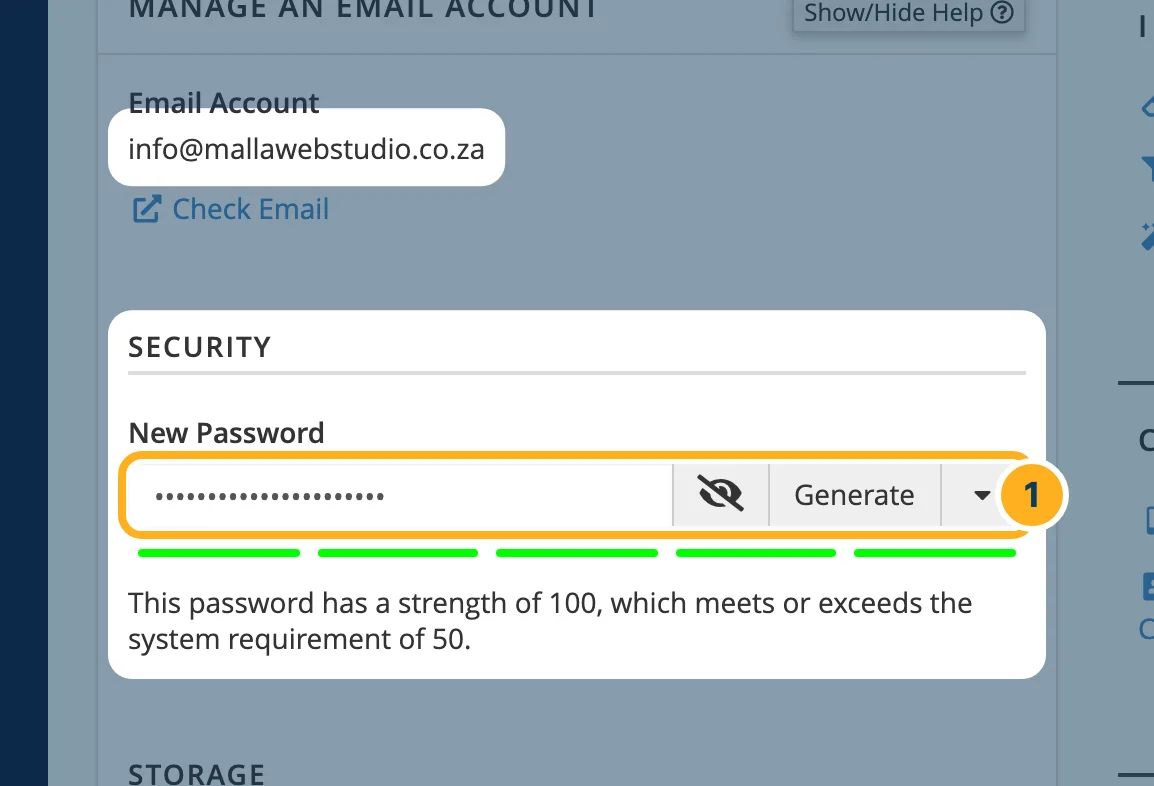
The page Manage an Email Account opens and shows the address at the top. Under Security:
- Type the new password in New Password, or click Generate to have a strong password made for you. Click the eye symbol to see it and note it down.
Below the field, cPanel shows whether the password is strong enough.
-
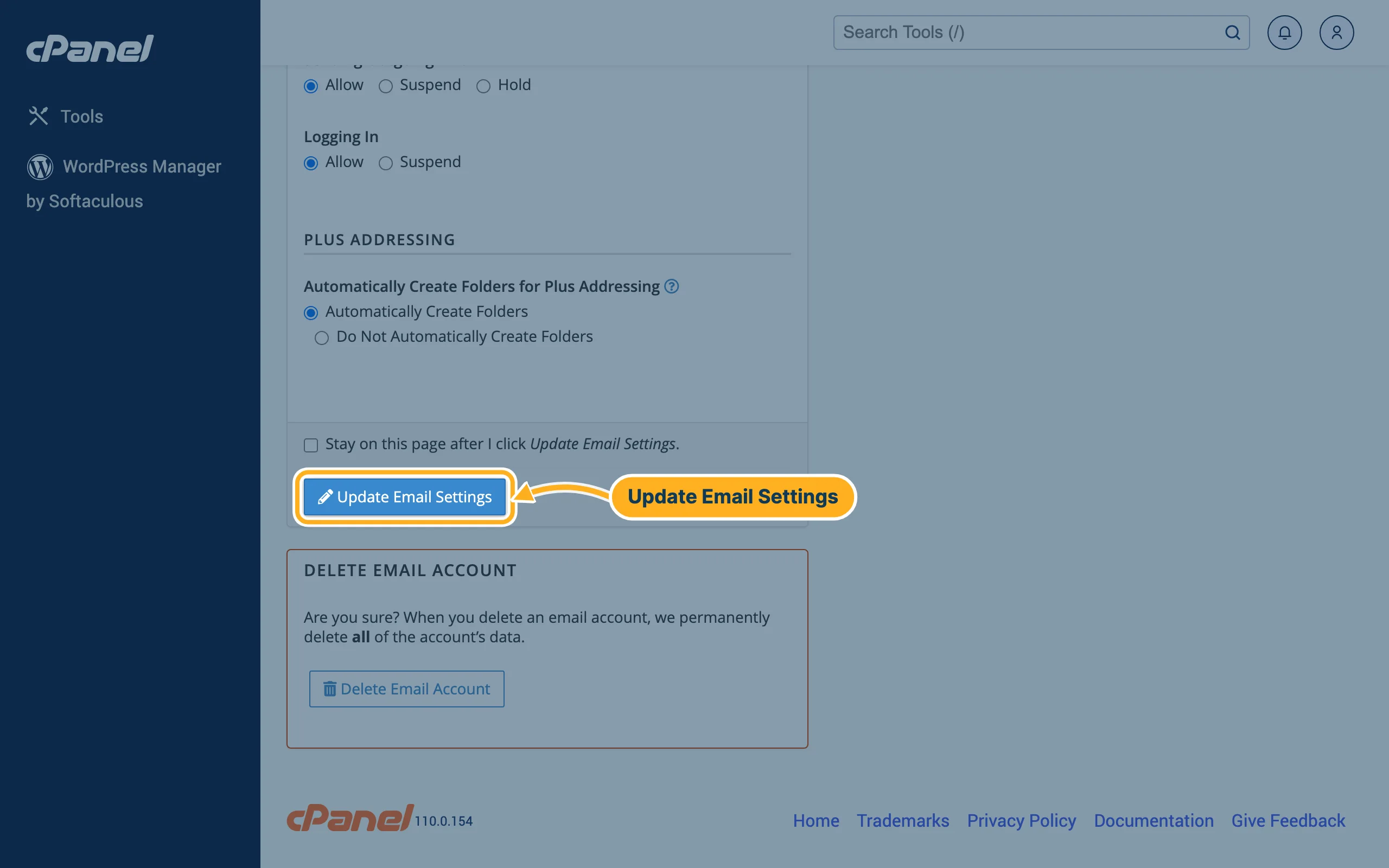
Scroll down and click Update Email Settings.
Change your own password in webmail
If you only have the mailbox and no cPanel access, sign in to webmail with the mailbox (see Read your mail in webmail). On the webmail start page, under Edit Your Settings, click Password & Security to set a new password.
Something not working?
- The new password is not accepted: it isn't strong enough. Make it longer, or click Generate. See Strong passwords.
- Your phone still asks for the password: open the mail account on the phone and enter the new password there – see Set up e-mail on an iPhone or iPad or Set up e-mail on Android.
Related articles
Need help? Open a ticket or call us on 082 412 6556.
