

An autoresponder answers incoming e-mails automatically, for example while you are on leave. You set the text, how often a sender gets the reply, and when it starts and stops.
Watch the video (1 min 42 s, with narration) – or follow the steps below.
Step by step
-
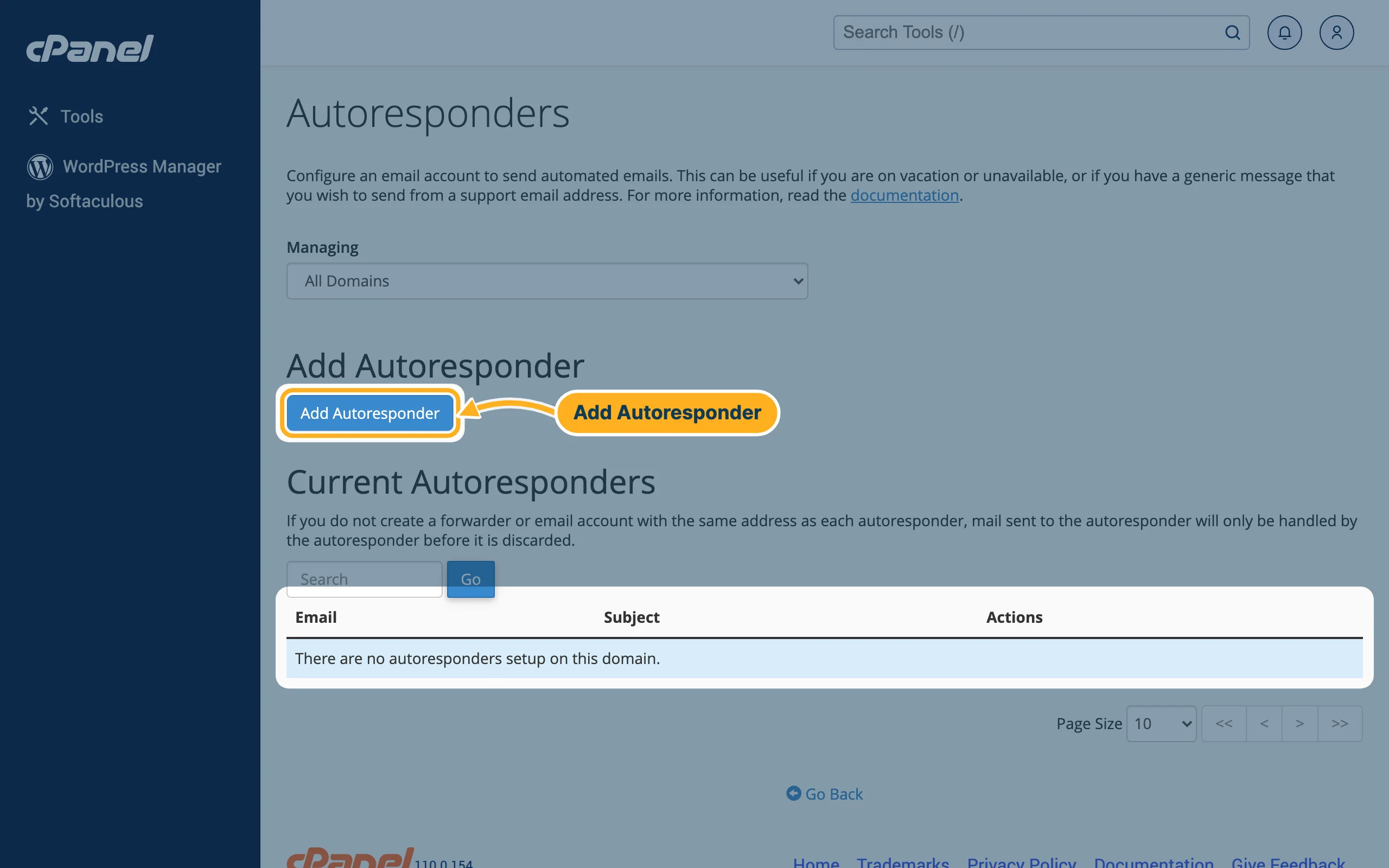
Log in to cPanel (see Log in to cPanel from the client area) and click Autoresponders in the Email section. Click Add Autoresponder.
-
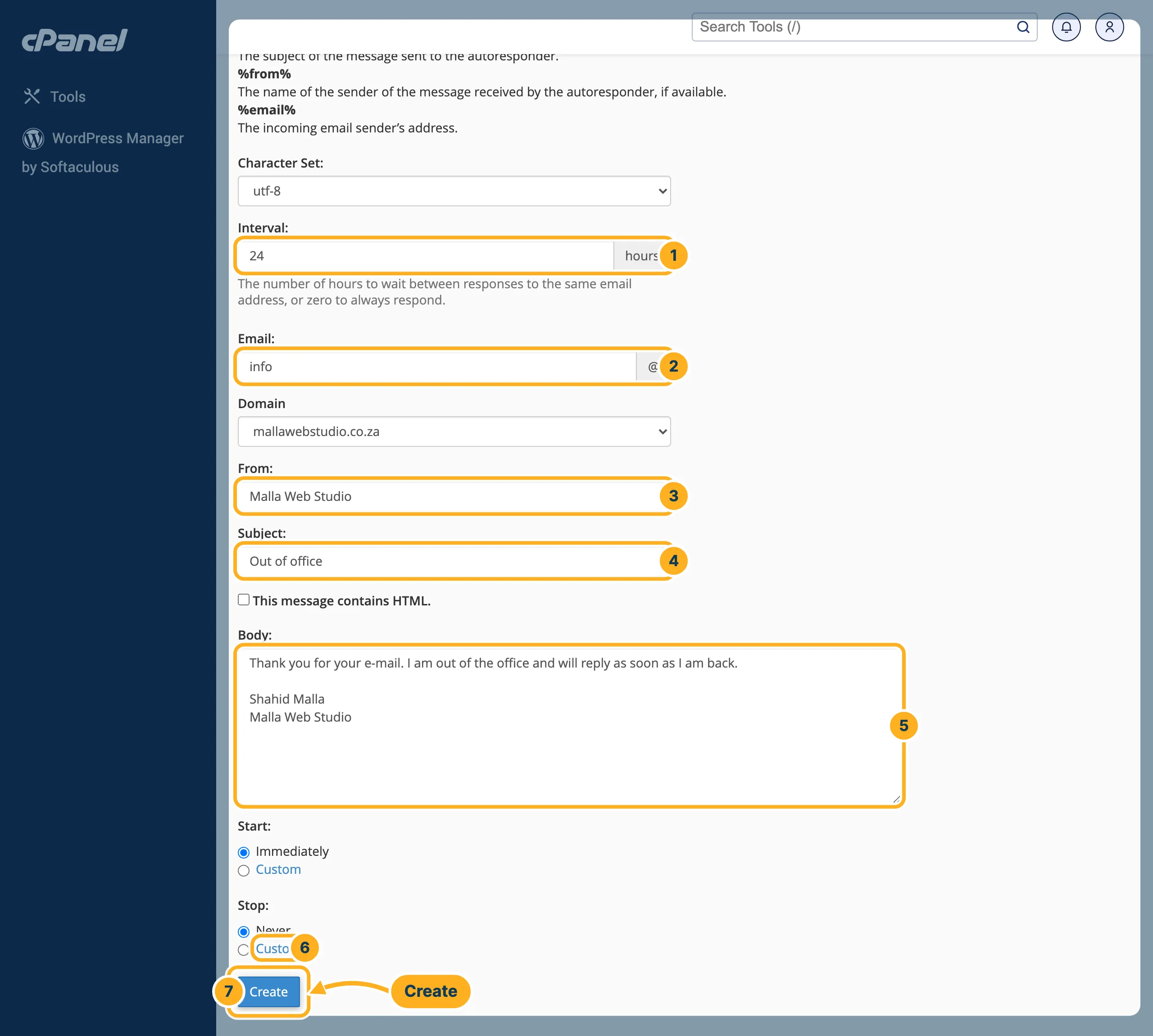
Fill in the form Add Autoresponder. Leave Character Set on utf-8.
- Interval – after how many hours the same sender may get the reply again, for example 24. With 0, every e-mail gets a reply.
- Email – the part before the @ of the address that should answer, for example info. Choose the Domain below it.
- From – the name the reply comes from, for example your company name.
- Subject – for example "Out of office".
- Body – your message, for example "Thank you for your e-mail. I am out of the office and will reply as soon as I am back." You can use %subject%, %from% and %email% to insert the subject, name or address of the incoming e-mail.
- Start and Stop – leave Start on Immediately, and under Stop choose Custom to pick the day you are back. Then the autoresponder ends by itself.
- Click Create.
The autoresponder now appears under Current Autoresponders. To change or remove it before its stop date, open Autoresponders again and use the actions in its row.
Set it up from webmail
If you only have the mailbox and no cPanel access, sign in to webmail (see Read your mail in webmail). On the webmail start page, under Manage Your Inbox, click Autoresponders.
Something not working?
- Mail to the address disappears: the address has no mailbox or forwarder. Create one – see Create an e-mail account or Forward e-mail to another address.
- Senders get the reply again and again: set a larger Interval, for example 24 hours.
- The reply is still sent after you are back: set a Stop date next time, or remove the autoresponder under Current Autoresponders.
Related articles
Need help? Open a ticket or call us on 082 412 6556.
