

After you sign in, the client area opens on its home page. It shows what you have with us, what needs your attention and the quickest way to the things you do most often.
Watch the video (1 min 26 s, with narration) – or follow the steps below.
The top of the home page
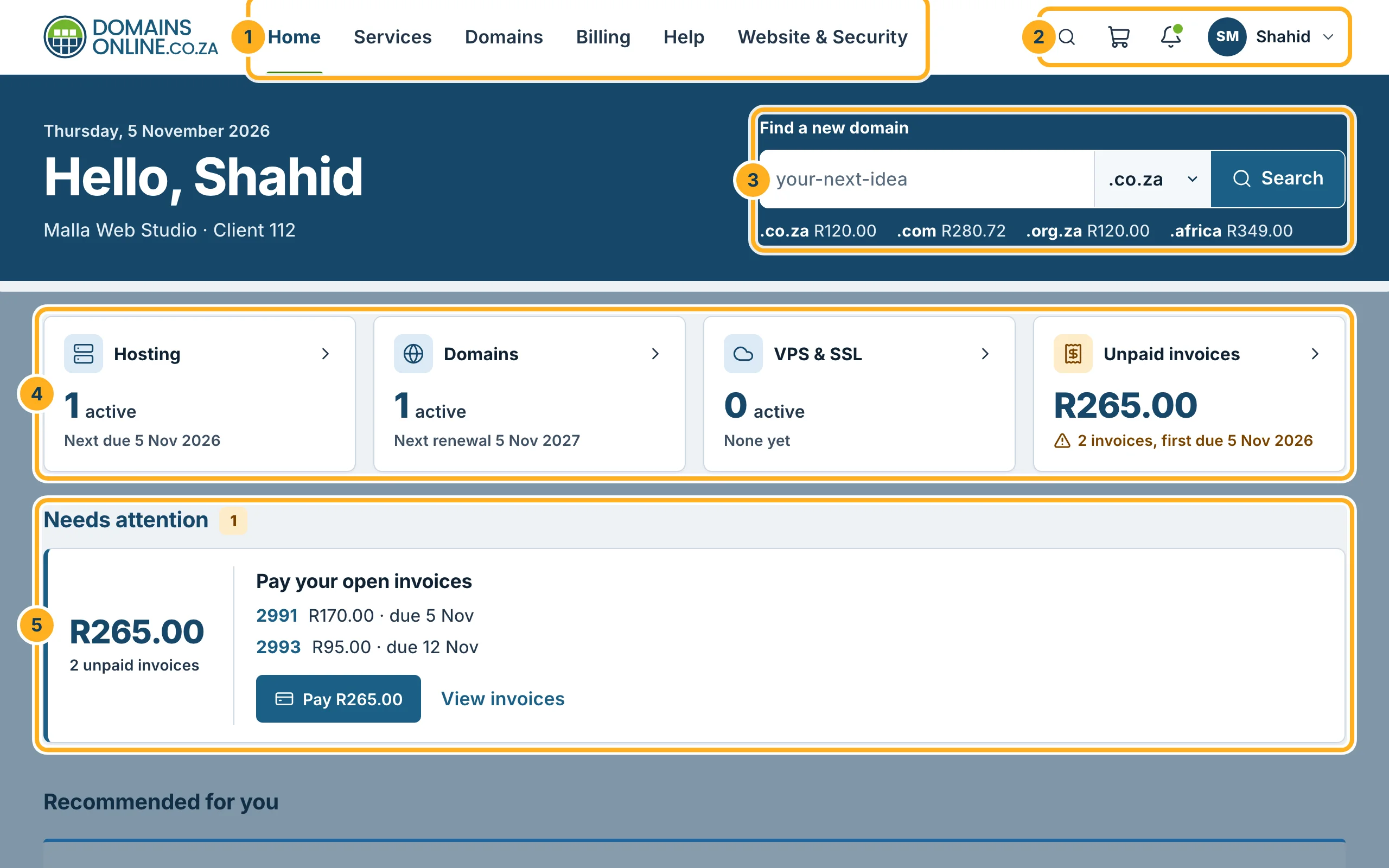
- The menu – Home, Services (your hosting), Domains, Billing (invoices) and Help (your support tickets).
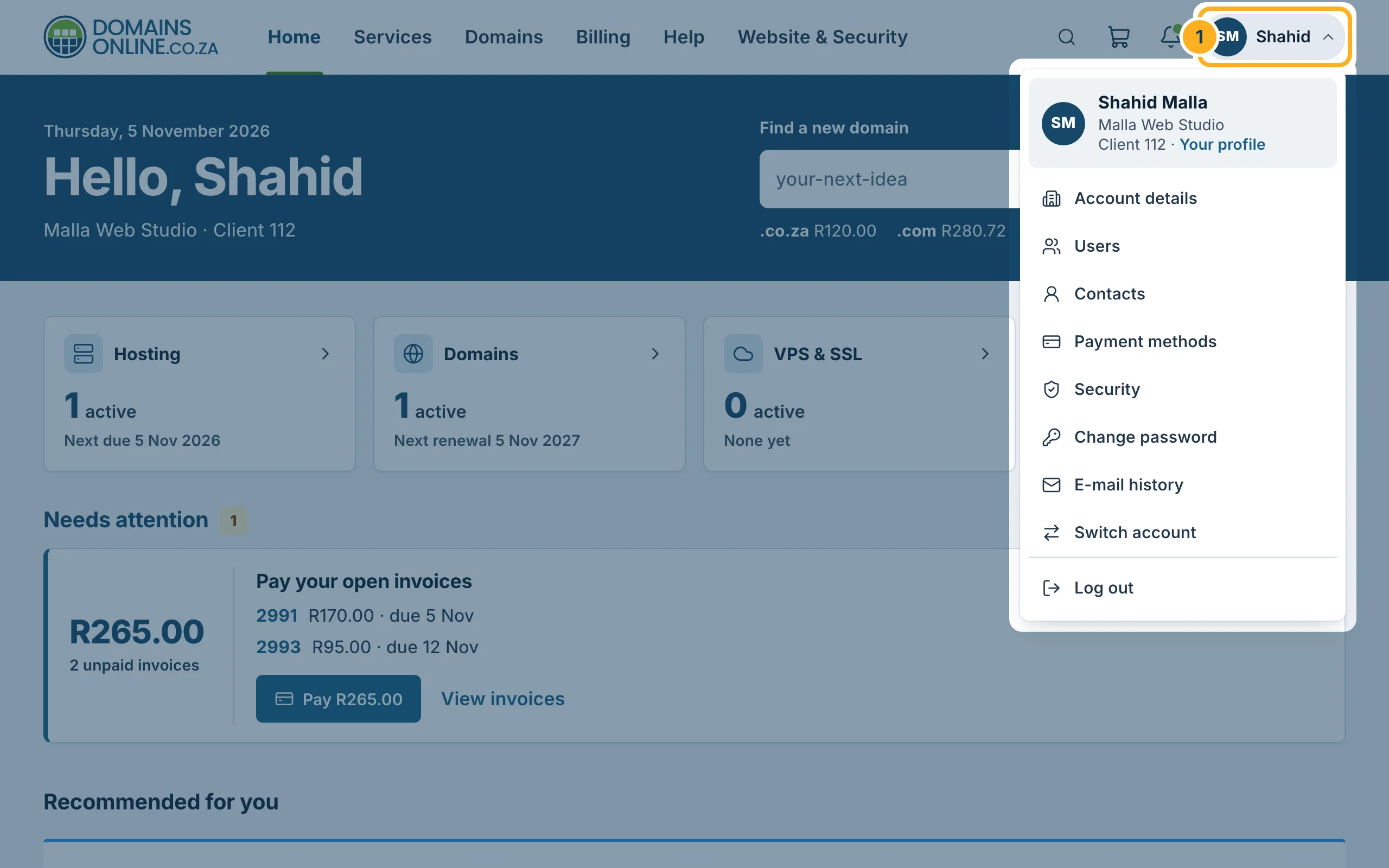
- Search, cart, notifications and your account – the magnifying glass opens the search (see below), the trolley shows your shopping cart, the bell your notifications. Your initials and name open the account menu.
- Find a new domain – type a name, choose the ending and click Search. The prices of the most common endings are shown below the box.
- The tiles – Hosting, Domains, VPS & SSL and Unpaid invoices show how many you have and the next due or renewal date. Click a tile to open the full list.
- Needs attention – things you should do, for example an unpaid invoice with a button to pay it straight away.
Further down: your services, domains and shortcuts
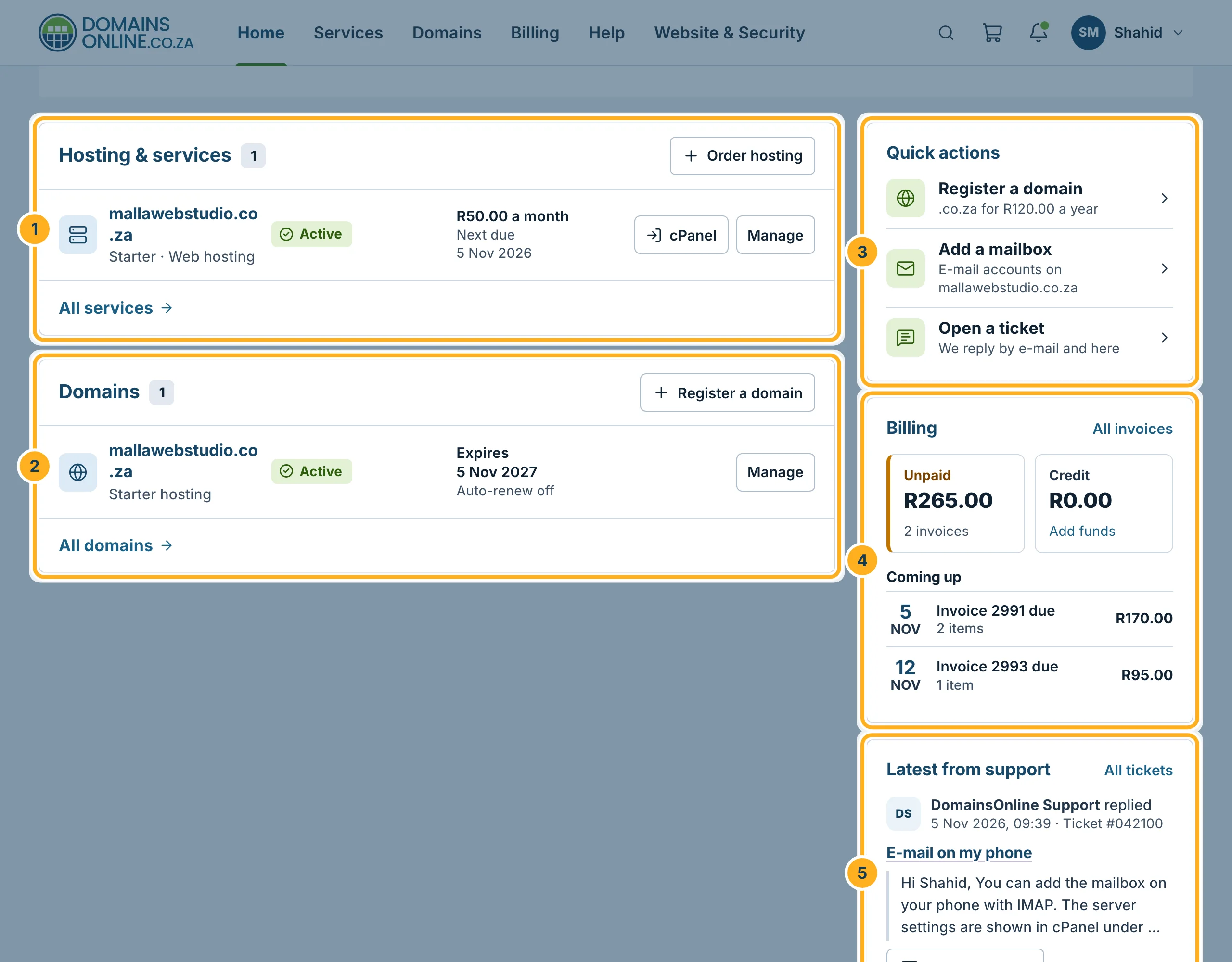
- Hosting & services – each hosting service with its status, price and next due date. cPanel opens cPanel in a new tab, Manage opens the service page.
- Domains – each domain with its expiry date and whether it renews automatically. Manage opens the domain's settings.
- Quick actions – Register a domain, Add a mailbox and Open a ticket.
- Billing – what is unpaid and which invoices are coming up. All invoices opens the list.
- Latest from support – the newest reply to your tickets, with the button Read and reply.
Between Needs attention and these lists you may see offers under Recommended for you.
Search the client area
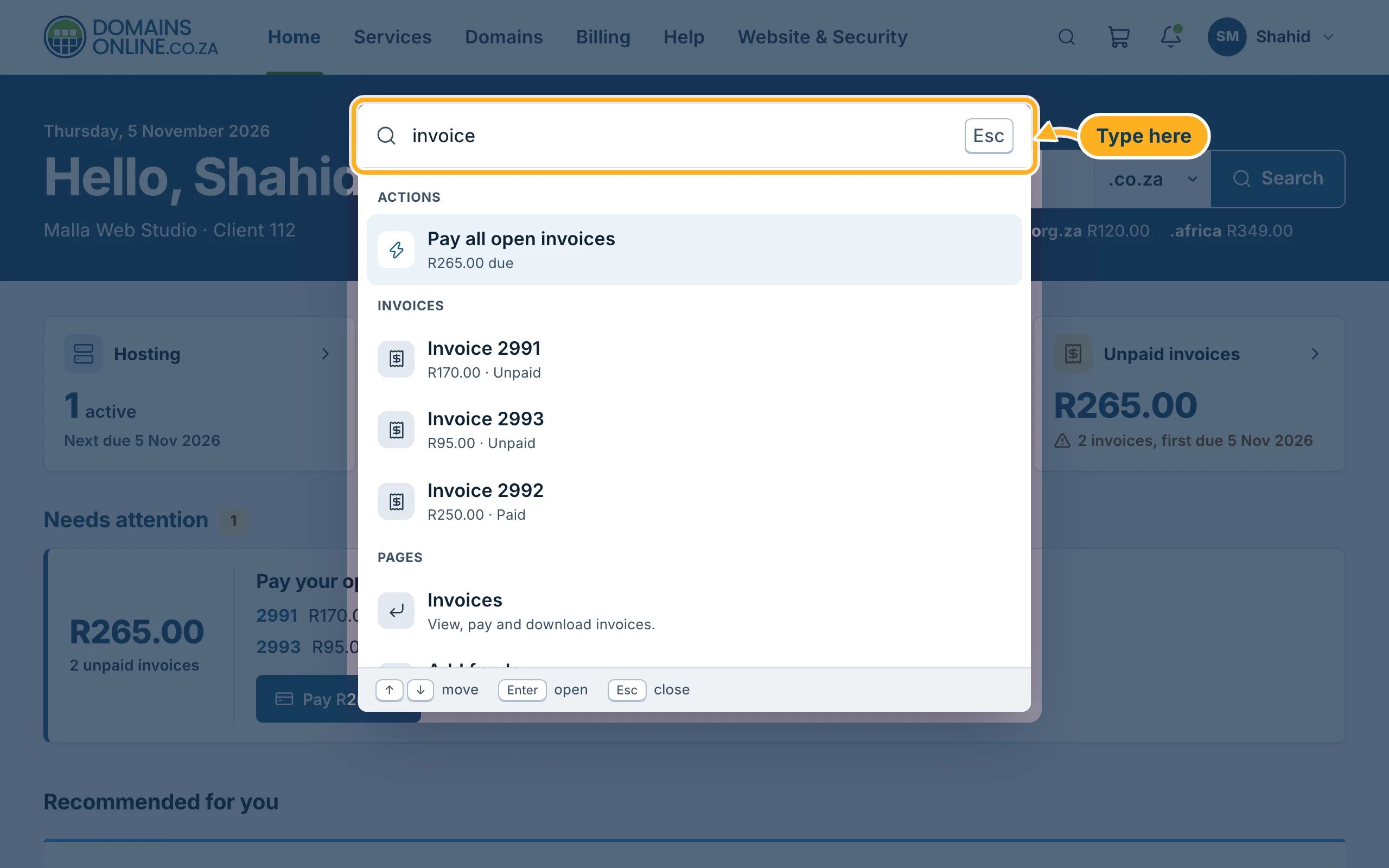
Click the magnifying glass at the top, or press Ctrl + K (on a Mac ⌘ + K). Type a few letters – for example a domain name, an invoice number or a word like “invoice”. Move through the results with the arrow keys and press Enter to open one. Esc closes the search.
The account menu
Click your initials and name at the top right. The menu leads to your Account details, Users, Contacts, Payment methods, Security, Change password, E-mail history and Switch account. Your name at the top opens Your profile. Log out is at the bottom.
On a phone
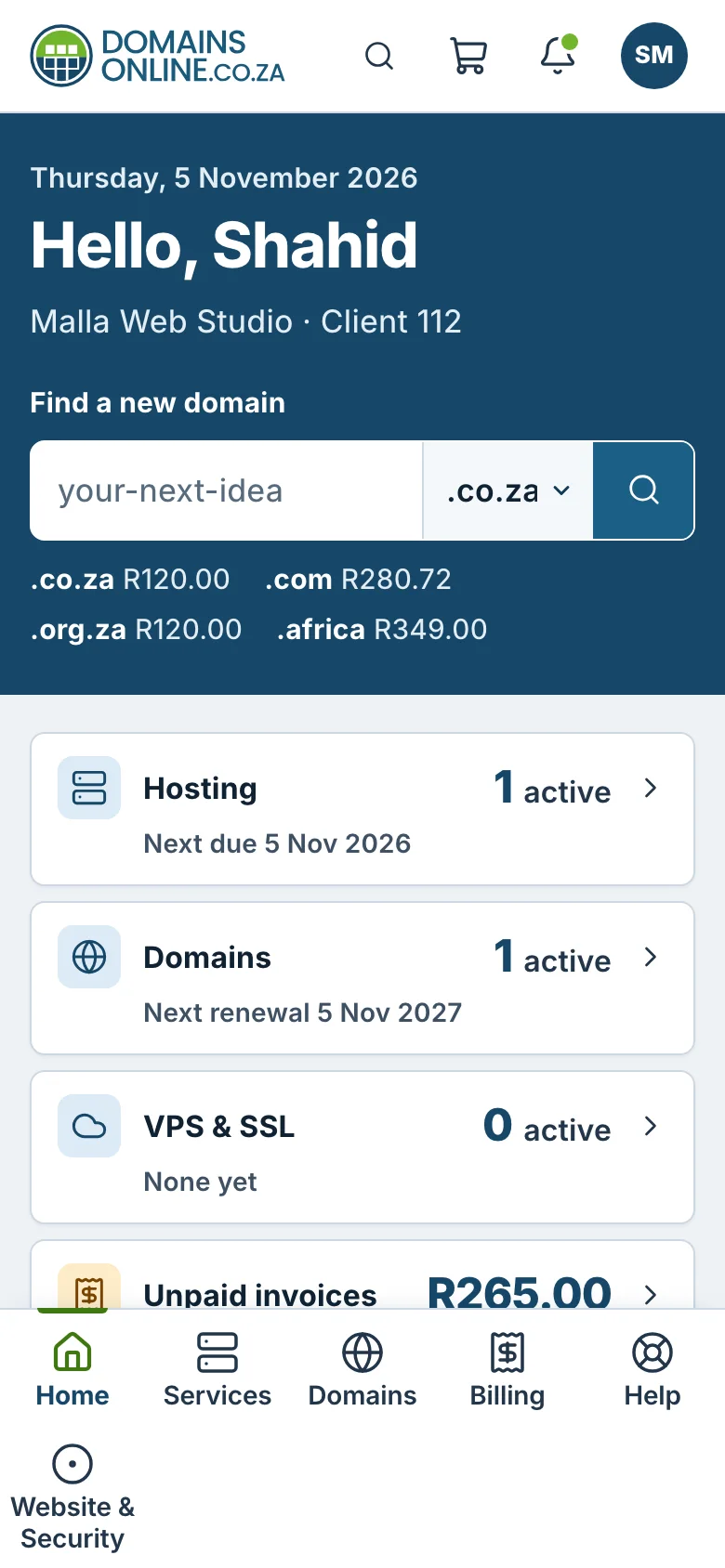
On a phone, the menu sits at the bottom of the screen: tap Home, Services, Domains, Billing or Help.
Related articles
- Sign in and sign out
- My services: overview and status
- My Domains: overview, expiry dates and status
- View, download and print your invoices (PDF)
Need help? Open a ticket or call us on 082 412 6556.
