

Your mailboxes are protected by Apache SpamAssassin. It gives every incoming e-mail a spam score and moves suspicious mail into a separate folder, so your inbox stays clean. This article shows where to find the settings and what they mean.

Watch the video (1 min 10 s, with narration) – or follow the steps below.
Look at your spam settings
-
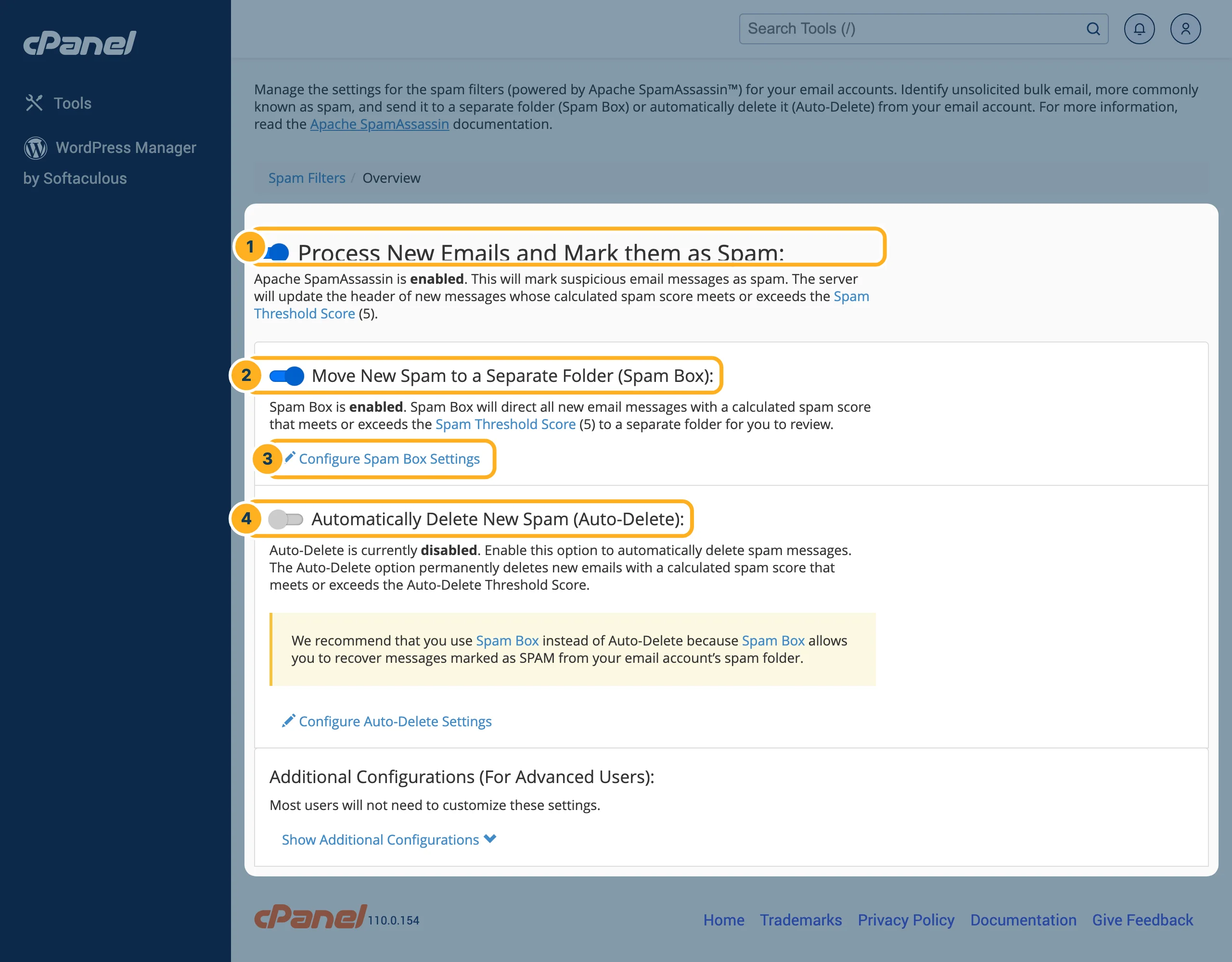
Log in to cPanel (see Log in to cPanel from the client area) and click Spam Filters in the Email section. The page shows:
- Process New Emails and Mark them as Spam – the filter itself. "Apache SpamAssassin is enabled" means every new e-mail is checked. Mail whose score meets or exceeds the Spam Threshold Score (5) is marked as spam.
- Move New Spam to a Separate Folder (Spam Box) – switched on: marked mail goes to a separate folder instead of your inbox, where you can review it.
- Configure Spam Box Settings – more options for the spam folder.
- Automatically Delete New Spam (Auto-Delete) – switched off. cPanel itself recommends Spam Box instead, because you can still recover messages from the spam folder.
Check the spam folder
In webmail, the spam folder is called Junk (see Read your mail in webmail). Look into it now and then, especially if someone says they sent you an e-mail that you didn't get.
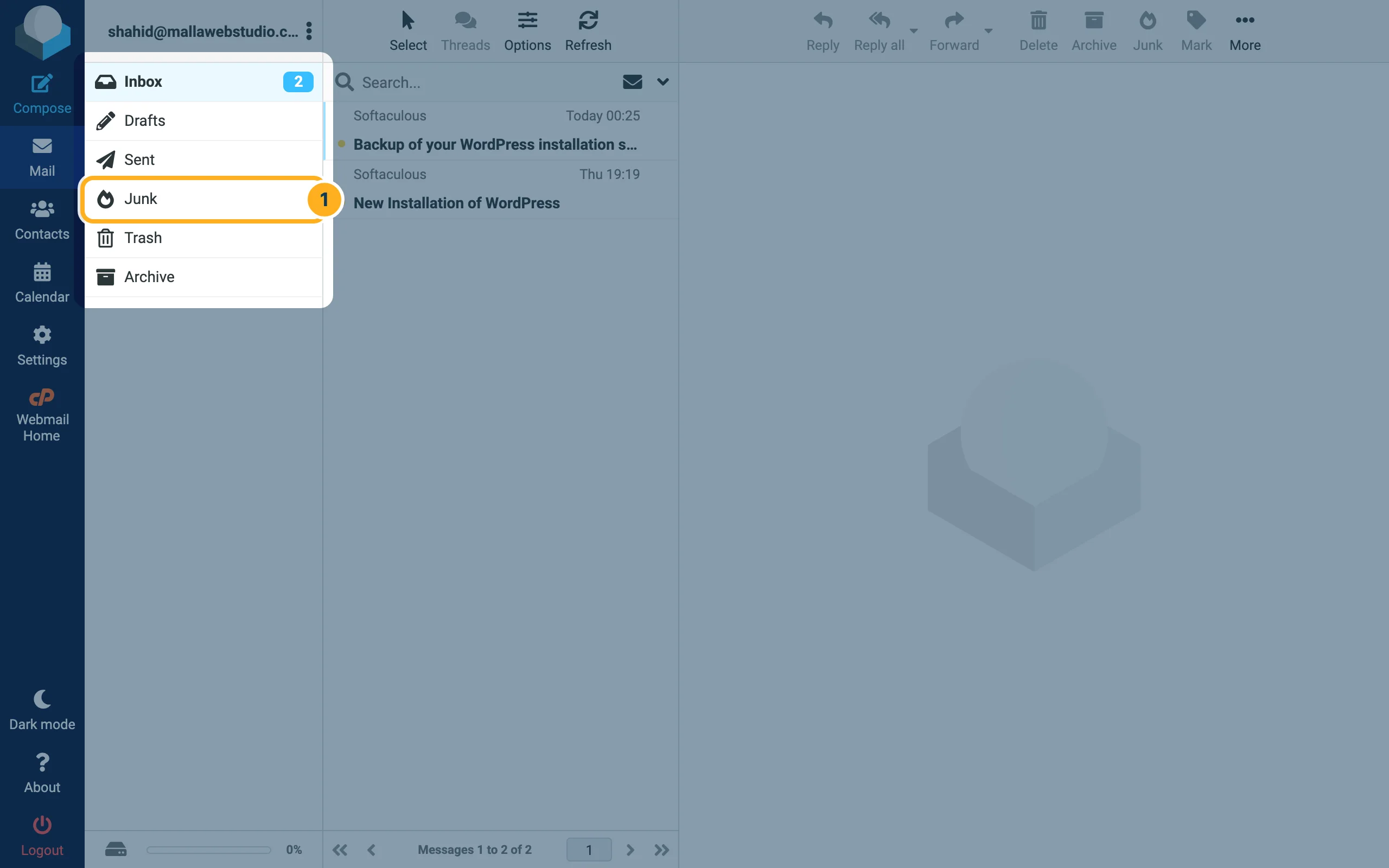
If you read your mail in an app with IMAP, the app shows the same folder, sometimes under a slightly different name such as "spam".
Something not working?
- A real e-mail ended up in Junk: move it back to your inbox. If this happens often with the same sender, open a ticket.
- A lot of spam still reaches your inbox: open a ticket before you change the threshold score. A lower score catches more spam but also more real mail.
- Your own e-mails land in other people's spam folder: that is a different problem – see E-mails don't arrive or land in spam (SPF, DKIM).
Related articles
- E-mails don't arrive or land in spam (SPF, DKIM)
- Read your mail in webmail
- Spot phishing and fake DomainsOnline e-mails
Need help? Open a ticket or call us on 082 412 6556.
