

Every mailbox has a storage limit. Here you see how full your mailboxes are, how to change the limit and how to make room when a mailbox is nearly full.

Watch the video (1 min 9 s, with narration) – or follow the steps below.
Good to know: e-mail is stored in your hosting account, so it counts towards your plan's disk space (see Check your disk space). When a mailbox reaches its limit, it can't receive new e-mail until you make room or raise the limit.
See how full your mailboxes are
-
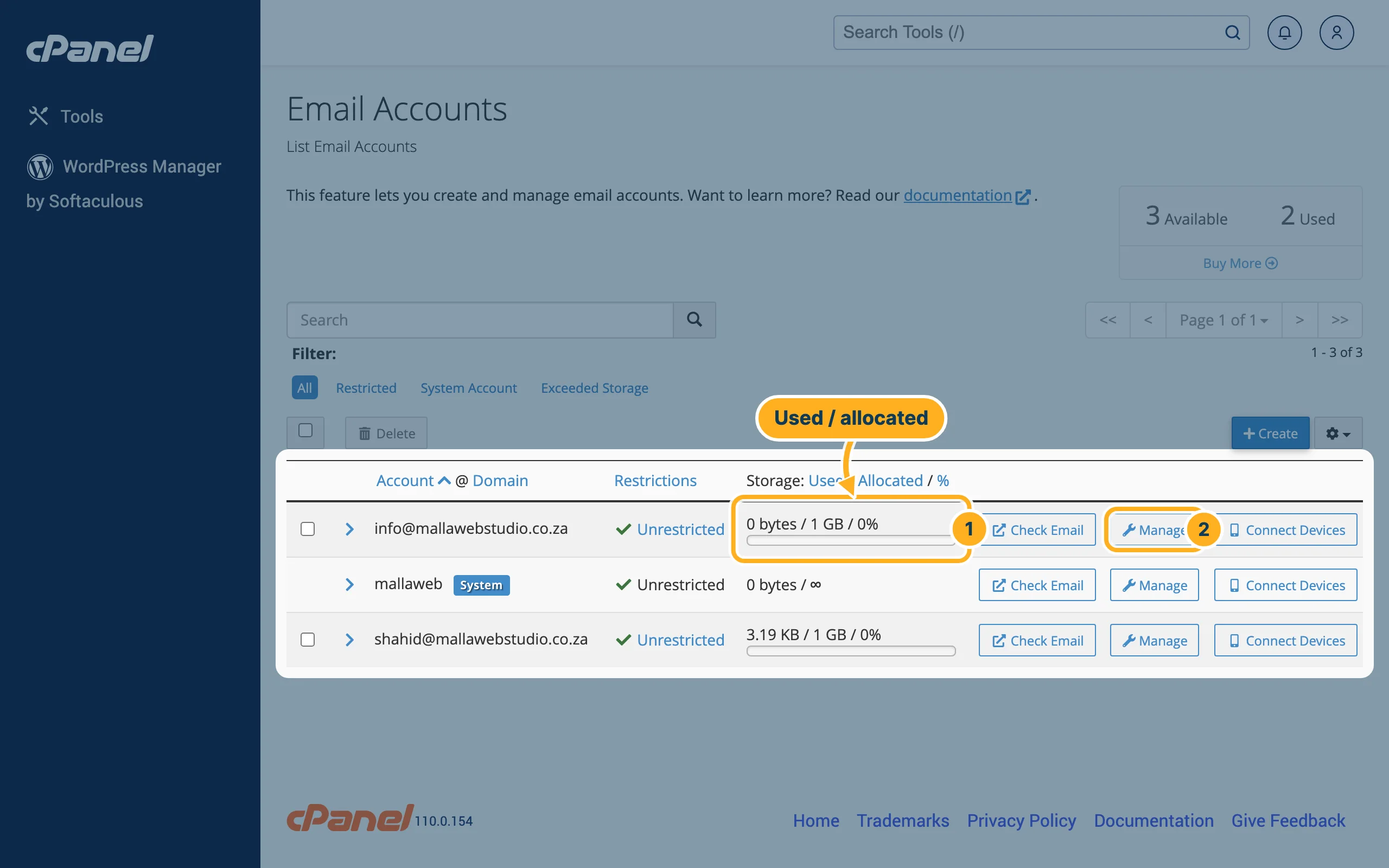
Log in to cPanel (see Log in to cPanel from the client area) and click Email Accounts in the Email section.
- The column Storage: Used / Allocated / % shows for each mailbox how much it uses, its limit and the percentage, with a bar below.
- To change the limit of a mailbox, click Manage in its row.
The filter Exceeded Storage above the list shows only mailboxes that are full.
Change the storage limit
-
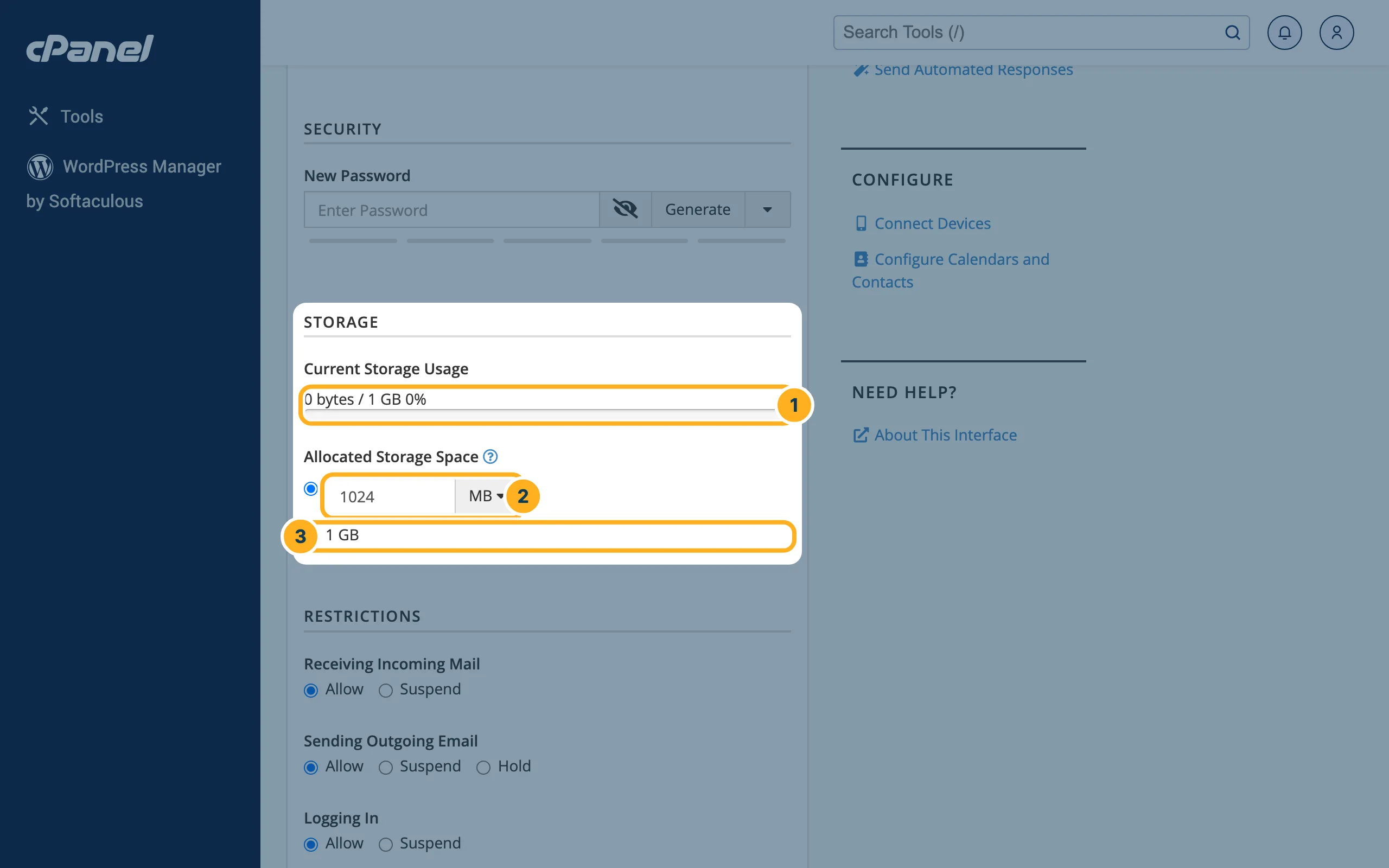
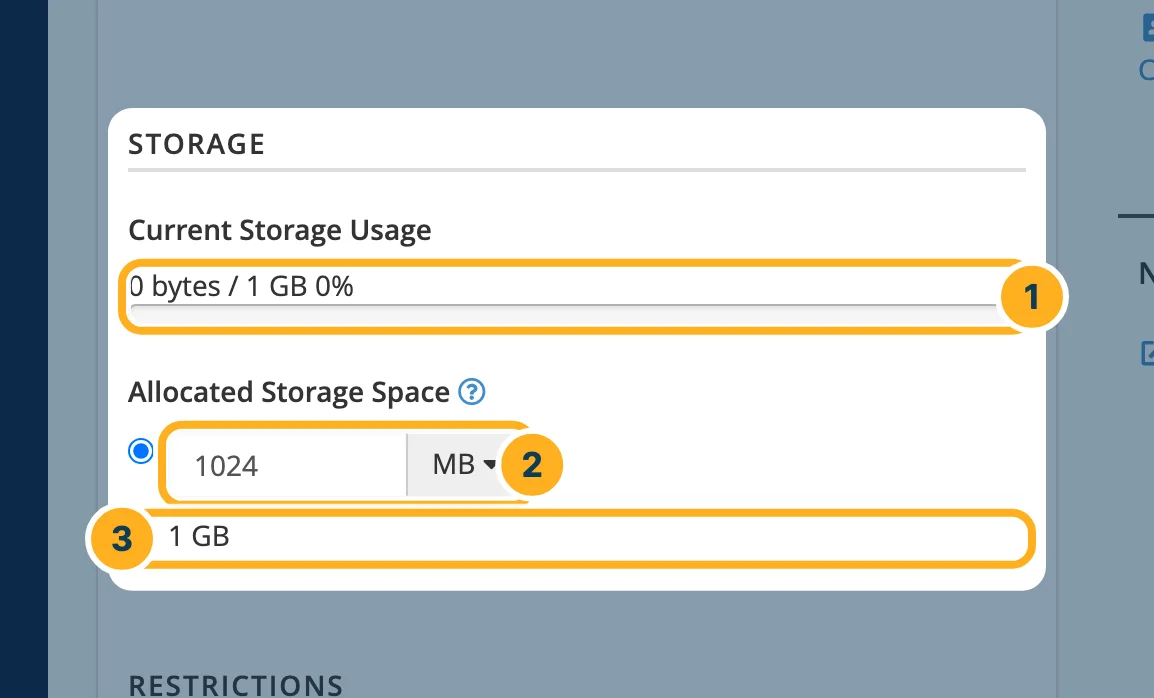
On the page Manage an Email Account, find the section Storage:
- Current Storage Usage – how much the mailbox uses now.
- Allocated Storage Space – type the limit you want and choose the unit next to the field (for example MB).
- Or select the second option to give the mailbox the most your plan allows – on the Starter plan that is 1 GB per mailbox.
-
Scroll down and click Update Email Settings.
Make room in a full mailbox
- In webmail: delete old messages, especially ones with large attachments, and then empty the Trash folder. See Read your mail in webmail.
- In cPanel: on the Manage page of the mailbox, click Free up Email Storage on the right (under I want to …). It opens Email Disk Usage, where you can remove old or large messages folder by folder.
- On your devices: if your app uses POP3 and keeps a copy on the server, the server copy keeps growing. Use IMAP instead – see E-mail settings for your devices (IMAP, SMTP, ports).
Something not working?
- cPanel doesn't accept a larger limit: the limit can't be higher than your plan allows. For more space per mailbox, a bigger plan is needed – see Upgrade or downgrade your plan or open a ticket.
- The usage doesn't go down after deleting: empty the Trash folder too. Deleted messages still use space until the trash is emptied.
Related articles
Need help? Open a ticket or call us on 082 412 6556.
