

The client area keeps a copy of the e-mails we send to your account – invoices, reminders, welcome e-mails and more. If you deleted an e-mail or it never arrived, you can read it there.
Watch the video (43 s, with narration) – or follow the steps below.
Step by step
-
Sign in to the client area, click your initials and name at the top right and choose E-mail history. On the account pages you also find it as a tab.
-
On the page E-mail history:
- The tab E-mail history is open.
- Type a word from the subject in the search box, for example an invoice number, to find an e-mail quickly.
- The list shows each e-mail with its Date Sent and Message Subject. Click View Message next to an e-mail to read it. As long as we have not sent you any e-mails, the list shows No Records Found, as in the picture.
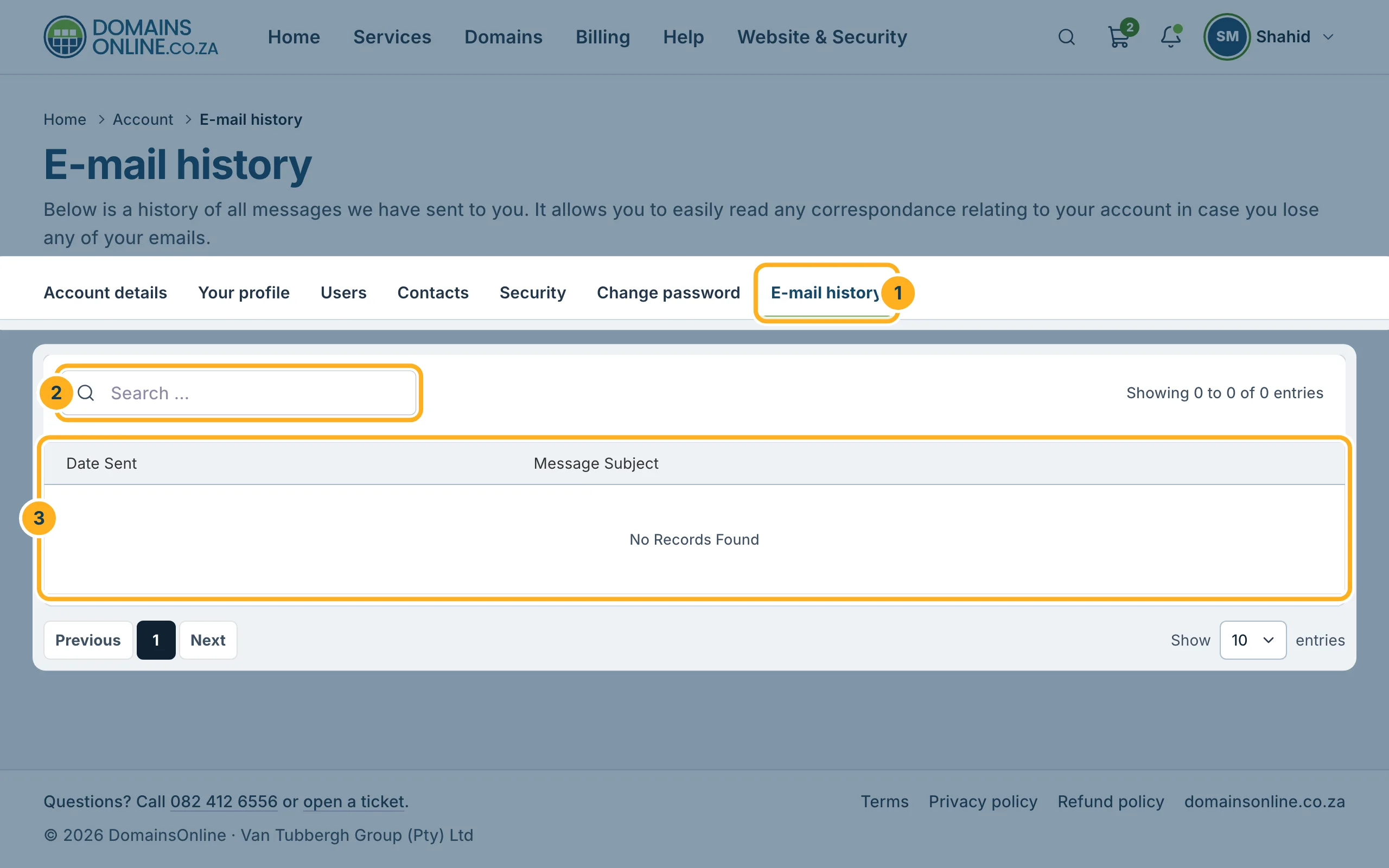
Below the list you can choose how many e-mails to Show per page and move between pages with Previous and Next.
Good to know
- E-mails you have switched off are not sent, so they are not in the list either – see Choose which e-mails you receive.
- The bell at the top of the client area shows your notifications. At the bottom of it, All messages in E-mail history opens this page too.
- Your invoices themselves are always under Billing, also without the e-mail – see View, download and print your invoices (PDF).
Related articles
- Choose which e-mails you receive
- View, download and print your invoices (PDF)
- E-mails don't arrive or land in spam (SPF, DKIM)
Need help? Open a ticket or call us on 082 412 6556.
