

The page My domains in the client area lists every domain in your account with its expiry date, auto-renew setting and status. From there you open a domain to manage it.
Watch the video (1 min 15 s, with narration) – or follow the steps below.
Open your domain list
-
Sign in to the client area and click Domains in the menu at the top. You can also click the Domains tile on the Home page.
-
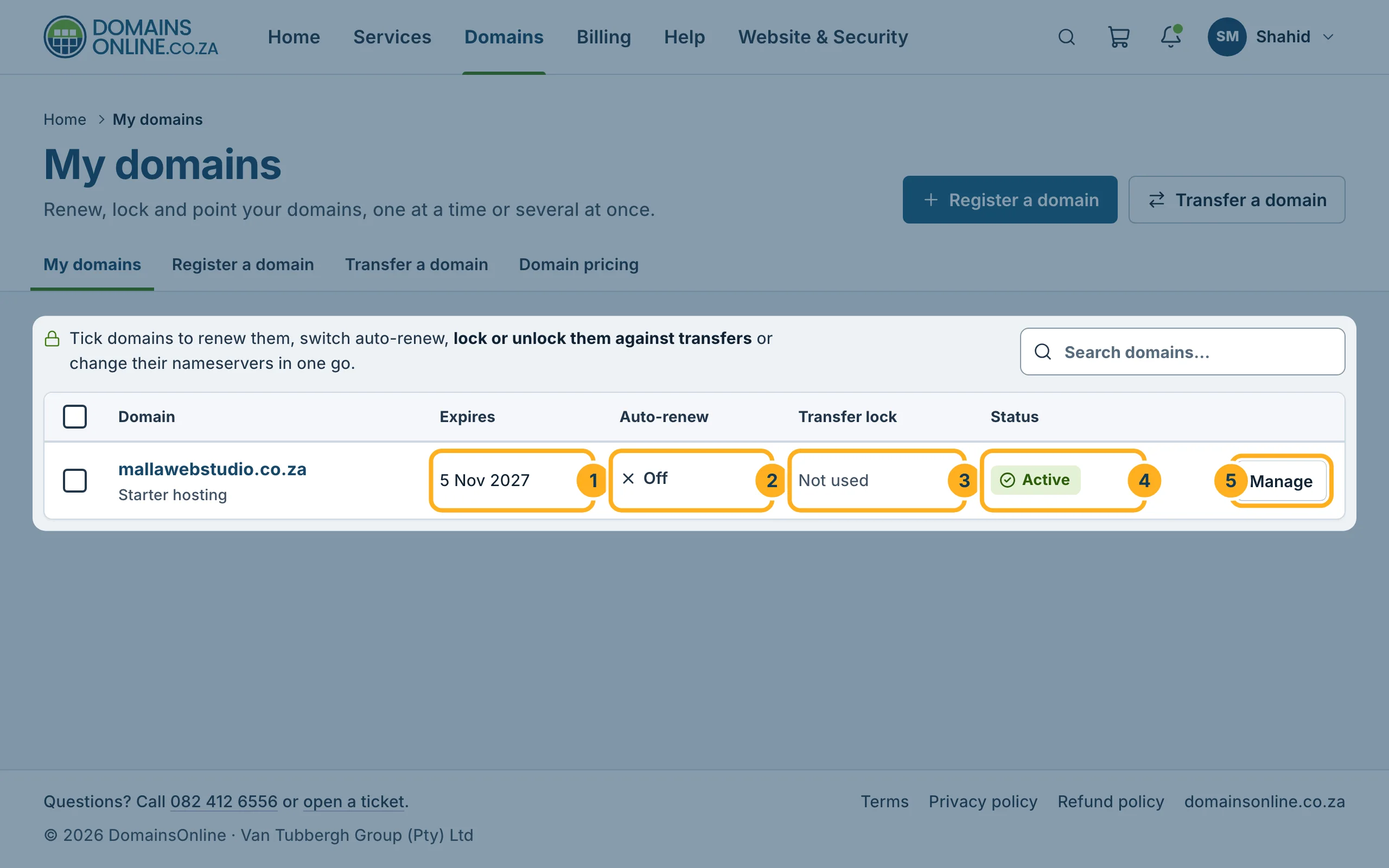
For each domain, the list shows:
- Expires – the date the domain runs out unless it is renewed.
- Auto-renew – On or Off. See Turn automatic renewal on or off.
- Transfer lock – for .co.za domains it says Not used.
- Status – Active means the domain is in your account and running.
- Manage – opens the page of that domain.
If you have many domains, type part of a name into Search domains… to shorten the list.
-
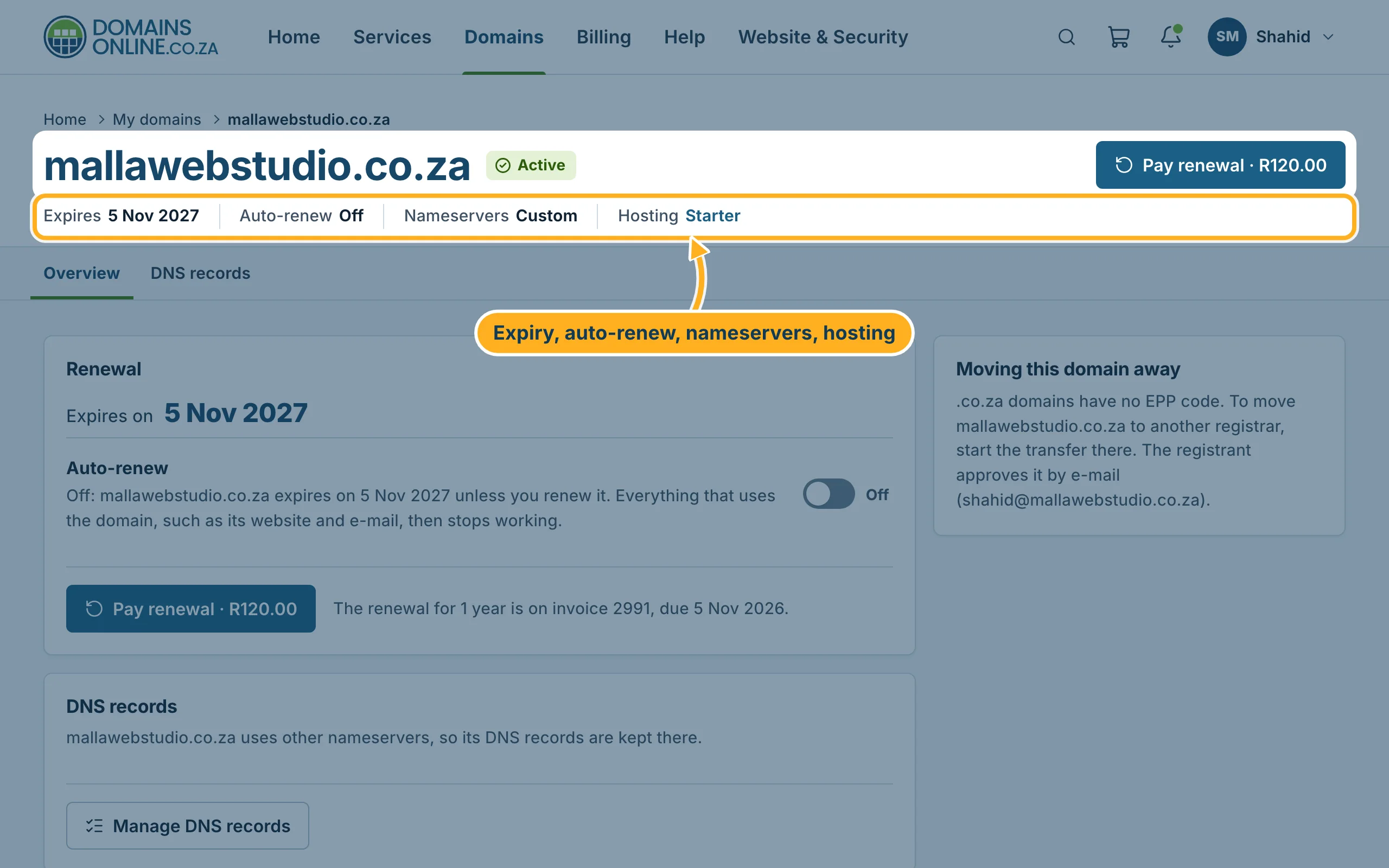
On the page of a domain, the line under its name shows the most important facts at a glance: Expires, Auto-renew, Nameservers (Custom means the domain points to another provider's nameservers) and Hosting – the hosting plan that belongs to the domain. Click the plan name to open your hosting service.
Several domains at once
Tick the box in front of one or more domains. A bar appears below the list with Renew, Transfer lock (Lock / Unlock), Auto-renew (On / Off) and Nameservers. Click Clear to untick everything. The box in the header row ticks all domains.
Something not working?
- A domain is missing from the list: if you have more than one client account, it may be in the other one – see Switch between client accounts. A domain registered with another provider only appears here after it has been transferred to us – see Transfer a domain to DomainsOnline.
- The status is not Active: open a ticket and tell us the domain name. We check it for you.
Related articles
Need help? Open a ticket or call us on 082 412 6556.
