

DNS records tell the internet where your website and e-mail are, and they prove to other services that the domain is yours. For a domain that uses our nameservers and is on your hosting, you edit them in cPanel with the Zone Editor.
Watch the video (1 min 44 s, with narration) – or follow the steps below.
The record types
- A – points a name, such as your domain or
shop.your-domain.co.za, to the IP address of a server. - CNAME – points a name to another name, for example
wwwto your domain. - MX – says which server receives the domain's e-mail.
- TXT – text that other services read: SPF and DKIM for e-mail, or a verification code, for example from Google or Microsoft.
Add a record
-
Open cPanel – see Log in to cPanel from the client area. In the Domains group, click Zone Editor. (If cPanel first shows the window Choose a starting point, click SKIP.)
-
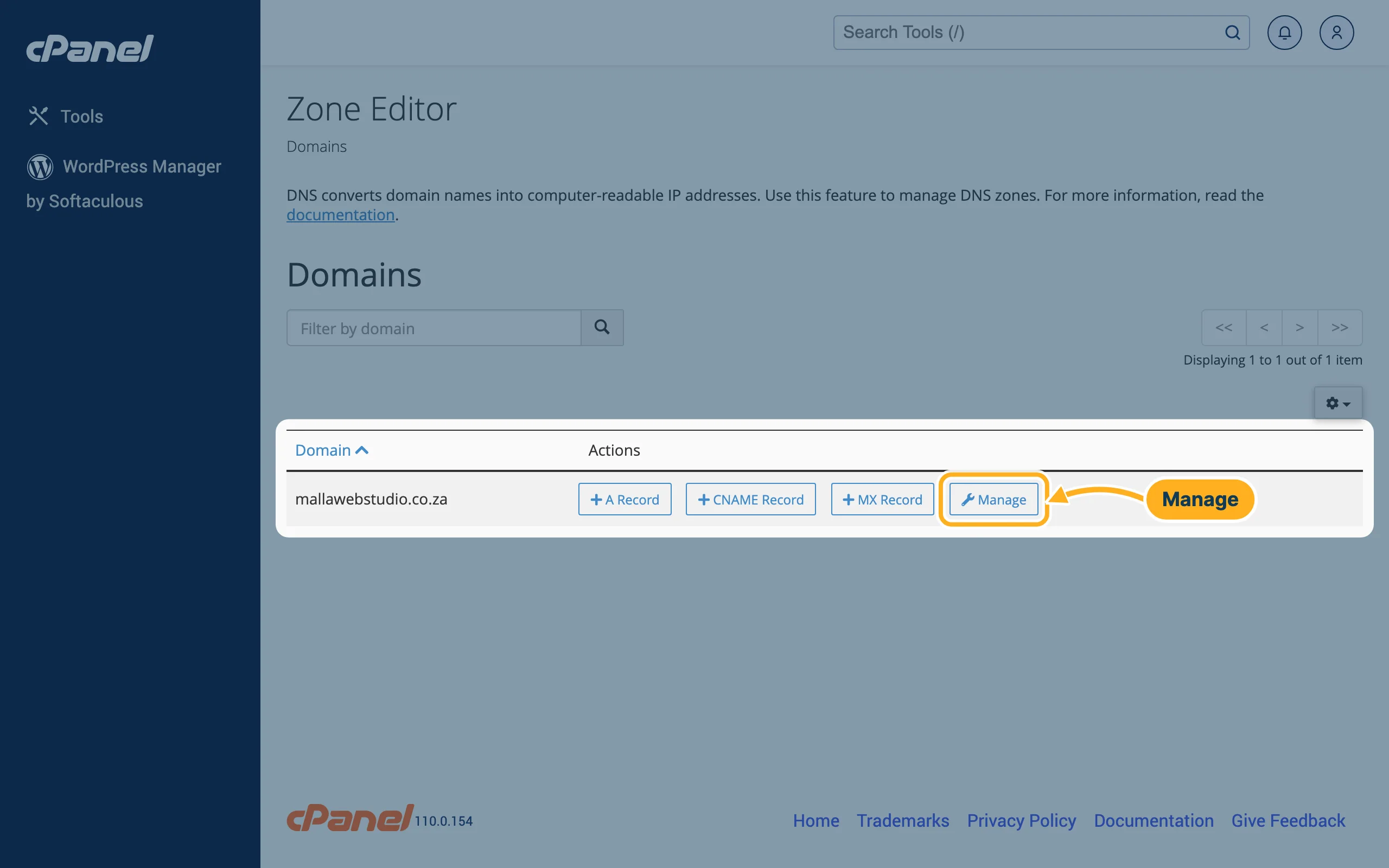
Click Manage next to your domain.
-
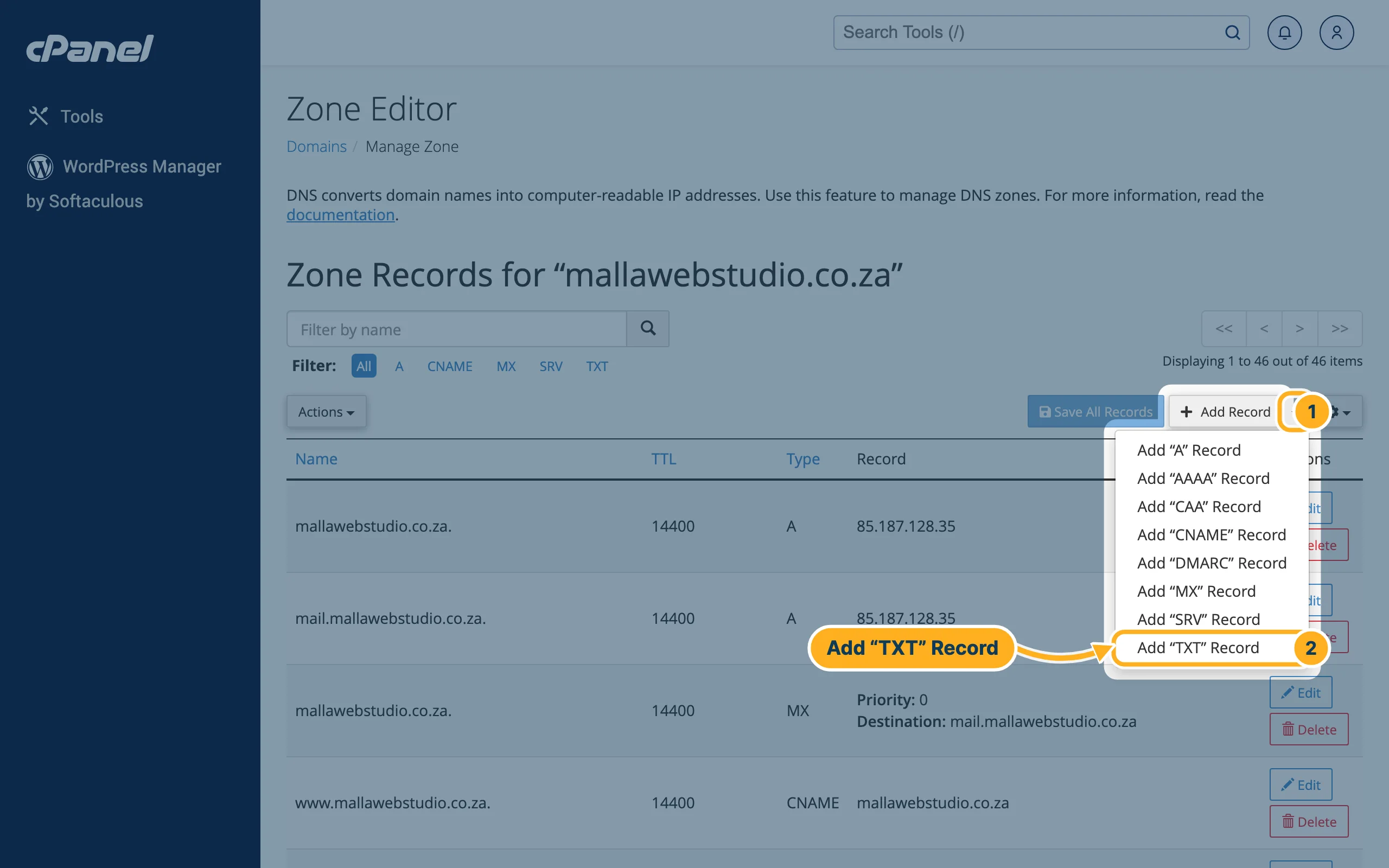
The page Zone Records lists all records of the domain with Name, TTL, Type and Record. The links A, CNAME, MX, SRV and TXT above the list show one type only.
- Click the small arrow next to Add Record.
- Choose the type, for example Add “TXT” Record.
-
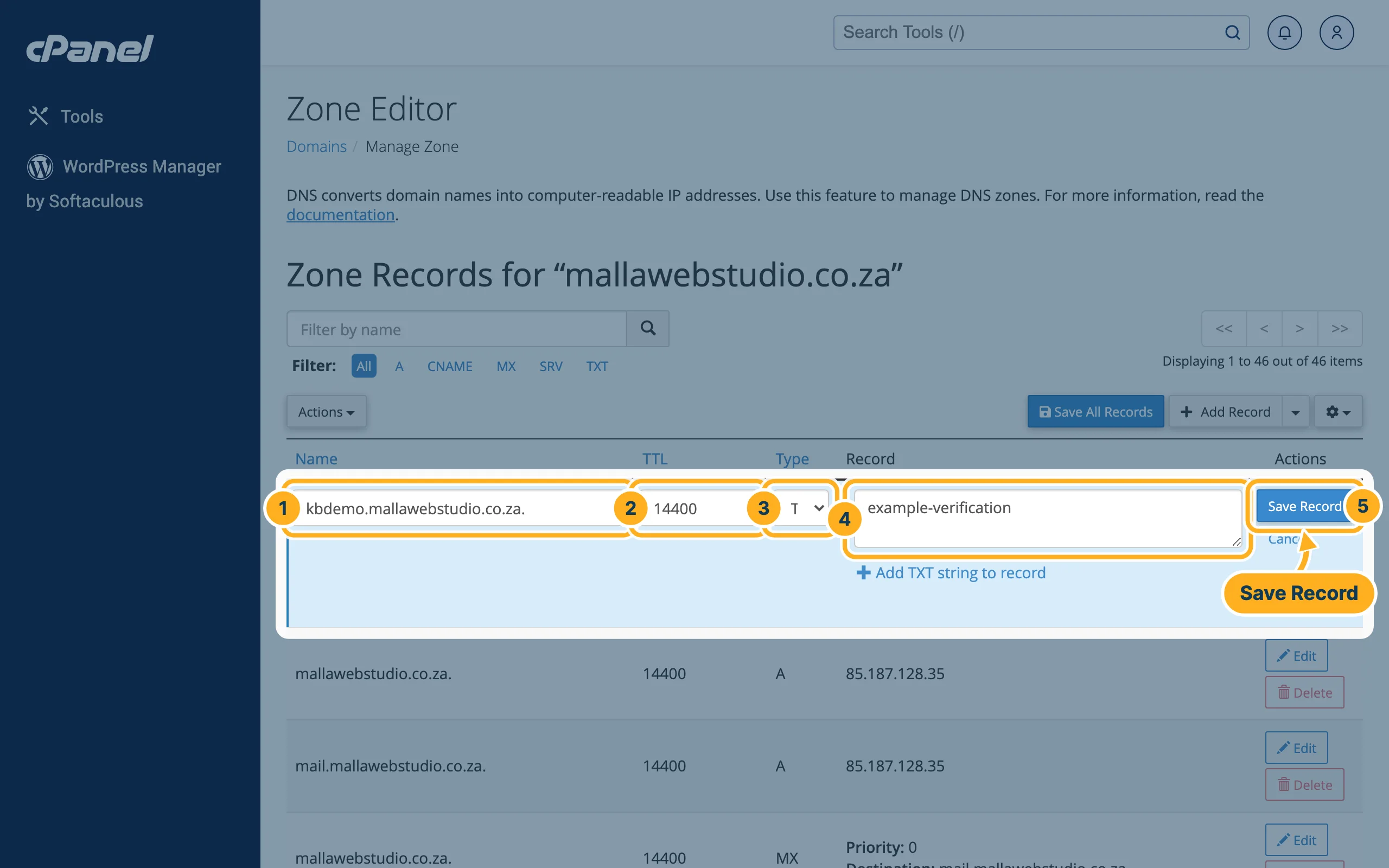
A new line appears at the top of the list. Fill it in:
- Name – the part in front of your domain, for example
kbdemo. cPanel adds the domain for you. - TTL – how long, in seconds, other servers may keep the record. Leave the number that is there.
- Type – already set to the type you chose.
- Record – the value, exactly as the service that asked for it gave it to you.
- Click Save Record.
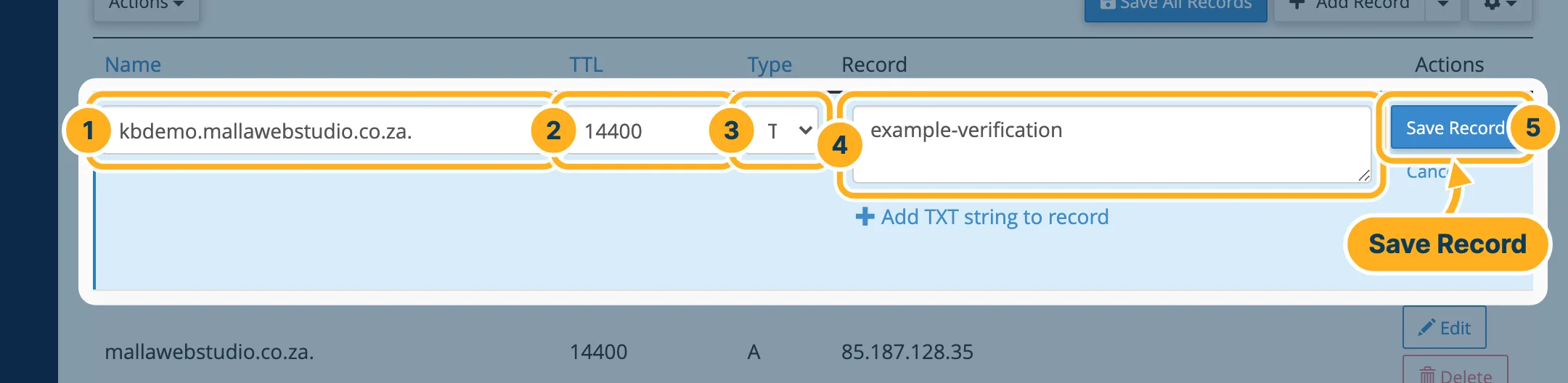
- Name – the part in front of your domain, for example
-
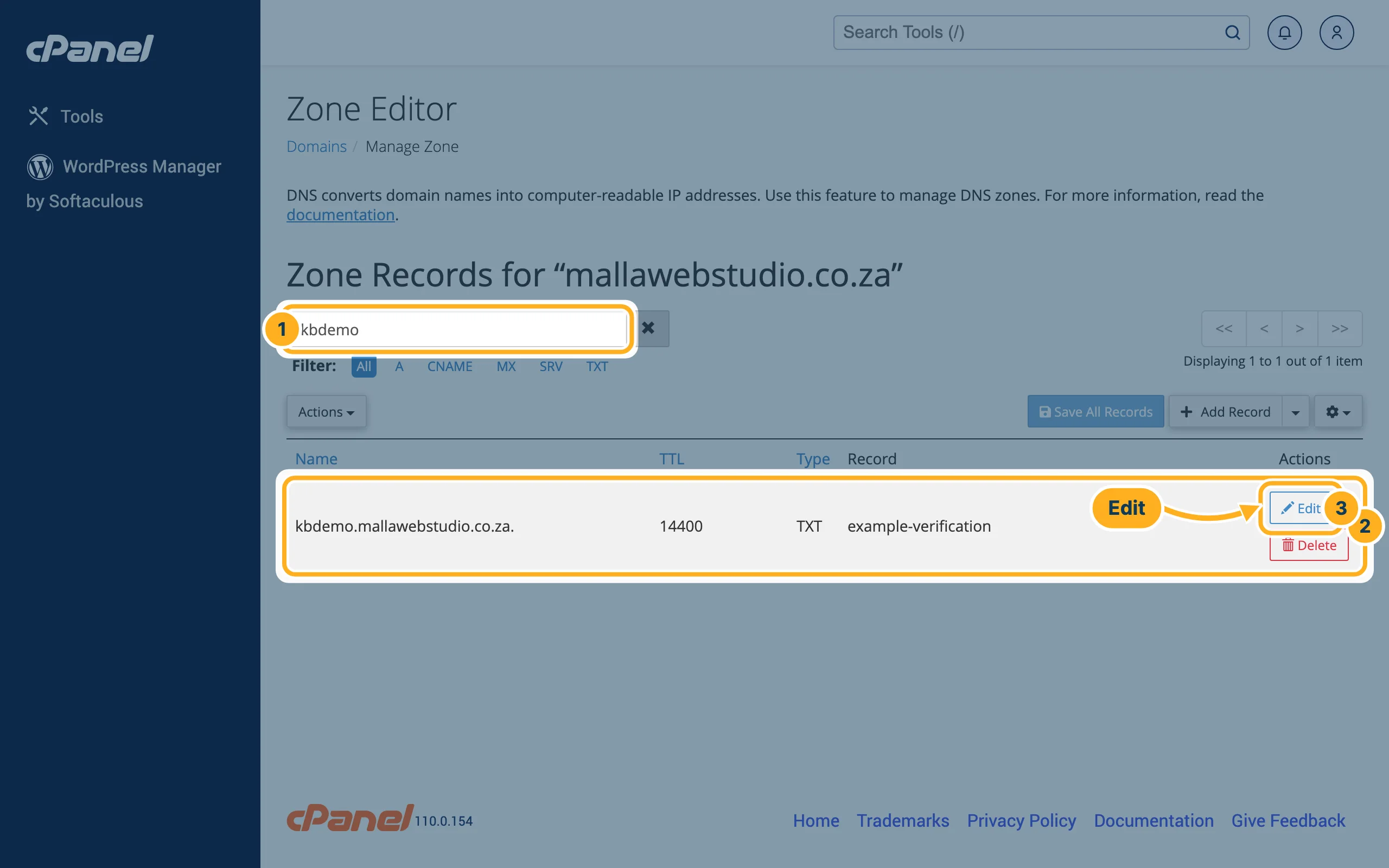
The record now appears in the list. To find it again, type its name into the search box above the list. Click Edit to change it or Delete to remove it.
Changes need a while to reach every network – see Why isn't my domain working yet? (DNS propagation).
Something not working?
- Your domain is not in the Zone Editor: the domain is not on your hosting yet. Add it first – see Add another domain or a subdomain.
- The service still can't find the record: check the name and the value for typing errors and extra spaces, then wait a while and let the service check again.
- E-mail problems after a change to SPF or DKIM: see E-mails don't arrive or land in spam (SPF, DKIM).
Related articles
- Change your domain's nameservers
- Why isn't my domain working yet? (DNS propagation)
- E-mails don't arrive or land in spam (SPF, DKIM)
Need help? Open a ticket or call us on 082 412 6556.
