

Your hosting plan has a fixed amount of disk space. cPanel shows how much of it your website files, e-mails and databases use, and which folders take the most space.

Watch the video (1 min 23 s, with narration) – or follow the steps below.
Quick look on the cPanel home page
-
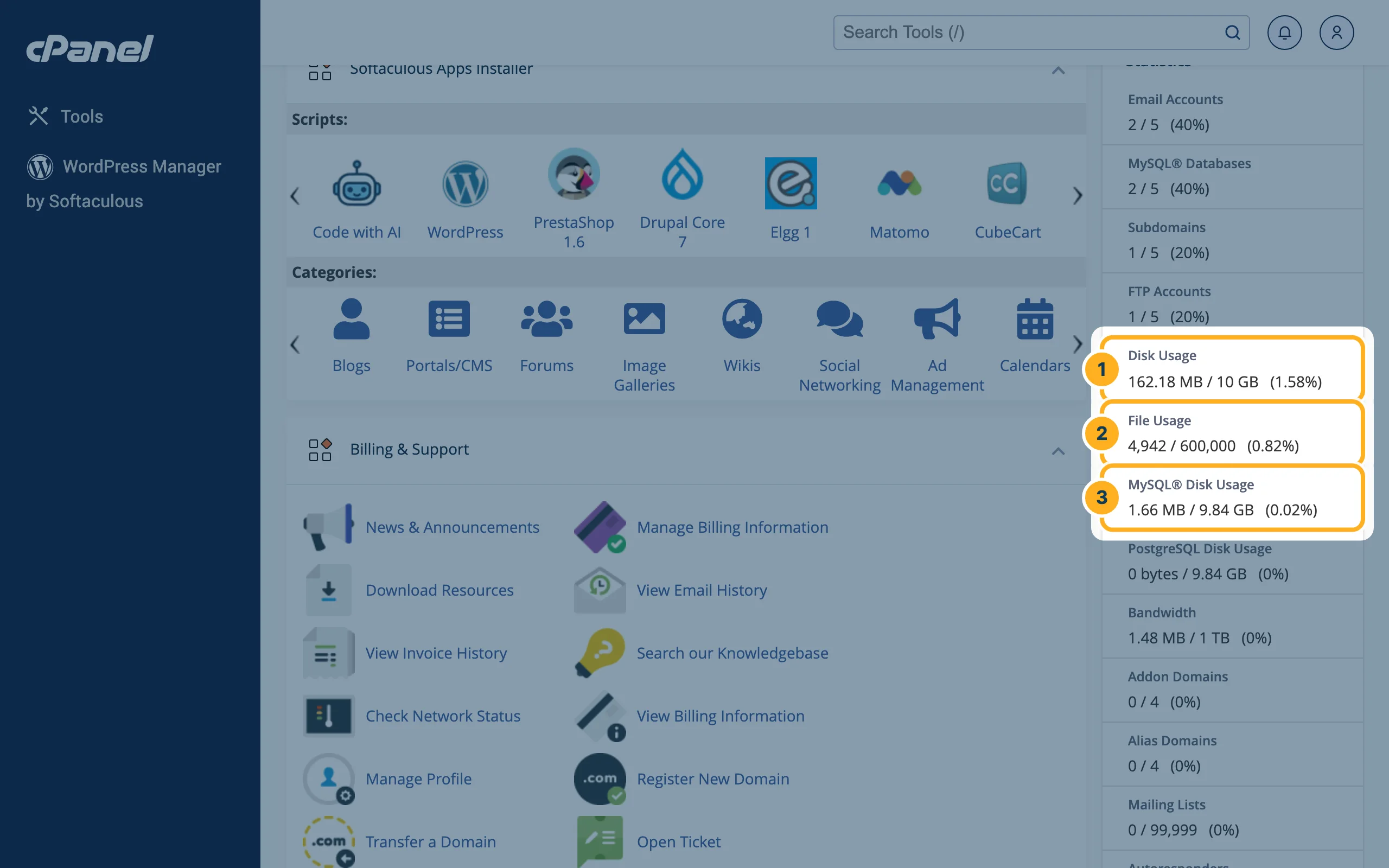
Log in to cPanel (see Log in to cPanel from the client area). On the right of the home page, under Statistics, you see:
- Disk Usage – the space you use and the space your plan has, for example 162.18 MB / 10 GB. Everything counts: website files, mailboxes and databases.
- File Usage – how many files and folders your account has, and the maximum for your plan.
- MySQL® Disk Usage – the part of it used by your databases.
See which folders use the space
-
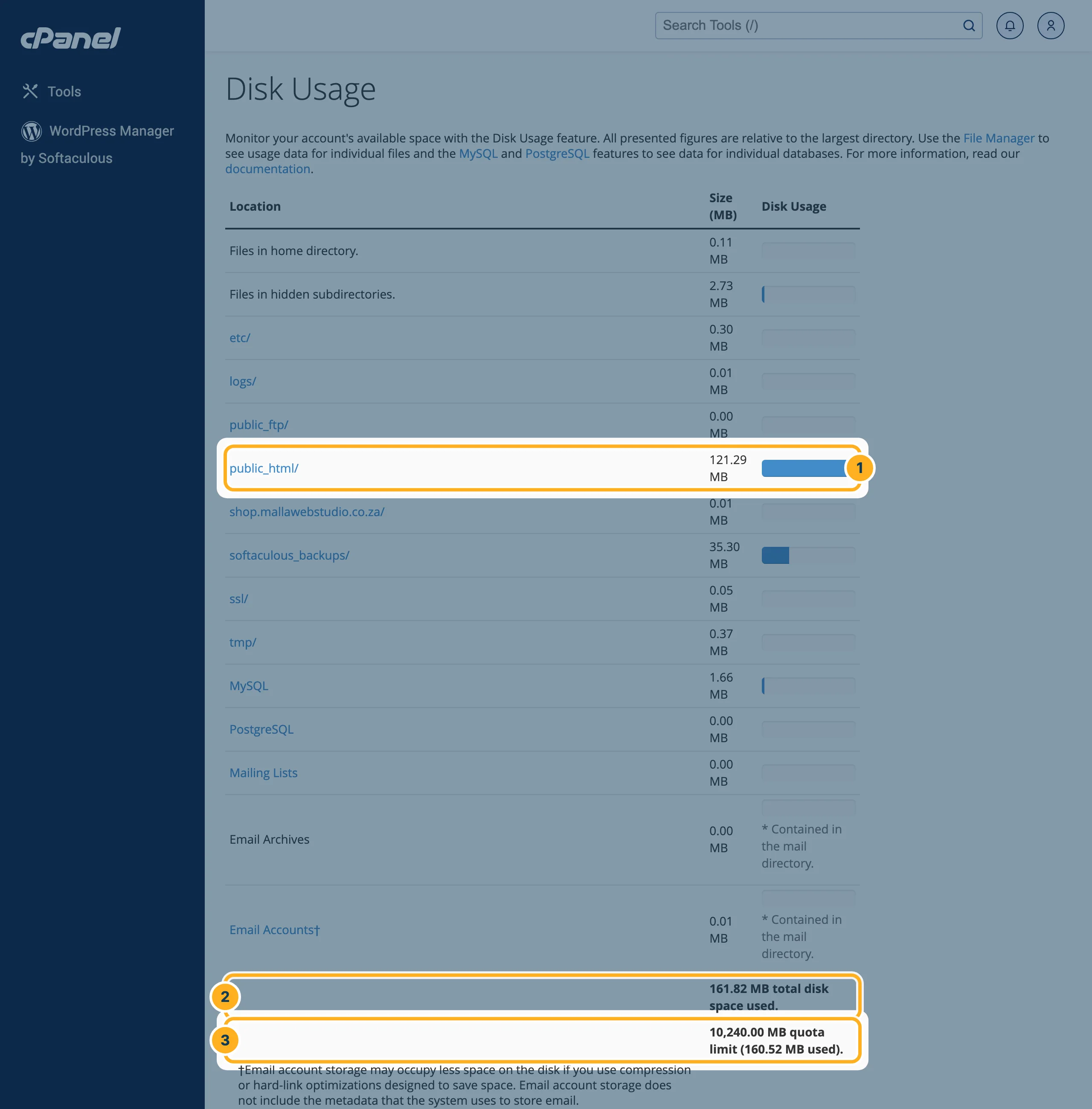
On the cPanel home page, in the section Files, click Disk Usage. The table shows:
- The size of each folder, for example public_html/ (your website). Click a folder name to open it in File Manager.
- The total disk space you use.
- The limit of your plan (quota limit).
Further down, the rows MySQL and Email Accounts show how much your databases and mailboxes use.
-
Below the table, under Sort directories by, choose Disk Usage to list the biggest folders first.
The page notes that the figures may not show very recent changes yet.
Running out of space?
- Delete old backup files (for example .zip or .tar.gz files) and files you no longer need in File Manager. Deleted files go to the trash first – empty it with Empty Trash in File Manager.
- Mailboxes often use the most space. See Mailbox size and storage.
Related articles
Need help? Open a ticket or call us on 082 412 6556.
