

A cron job runs a command or script on your hosting automatically at fixed times – for example a nightly task of your shop software. You set cron jobs up in cPanel.
Watch the video (1 min 31 s, with narration) – or follow the steps below.
Good to know: cPanel itself warns that you need some knowledge of Linux commands for cron jobs. Usually the software you use (a shop, a booking system) tells you exactly which command to enter. If you are not sure, ask the maker of the software or open a ticket.
Add a cron job
Log in to cPanel (see Log in to cPanel from the client area). In the section Advanced, click Cron Jobs. In the client area you can also click Cron jobs on your service page, under Hosting.
-
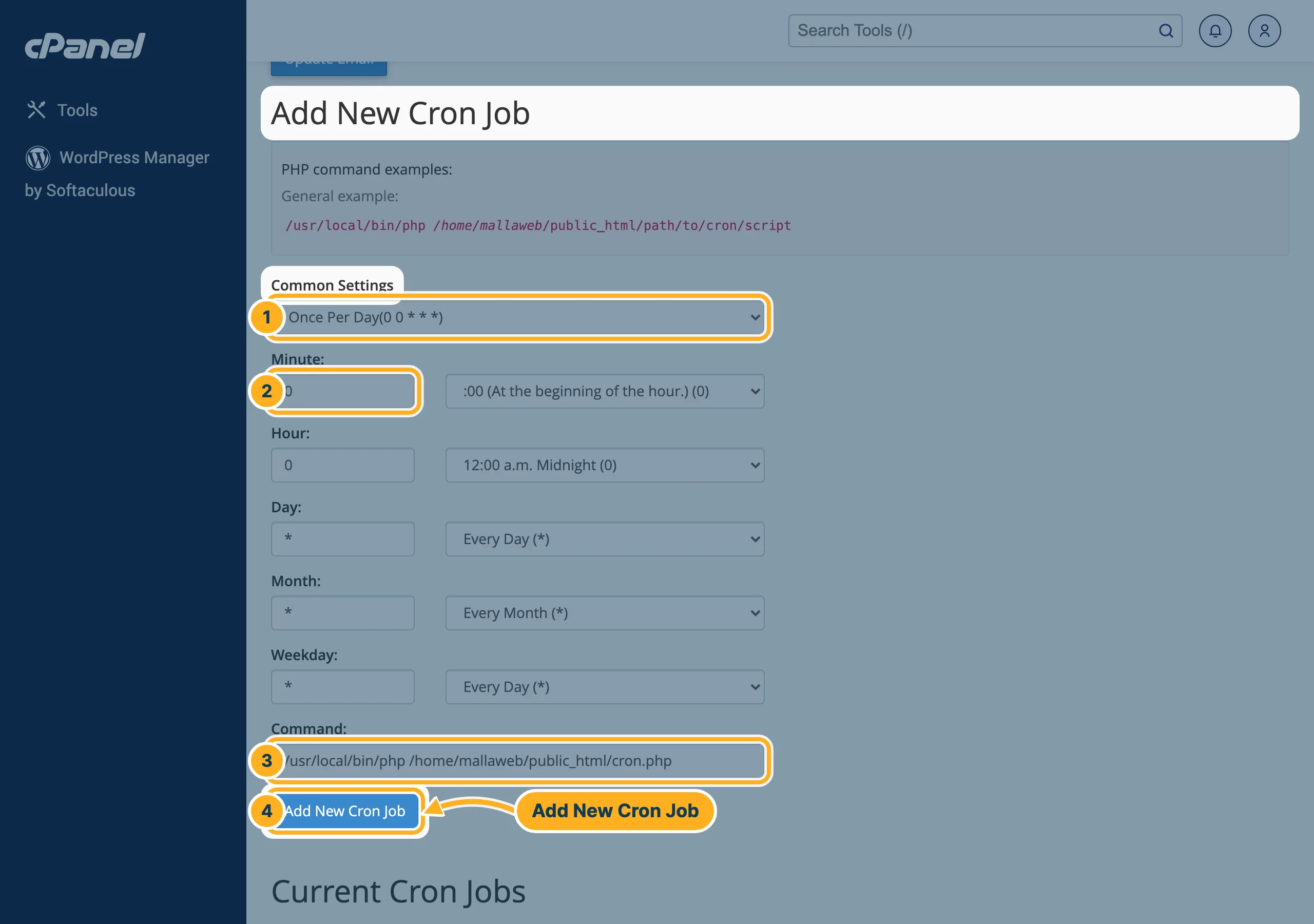
Under Add New Cron Job:
- Common Settings – choose how often the job runs, for example Once Per Day(0 0 * * *).
- Minute, Hour, Day, Month and Weekday are filled in for you. You can change them, for example to run the job at 02:30 instead of midnight (Minute 30, Hour 2).
- Command – the command to run. For a PHP script, cPanel shows a General example above the form:
/usr/local/bin/phpfollowed by the full path of the script, for example/usr/local/bin/php /home/mallaweb/public_html/cron.php. Your home folder is shown in File Manager and on the cPanel home page under Home Directory. - Click Add New Cron Job.
E-mails from cron and your list of jobs
-
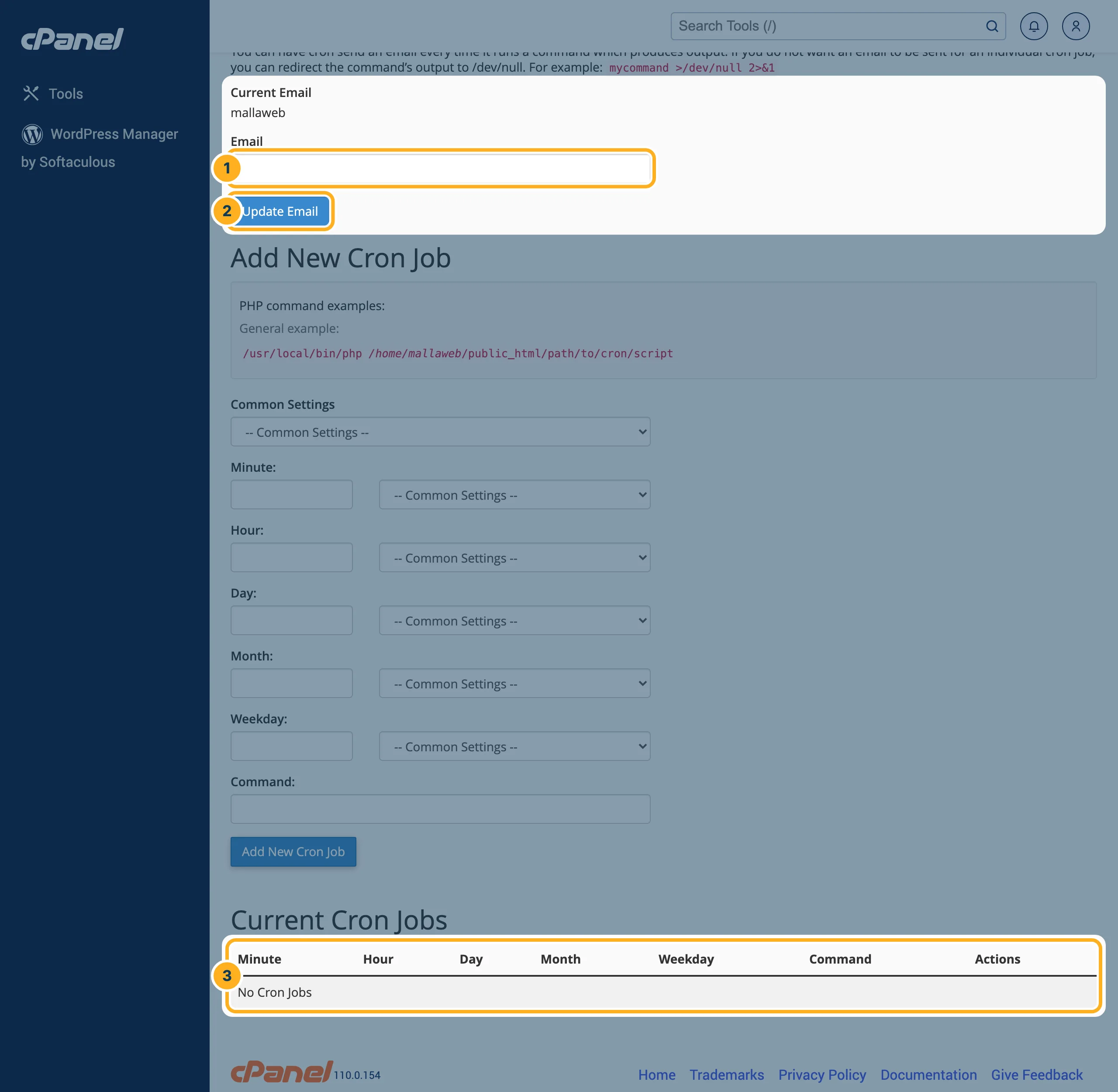
At the top of the page, under Cron Email:
- Email – the address that gets an e-mail each time a cron job produces output.
- Click Update Email to save the address.
- Under Current Cron Jobs you see all your jobs, with the actions to change or delete each one. While you have none, the list shows No Cron Jobs.
If a job runs often, these e-mails can fill your mailbox. cPanel explains that you can add >/dev/null 2>&1 at the end of the command to stop the e-mails for that job.
Something not working?
- The job does nothing: check the path of the script – it must be the full path starting with your home folder. Set your e-mail under Cron Email and remove
>/dev/null 2>&1for a while: the e-mail then shows the error message. - Don't run jobs every minute unless the software really needs it. Each run uses the resources of your hosting plan.
Related articles
Need help? Open a ticket or call us on 082 412 6556.
