

When your website shows an error or a blank page, the web server's error log often says why. cPanel shows the latest entries of it.
Watch the video (44 s, with narration) – or follow the steps below.
Open the error log
Log in to cPanel (see Log in to cPanel from the client area). In the section Metrics, click Errors.
-
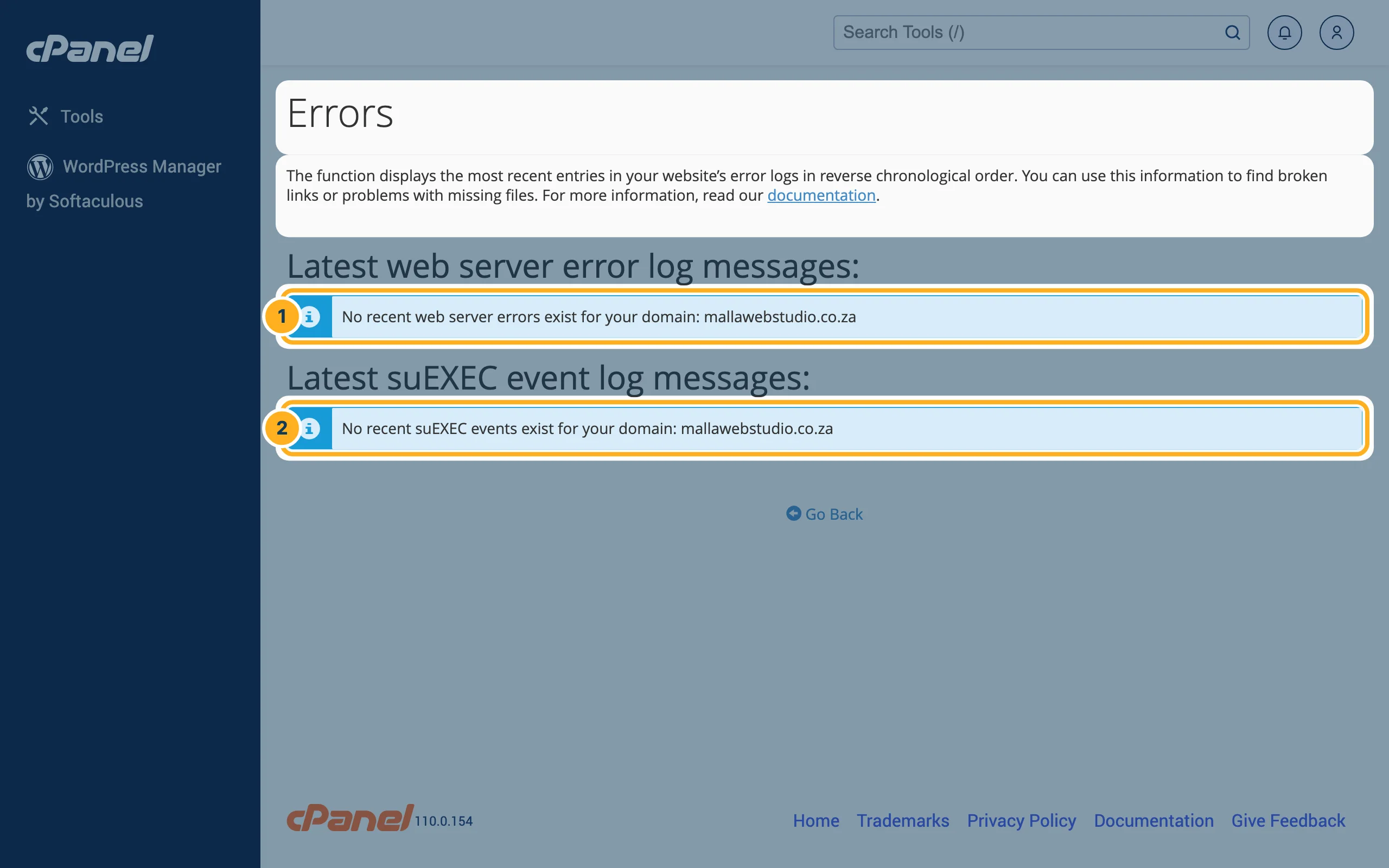
The page Errors shows the most recent entries, newest first:
- Latest web server error log messages – errors of the web server, for example a page that was not found or a script that failed. If there are none, you see No recent web server errors exist for your domain.
- Latest suEXEC event log messages – messages about scripts the server ran for your account.
How to use it
- Open the page of your website that shows the error.
- Open (or reload) the page Errors in cPanel straight afterwards.
- Look for the entries with the time you opened the page: they often name the file and the line that caused the problem.
If you send us a ticket about an error on your website, copy the matching lines from this page into the ticket. That helps us find the cause quickly.
Related articles
- Change the PHP version (Select PHP Version)
- WordPress is slow or shows an error – first aid
- Upload files with File Manager
Need help? Open a ticket or call us on 082 412 6556.
