

Before you update WordPress, change the theme or try a new plugin, make a backup with Softaculous. If something goes wrong, you put the site back to that state with a few clicks.
Watch the video (1 min 55 s, with narration) – or follow the steps below.
Make a backup
-
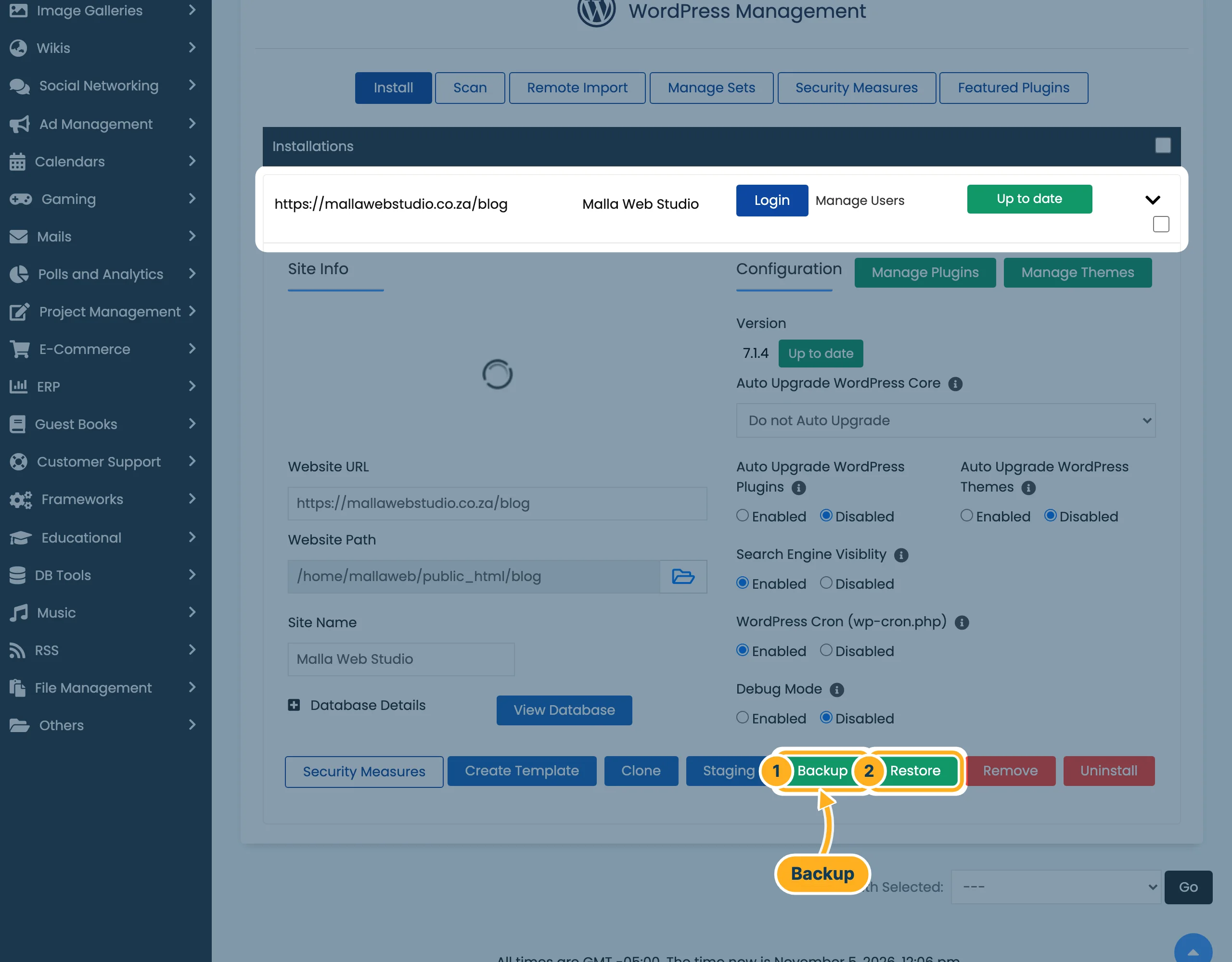
In cPanel, click WordPress Manager by Softaculous under Software (see Log in to your WordPress dashboard). Click the arrow at the right of your site to open its details, then click Backup.
- Backup – makes a new backup.
- Restore – lists the backups of this site.
-
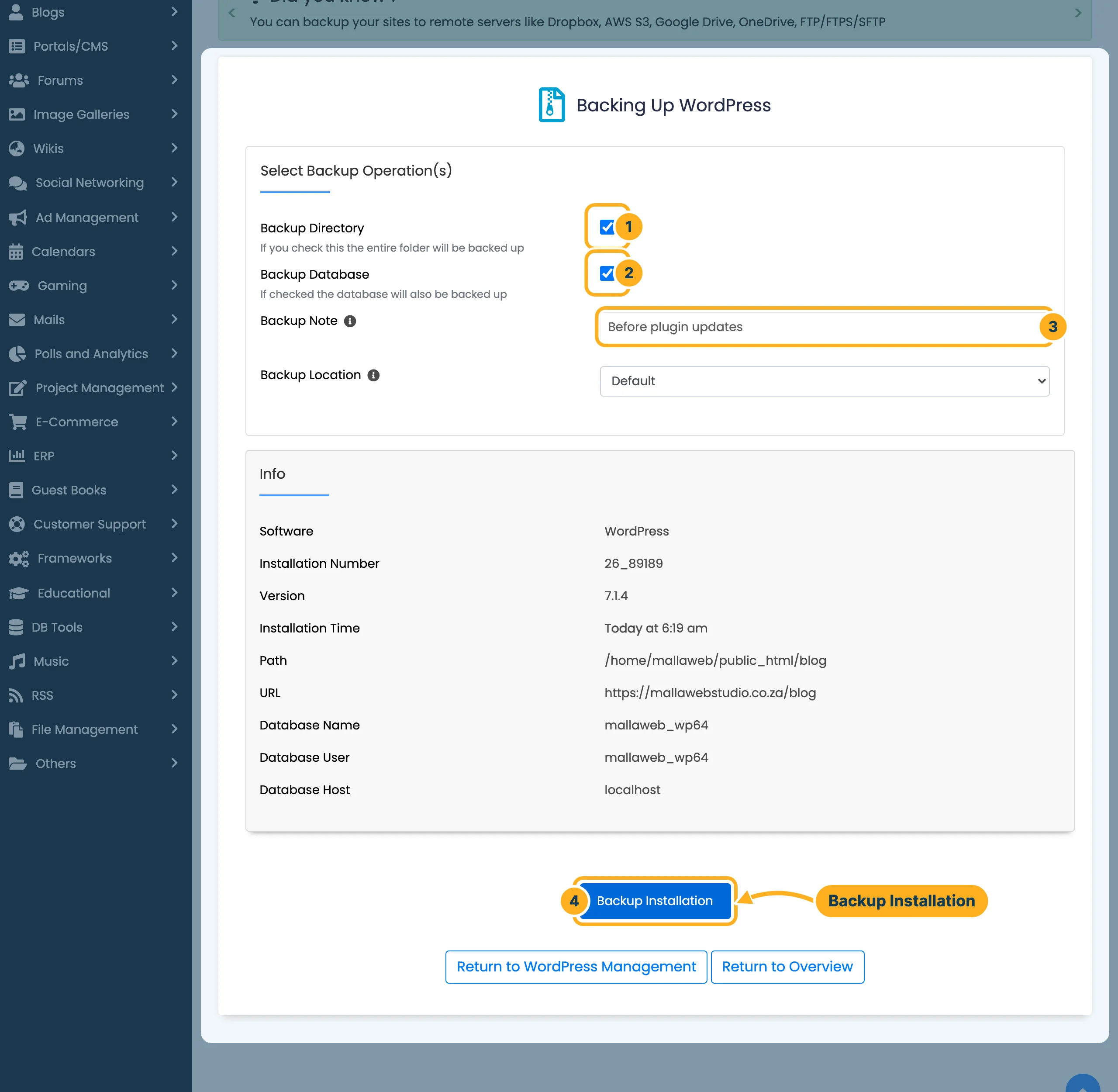
On the page Backing Up WordPress:
- Backup Directory – the files of your site (themes, plugins, uploads). Leave it ticked.
- Backup Database – your pages, posts and settings. Leave it ticked.
- Backup Note – optional, for example “Before plugin updates”, so you recognise the backup later.
- Click Backup Installation.
Softaculous now creates the backup in the background. You can leave the page; you get an e-mail when the backup is ready.
Restore a backup
-
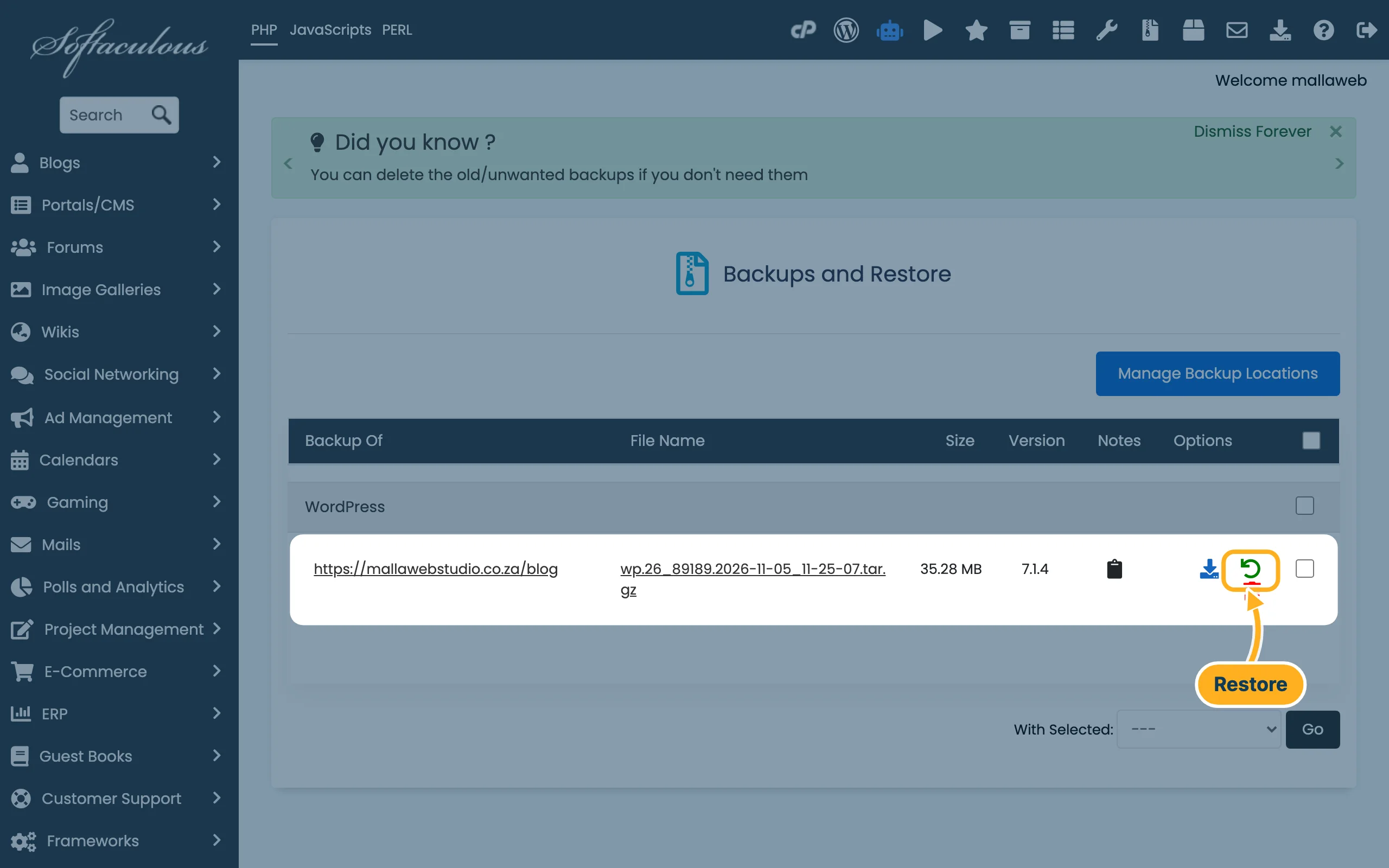
In WordPress Management, open the details of your site and click Restore. The page Backups and Restore lists your backups with the date and time in the file name, the size and the WordPress version. Under Options, click the green arrow (restore) next to the backup you want. The blue download arrow saves a copy of the backup on your computer.
-
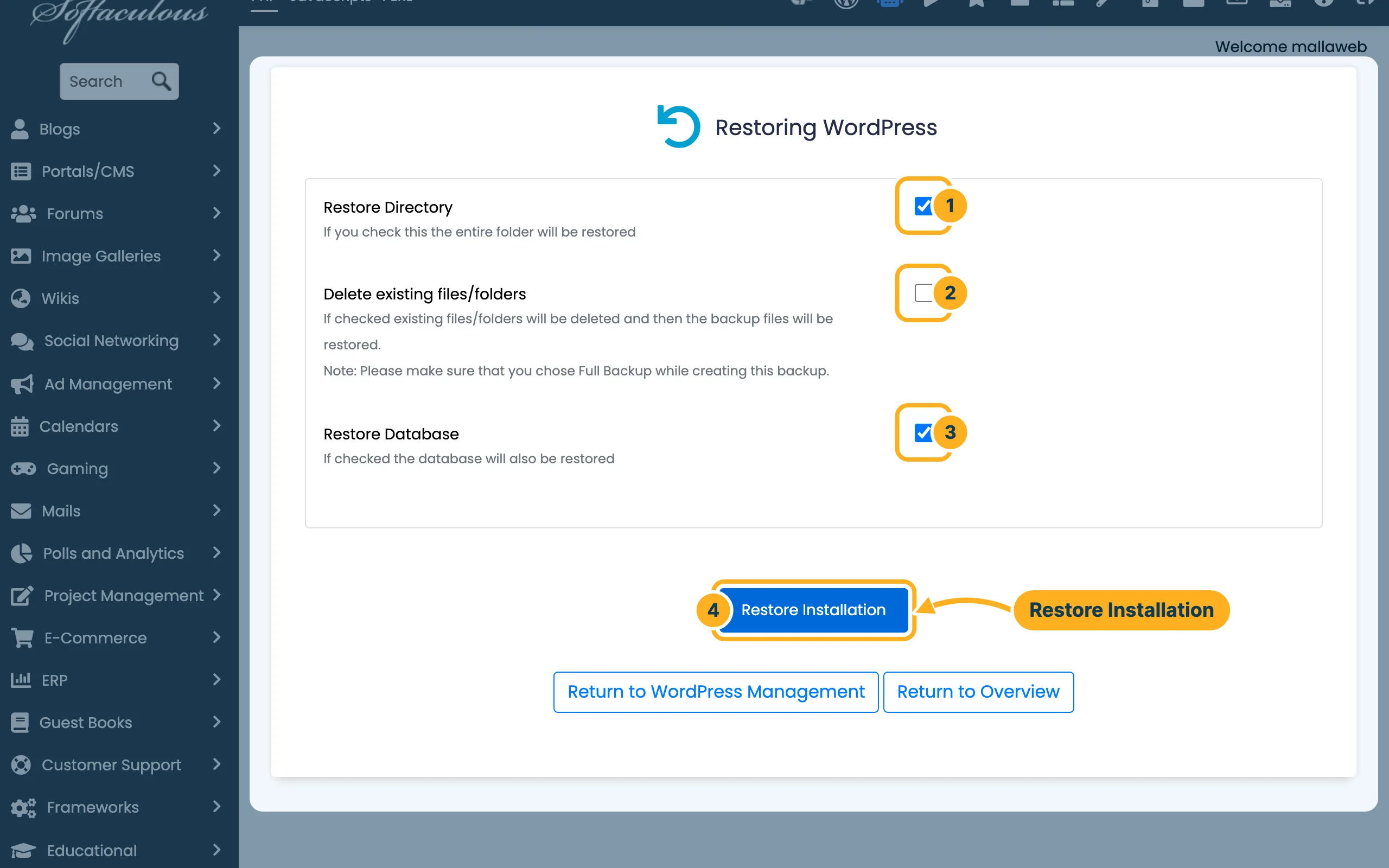
On the page Restoring WordPress:
- Restore Directory – puts back the files of the site.
- Delete existing files/folders – first deletes the current files. Tick it only if the backup contains all files of the site.
- Restore Database – puts back pages, posts and settings.
- Click Restore Installation.
Automatic backups
Softaculous can also back up your site on a schedule. Open the pencil icon of your site in Softaculous (see Reset your WordPress admin password) and choose a schedule under Automated backups – Once a day, Once a week or Once a month – and how many backups to keep under Backup Rotation. Then click Save Installation Details.
Related articles
Need help? Open a ticket or call us on 082 412 6556.
