

If the e-mails you send end up in the recipient's spam folder or don't arrive at all, the cause is often missing SPF or DKIM records for your domain. cPanel checks them for you under Email Deliverability and shows what is missing.

Watch the video (1 min 6 s, with narration) – or follow the steps below.
What SPF and DKIM do
- SPF is a DNS record that lists the servers allowed to send e-mail for your domain. Receiving mail servers check it: mail from a server that isn't listed looks suspicious.
- DKIM adds a digital signature to every e-mail you send. The matching key is published in your domain's DNS, so the recipient can check that the mail really comes from your domain and wasn't changed on the way.
Both are TXT records in the DNS of your domain. Without them, many mail providers trust your e-mails less.
Check your domain
-
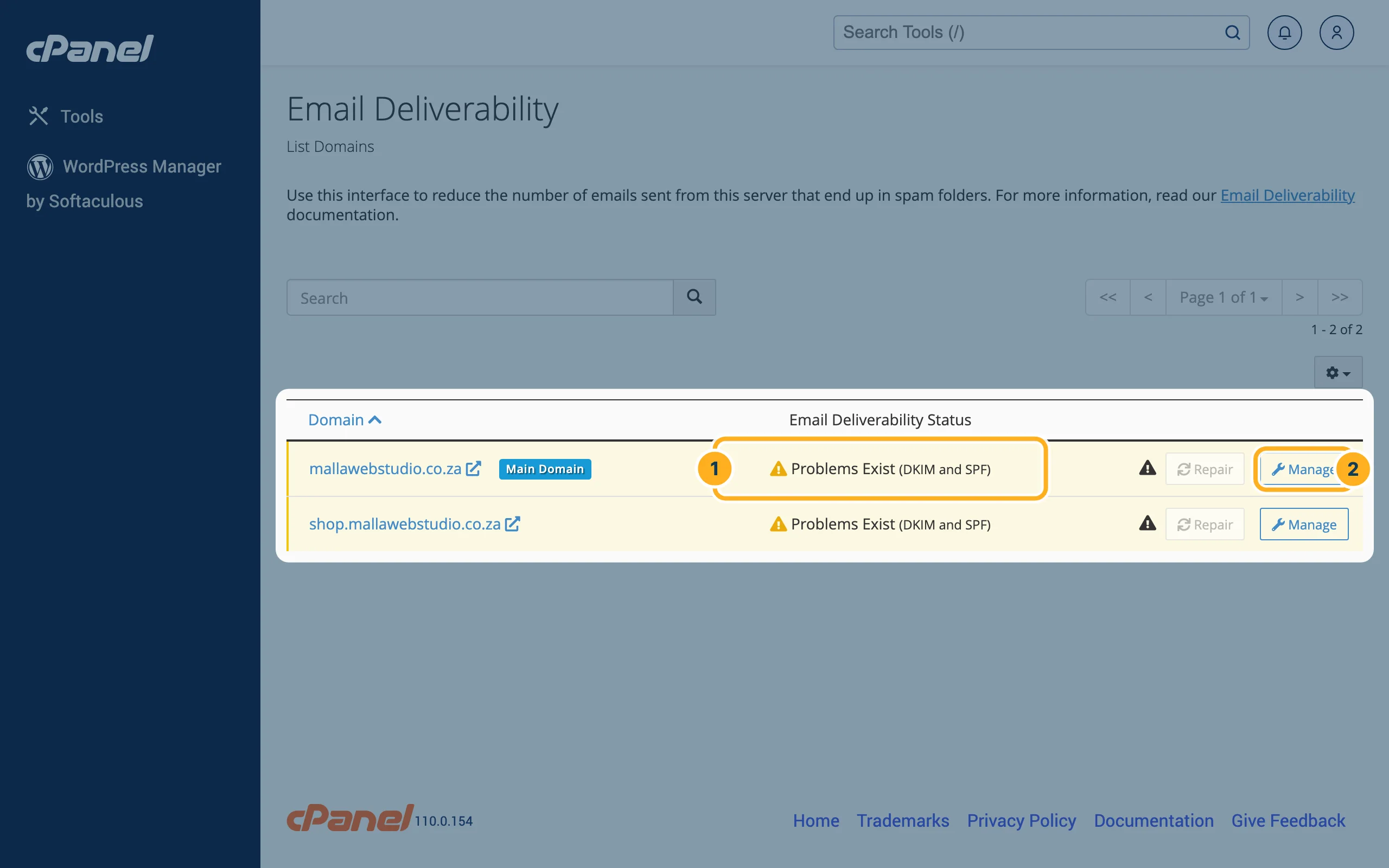
Log in to cPanel (see Log in to cPanel from the client area) and click Email Deliverability in the Email section. You see your domains with their status:
- Email Deliverability Status – "Problems Exist" and, in brackets, which records are affected, for example (DKIM and SPF).
- Click Manage to see the details for a domain.
-
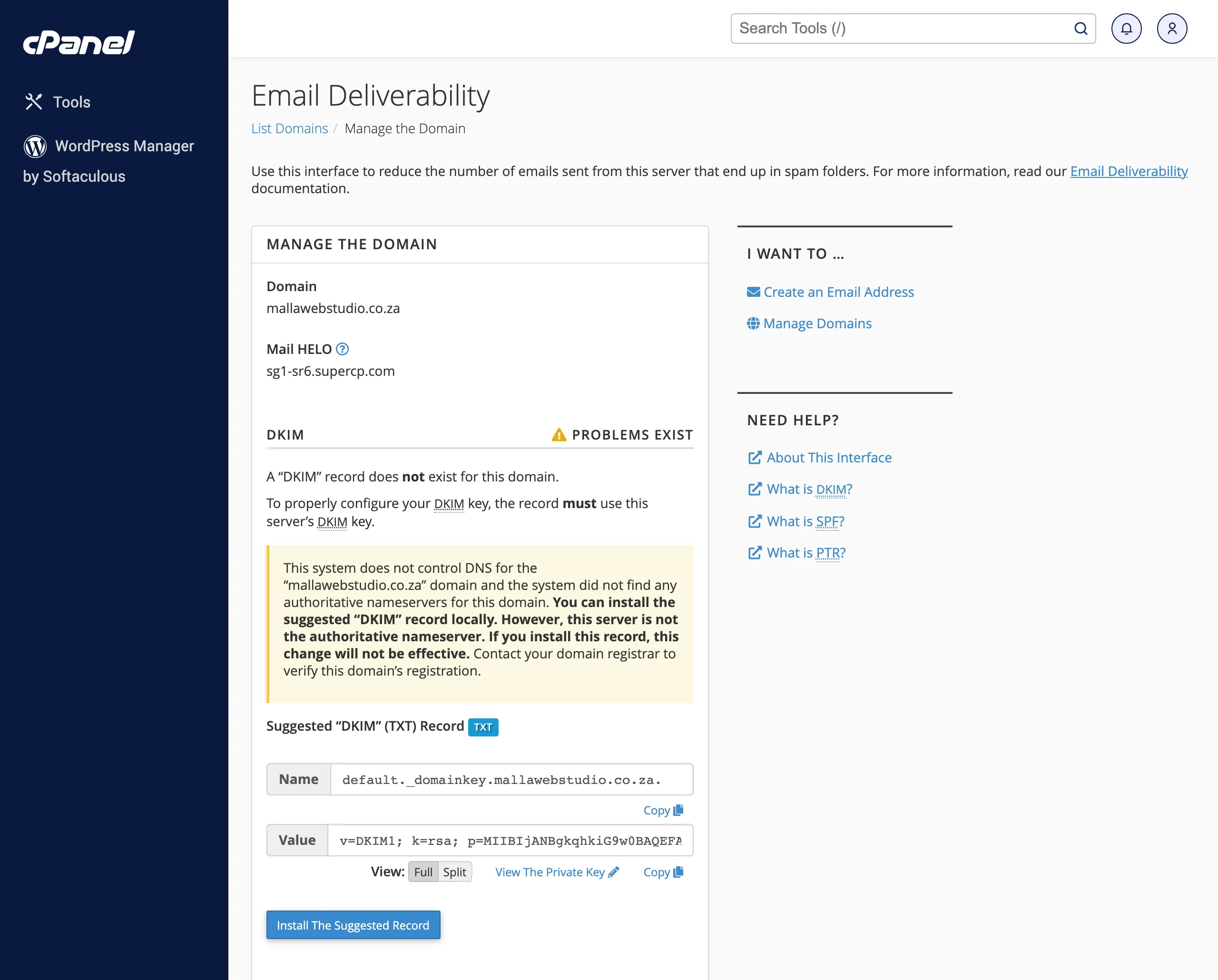
The page Manage the Domain has a section for each record. For DKIM and SPF it says whether the record exists and shows the record cPanel suggests: the Name and the Value, each with a Copy link, and the button Install The Suggested Record.
Fix the records
How you fix them depends on where your domain's DNS is managed:
- Your domain uses our nameservers (ns1–ns4.supercp.com, see Use a domain you have with another provider): click Repair in the list, or Install The Suggested Record on the Manage page. cPanel adds the records to your DNS zone.
- Your DNS is with another provider: cPanel shows a yellow note that it does not control DNS for the domain, and that installing the record here will not be effective. Copy the Name and Value with Copy and add them as TXT records at your DNS provider. For SPF, add the parts cPanel lists to your existing SPF record – a domain should have only one SPF record.
DNS changes can take a while to be visible everywhere (see Why isn't my domain working yet? (DNS propagation)). Open Email Deliverability again later to check the status.
Other things to check
- The mailbox may send: in Email Accounts → Manage, under Restrictions, Sending Outgoing Email should be set to Allow.
- See whether a message left the server: cPanel's Track Delivery tool in the Email section shows the delivery route of e-mails.
- Your device sends with the right settings: outgoing server, port 465, SSL/TLS and sign-in – see E-mail settings for your devices (IMAP, SMTP, ports).
- The content: e-mails with only a link or an attachment, many recipients at once or words typical for spam are filtered more often.
Related articles
- Edit DNS records (A, CNAME, MX, TXT)
- E-mail settings for your devices (IMAP, SMTP, ports)
- Spam filters
Need help? Open a ticket or call us on 082 412 6556.
