

Visitors who type your address without https://, or follow an old http:// link, land on the insecure version of your site. With Force HTTPS Redirect in cPanel, every visit is sent to https:// automatically.

Watch the video (41 s, with narration) – or follow the steps below.
Step by step
-
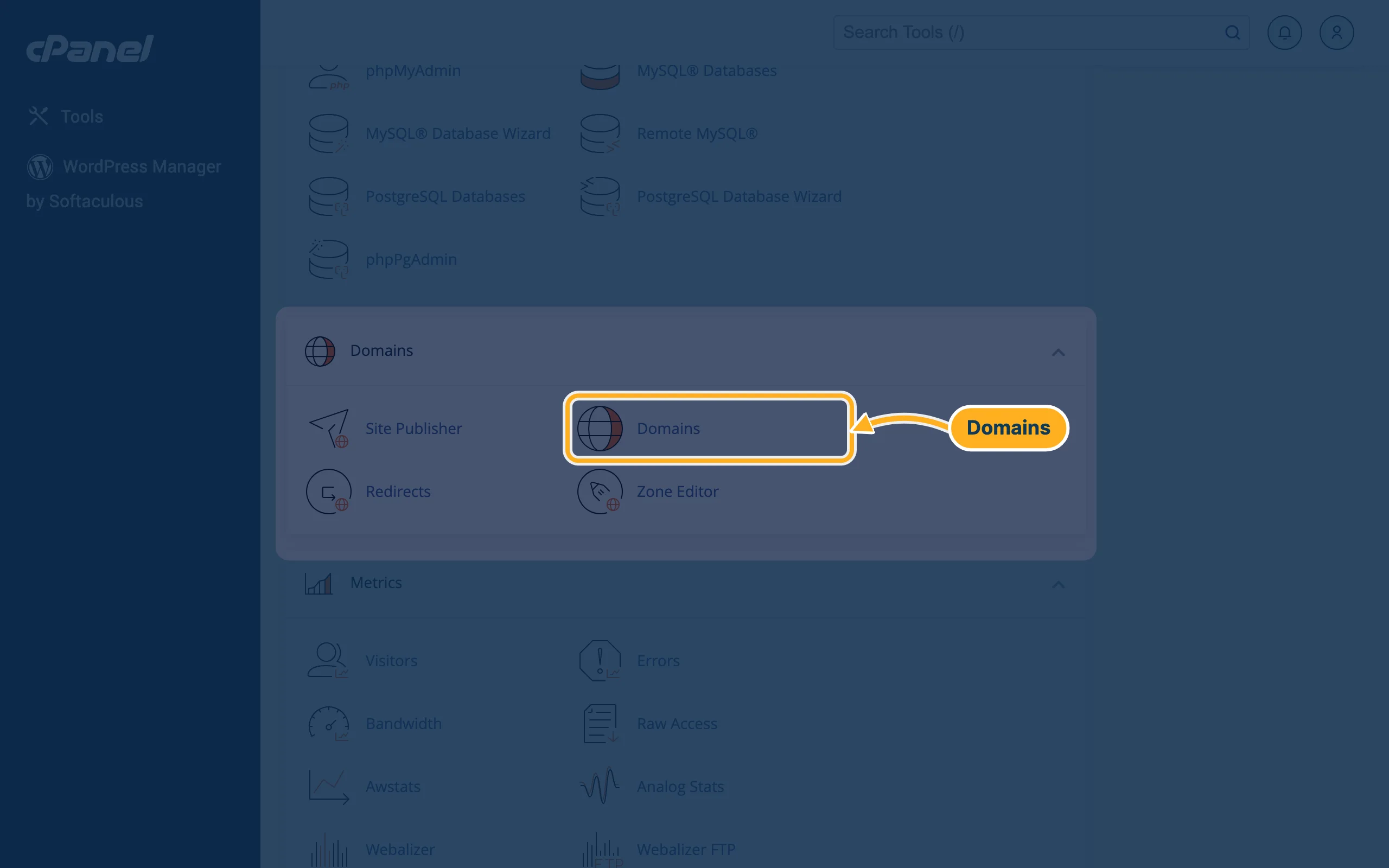
Open cPanel (see Log in to cPanel from the client area). In the section Domains, click Domains.
-
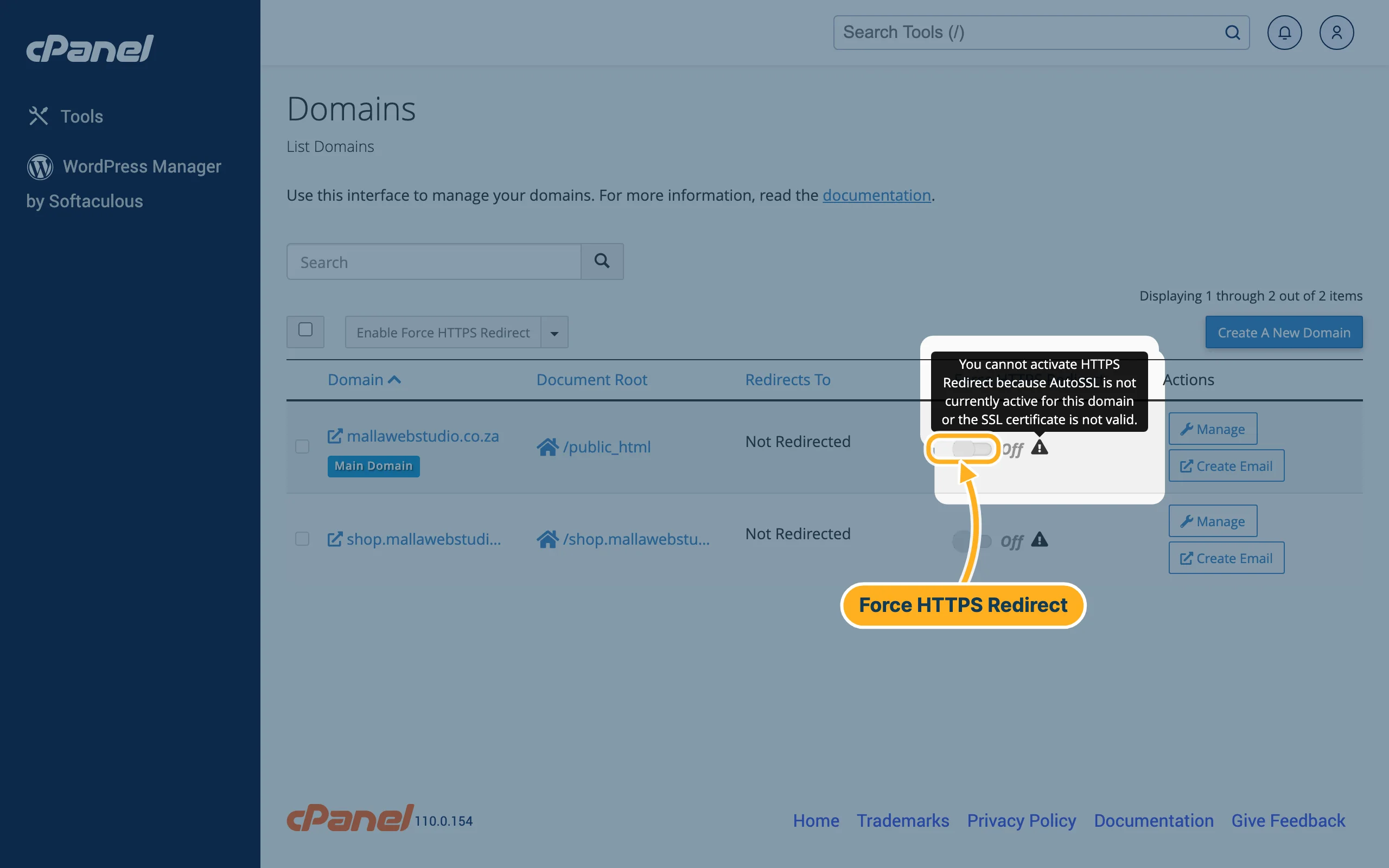
The list shows your domains. In the column Force HTTPS Redirect, click the switch next to the domain so that it shows On instead of Off.
If the switch is grey and has a warning sign next to it, you can't switch it on yet. Point at the warning sign to see the reason – on our example domain it says “You cannot activate HTTPS Redirect because AutoSSL is not currently active for this domain or the SSL certificate is not valid.” Sort out the certificate first, see Free SSL certificate (AutoSSL).
-
Several domains at once: tick the boxes in front of the domains and click Enable Force HTTPS Redirect above the list.
-
Check the result: type your address with
http://in the browser. It should change tohttps://and show the padlock.
WordPress sites
In WordPress, also check under Settings → General that WordPress Address (URL) and Site Address (URL) start with https://. If you installed WordPress with https:// in Softaculous, they already do (see Install WordPress with Softaculous).
Something not working?
- The browser says the page isn't redirecting properly: the redirect is set up twice, for example by a WordPress plugin and by cPanel, or by a rule in your
.htaccessfile. Keep only one of them. - The padlock is missing although the address starts with https://: see “Mixed content” in SSL warnings in the browser – causes and fixes.
Related articles
- Free SSL certificate (AutoSSL)
- SSL warnings in the browser – causes and fixes
- Redirects and custom error pages
Need help? Open a ticket or call us on 082 412 6556.
