

With two-factor authentication (2FA), signing in to cPanel needs two things: your password and a six-digit code from an app on your phone. Someone who steals your password still can't get into your cPanel without your phone.
Watch the video (1 min 15 s, with narration) – or follow the steps below.
You need: an authenticator app on your phone, for example Google Authenticator, Microsoft Authenticator or another app that shows six-digit codes (TOTP). Keep the phone with you while you set it up.
Step by step
-
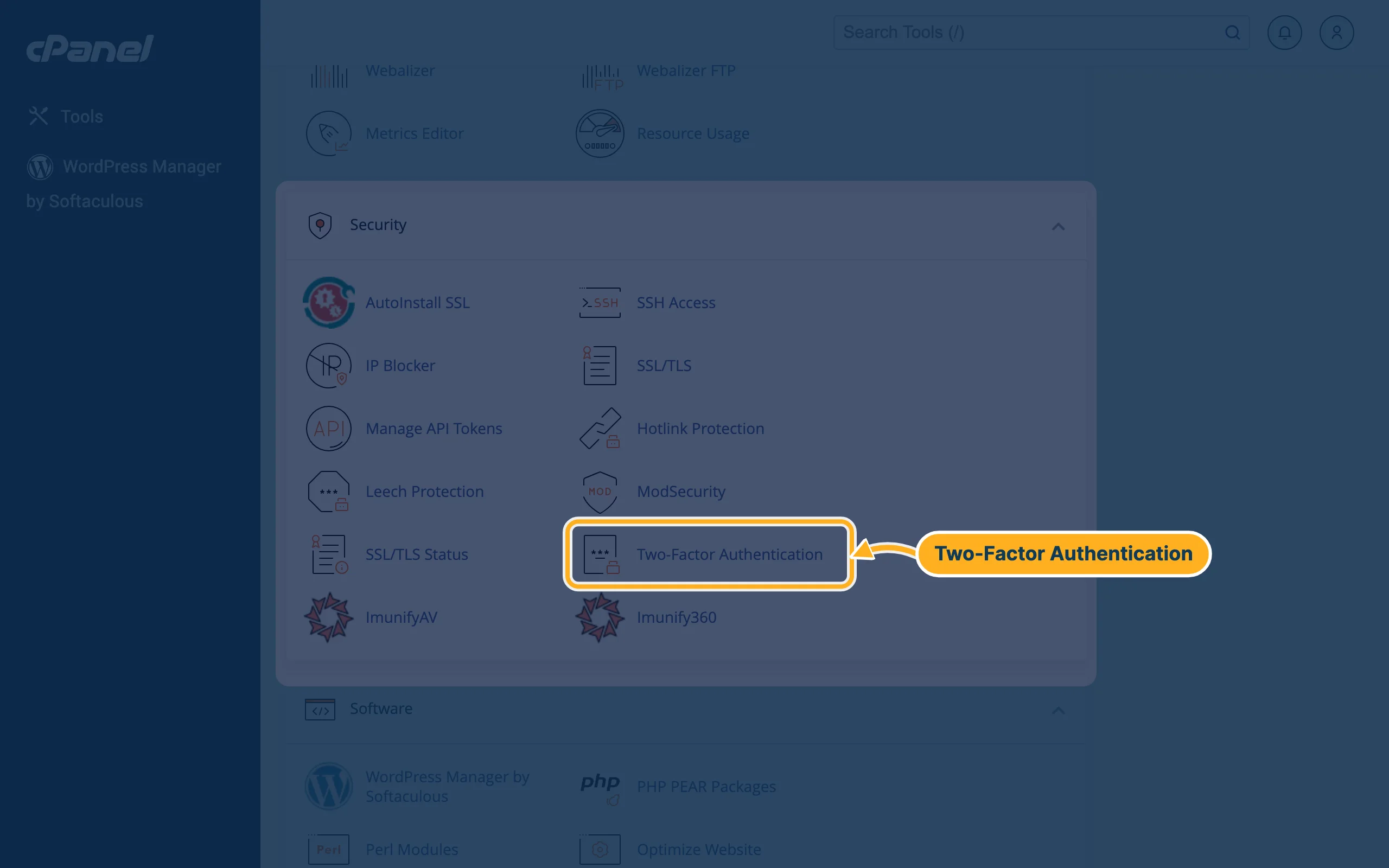
Open cPanel (see Log in to cPanel from the client area). In the section Security, click Two-Factor Authentication.
-
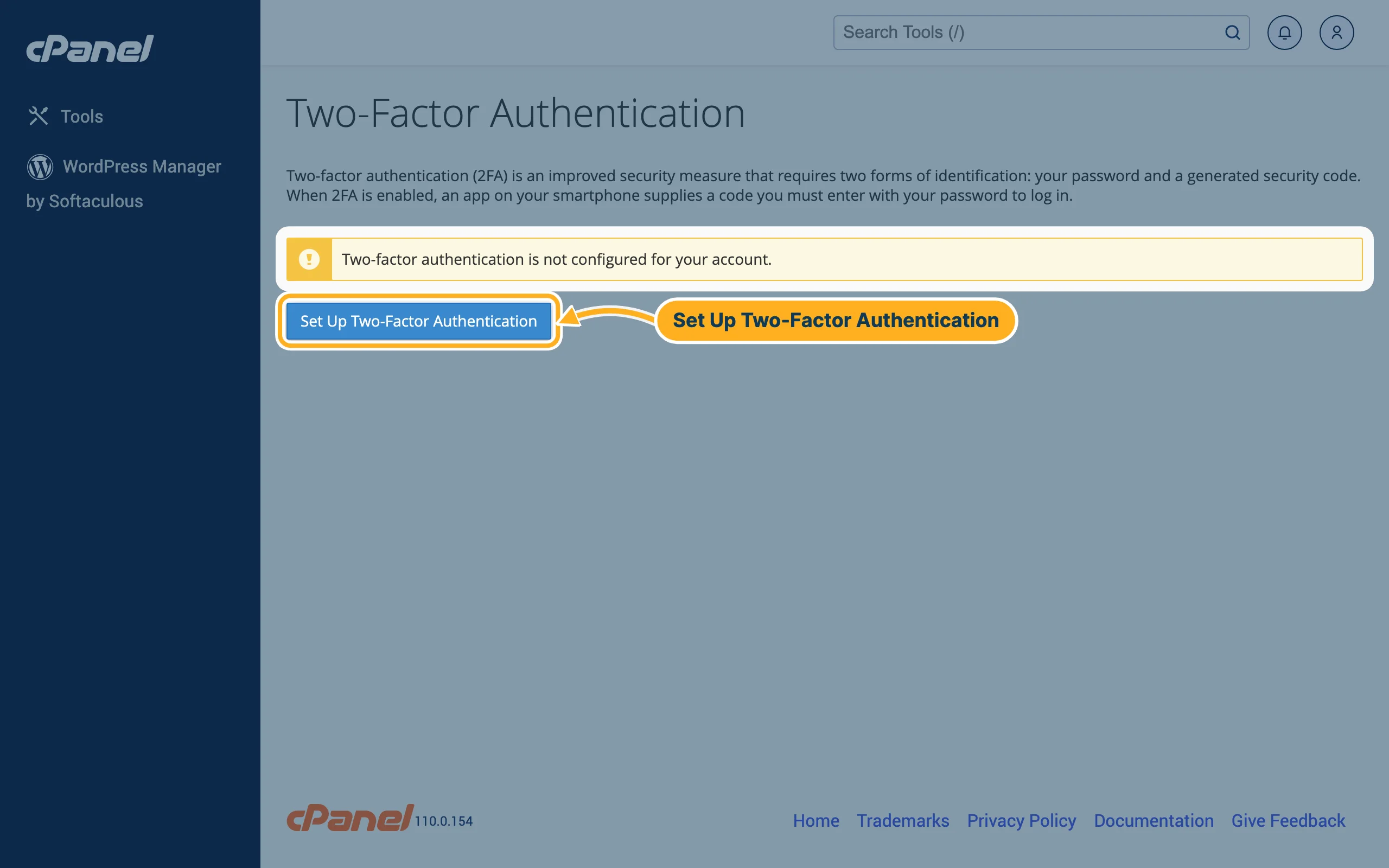
As long as 2FA is off, the page says Two-factor authentication is not configured for your account. Click Set Up Two-Factor Authentication.
-
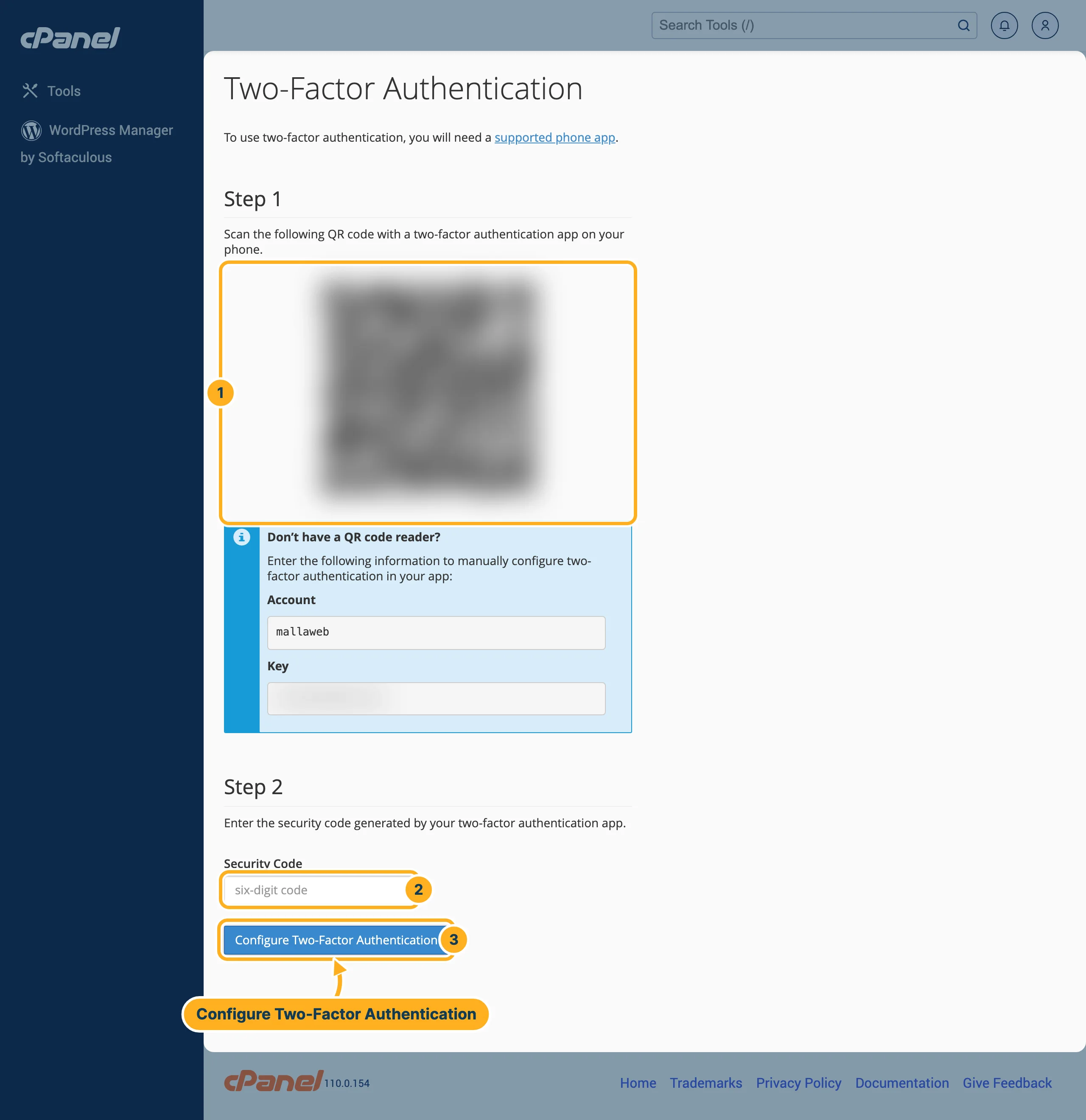
Connect your app and confirm it:
- Step 1 – open your authenticator app, add a new account and scan the QR code with the phone camera. Can't scan it? Under Don't have a QR code reader? cPanel shows an Account and a Key that you can type into the app instead.
- Step 2 – type the six-digit code that the app now shows into Security Code. The code changes every 30 seconds; use the current one.
- Click Configure Two-Factor Authentication.
From now on, cPanel asks for a code from the app each time you sign in with your password.
Careful: never show the QR code or the key to anyone, and never send them by e-mail – they work like a second password. If you change or lose your phone, set up the app on the new phone first, or open a ticket.
Something not working?
- The code is not accepted: check that the time on your phone is set automatically. The codes depend on the exact time.
- You scanned the code twice or into the wrong app: delete the extra entry in the app and use the one you set up last.
Related articles
Need help? Open a ticket or call us on 082 412 6556.
