

Imunify360 checks the files and databases of your hosting account for malware. You can start a scan yourself in cPanel at any time, for example if your site behaves strangely or Google warns about it.
Watch the video (1 min 2 s, with narration) – or follow the steps below.
Good to know: the real-time scanner of Imunify360 is switched on for your account and checks files as they change. A manual scan goes through the whole account once more.
Step by step
-
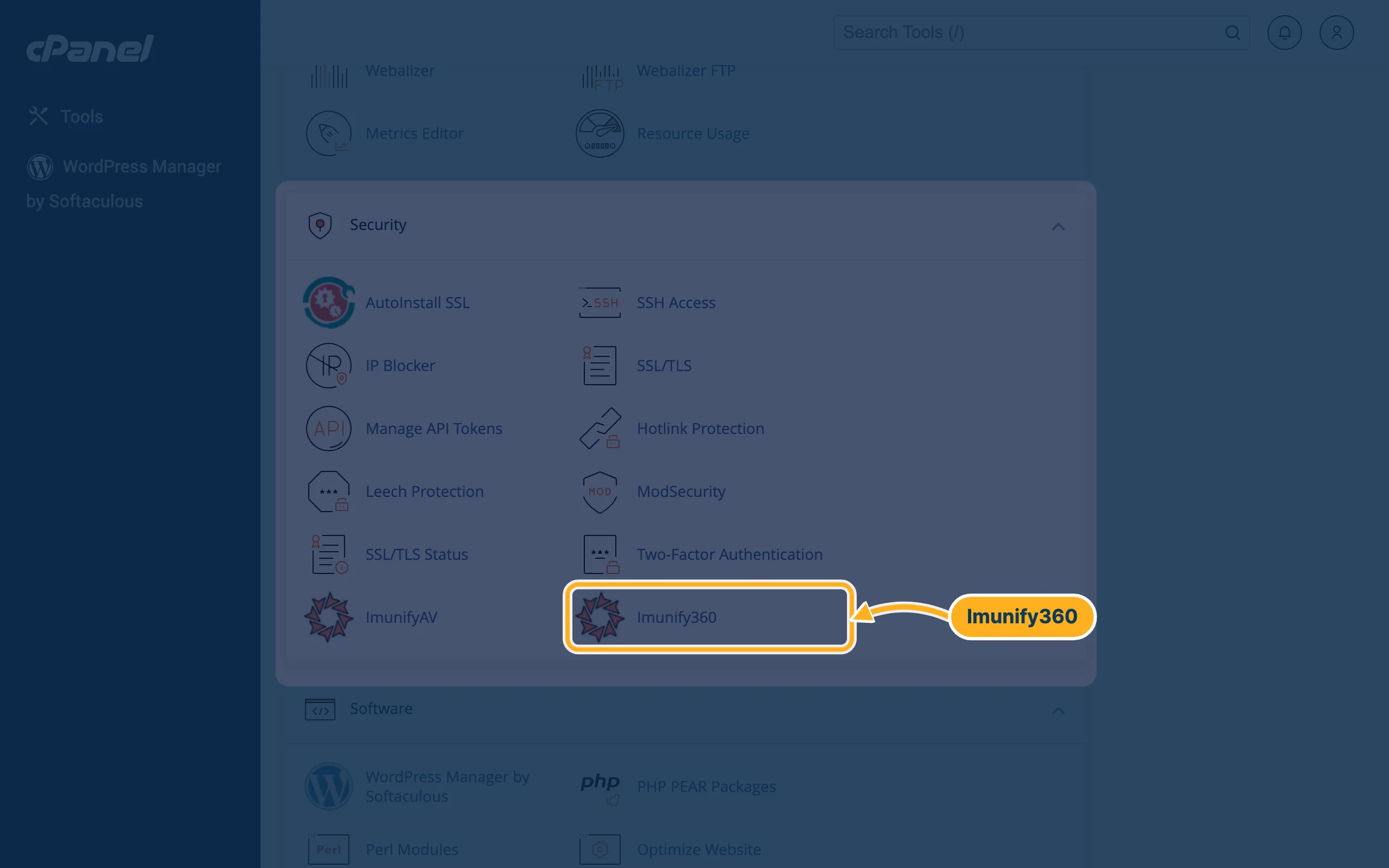
Open cPanel (see Log in to cPanel from the client area). In the section Security, click Imunify360. (ImunifyAV next to it opens the same page.)
-
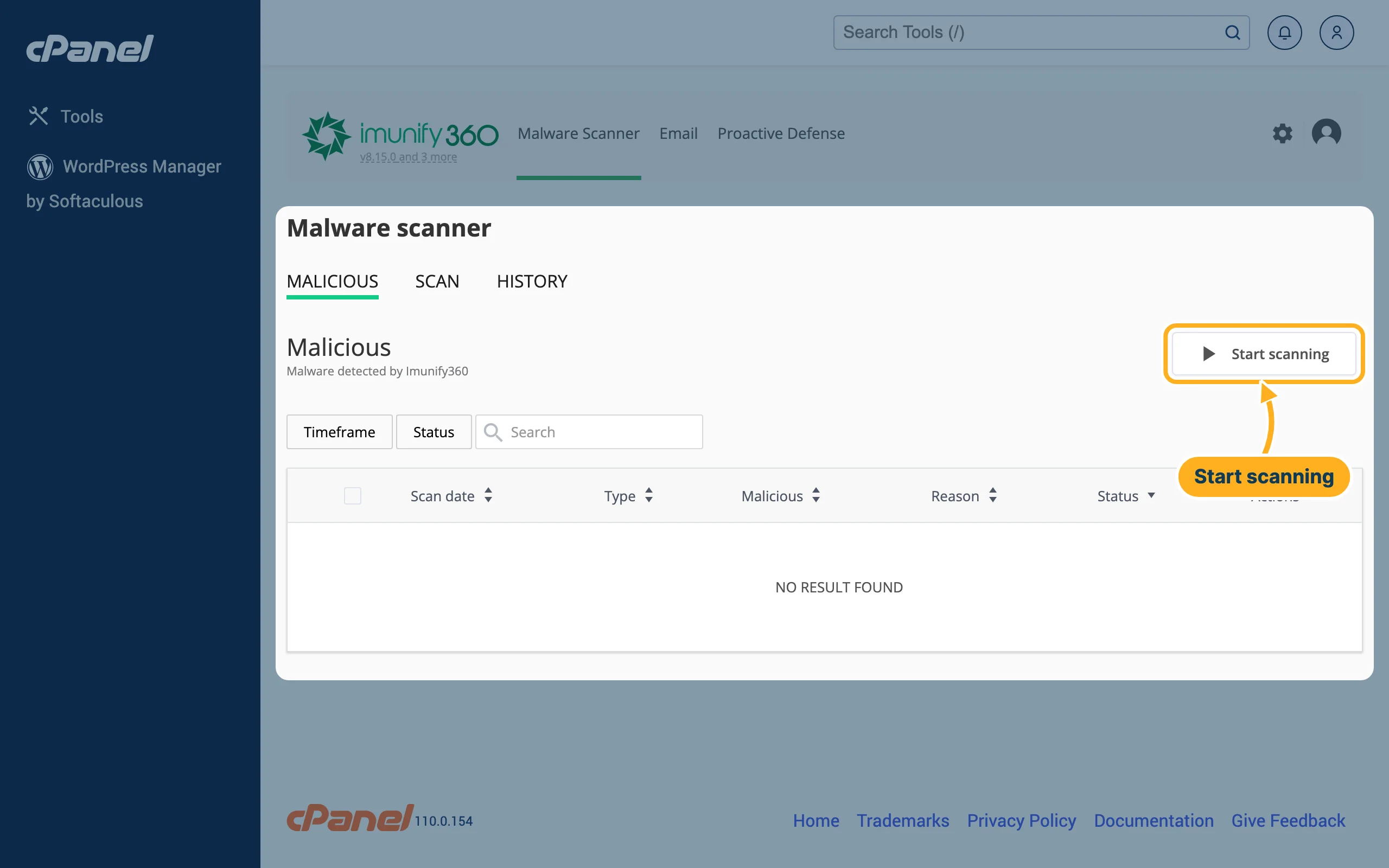
The Malware scanner opens on the tab MALICIOUS, which lists malware found in your account – NO RESULT FOUND means none. Click Start scanning. While the scan runs, the button shows Stop scanning.
-
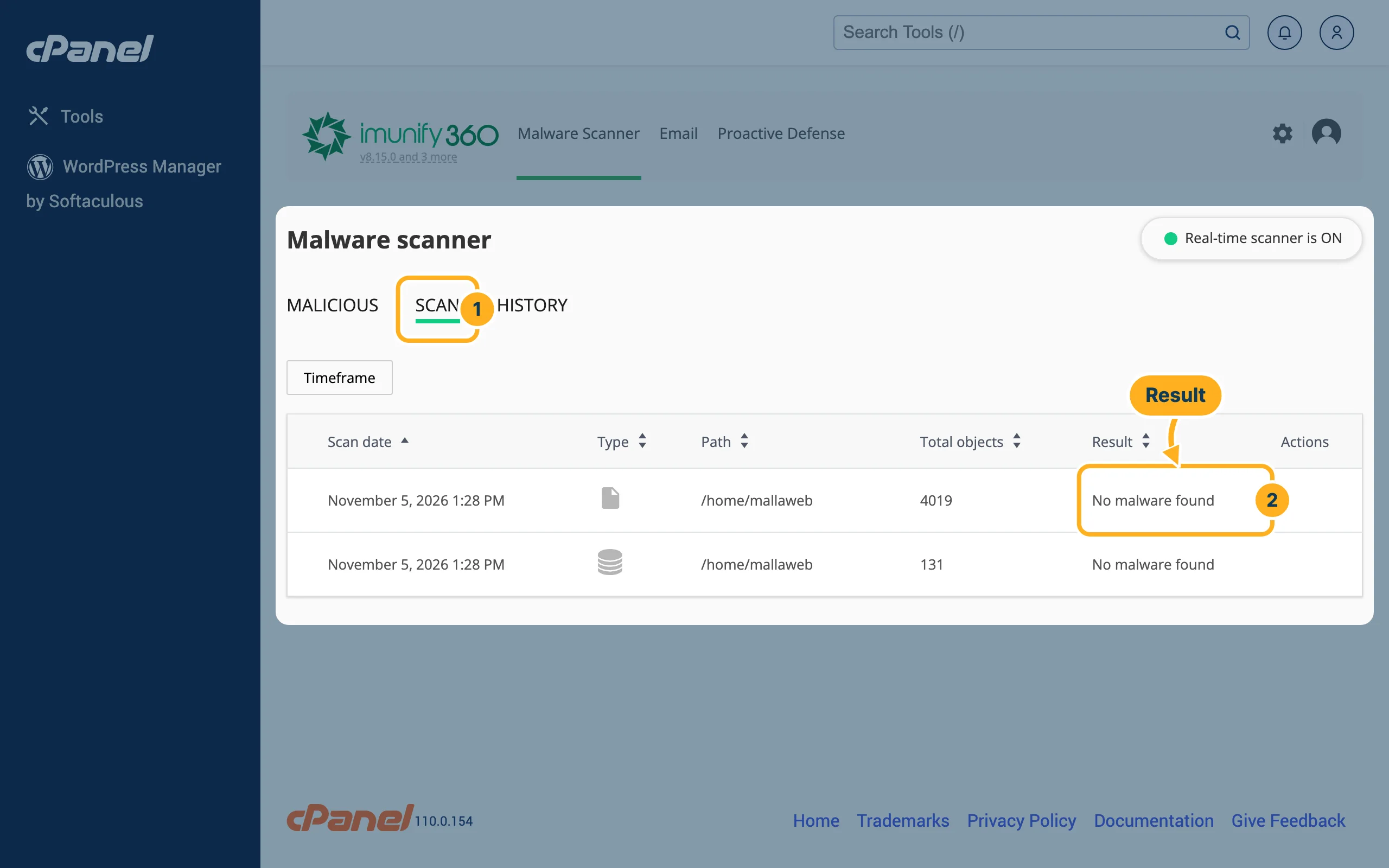
When the button shows Start scanning again, the scan is done:
- Click the tab SCAN.
- Each scan has a row for the files and one for the databases of your account. Result shows No malware found if everything is clean.
Malware was found?
- Look at the list on the tab MALICIOUS: it shows which files are affected.
- Open a ticket and tell us what Imunify360 found. Don't delete files on a guess – some of them may be needed for your site to work.
- Change the passwords of cPanel, WordPress and FTP. See Strong passwords.
- Update WordPress, its plugins and themes, and delete plugins you don't use. See Update WordPress, themes and plugins.
- If your site was changed, restore a clean backup from before the infection: see Back up and restore your site (JetBackup 5).
Related articles
Need help? Open a ticket or call us on 082 412 6556.
