

A ticket is the quickest way to get help from us in writing. If you sign in first, the ticket is linked to your account and services, and you can follow every answer in the client area.

Watch the video (1 min 41 s, with narration) – or follow the steps below.
Step by step
-
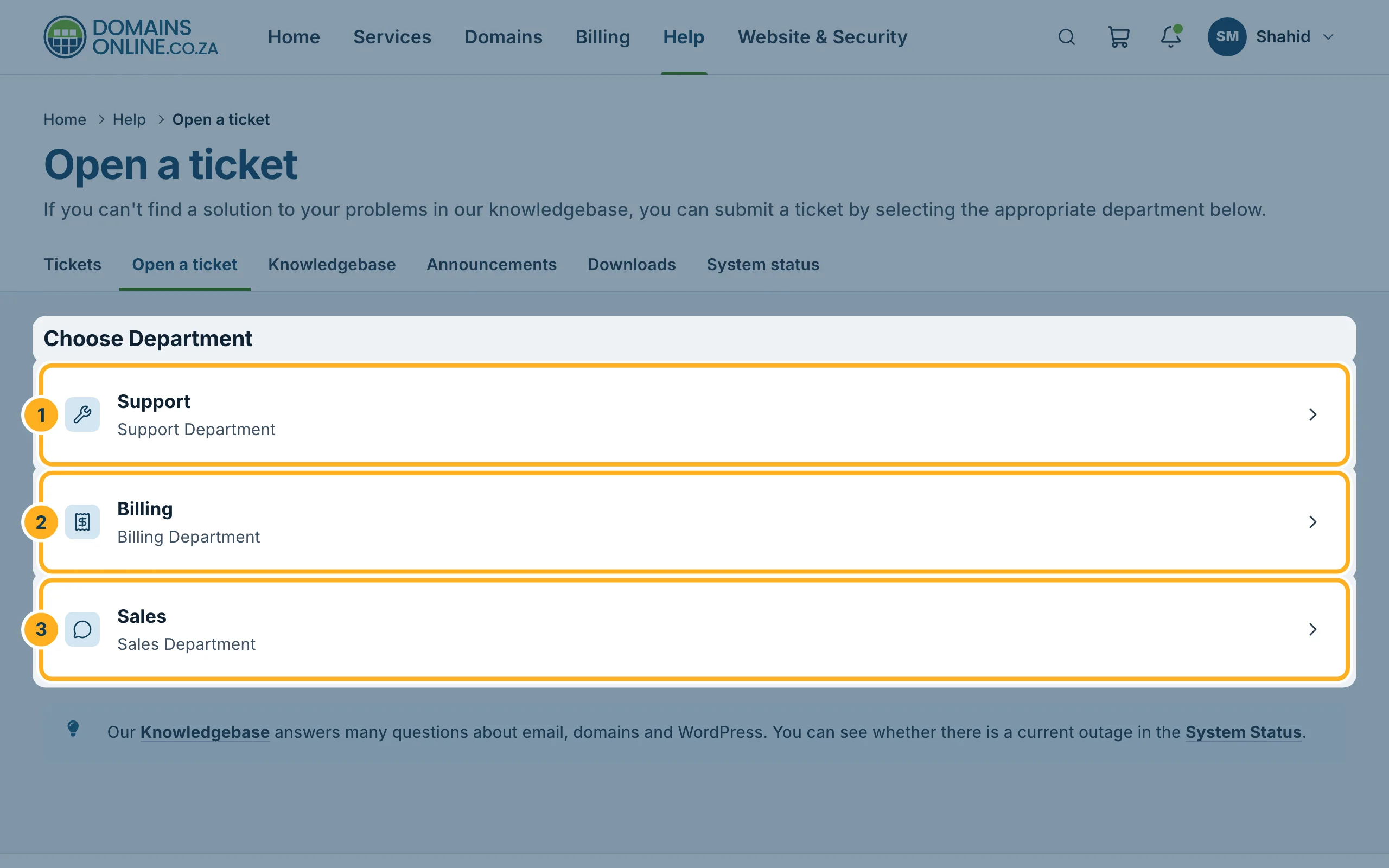
Sign in to the client area and click Help in the top menu, then the tab Open a ticket. On the home page you can also click Open a ticket under Quick actions.
-
Under Choose Department, click the department that fits your question:
- Support – technical problems, for example with your website, e-mail, cPanel or a domain.
- Billing – invoices and payments.
- Sales – questions before you order.
-
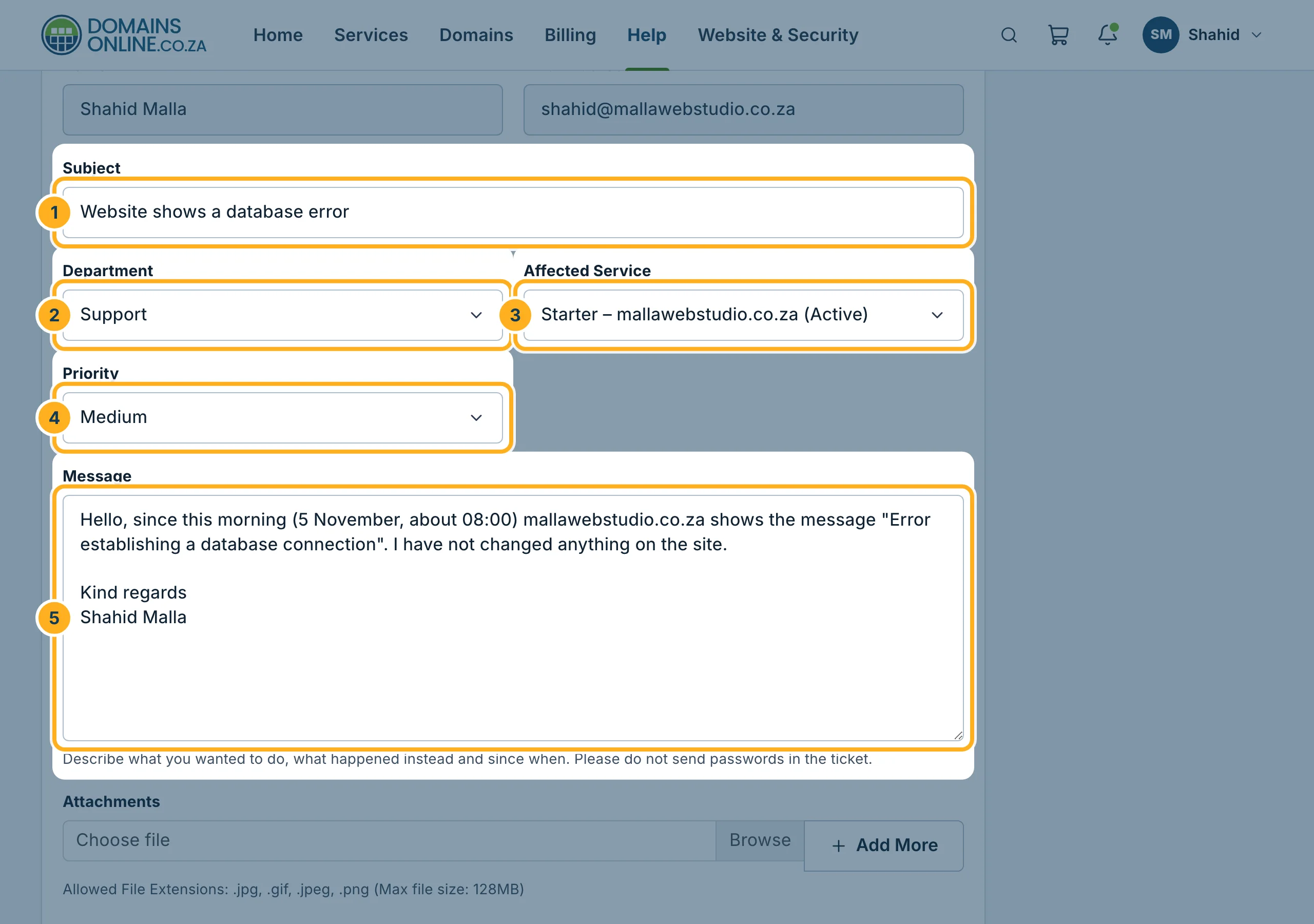
Your name and e-mail address are already filled in from your account. Fill in the rest:
- Subject – a short summary, for example “Website shows a database error”.
- Department – you can still change it here.
- Affected Service – choose the hosting service or domain the ticket is about, or leave No service.
- Priority – High, Medium or Low.
- Message – describe what you wanted to do, what happened instead and since when. Don't send passwords.
-
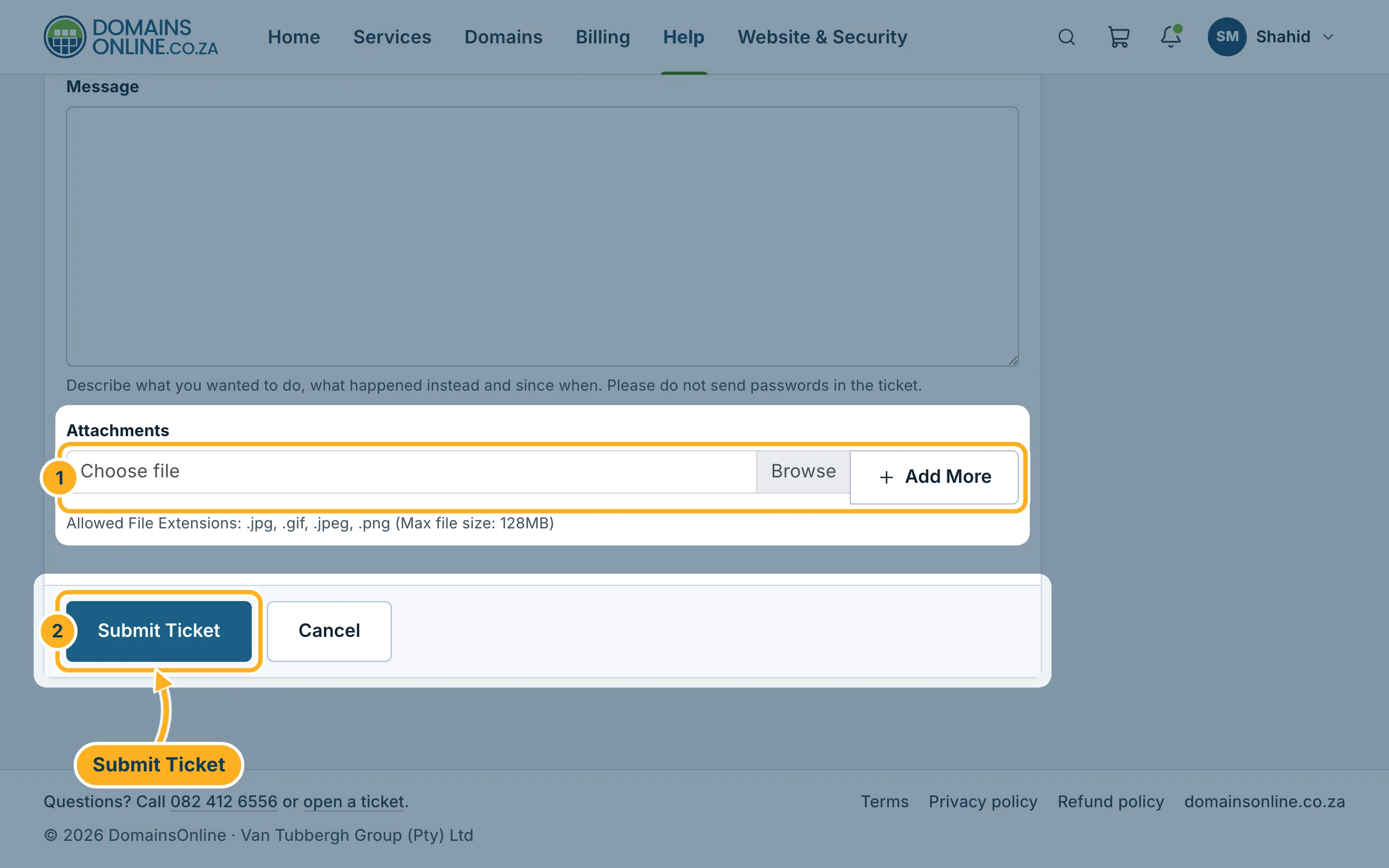
Send the ticket:
- To add a screenshot, click Browse under Attachments and choose the file. Add More adds another file. Allowed are .jpg, .gif, .jpeg and .png.
- Click Submit Ticket.
We answer by e-mail and in the client area. You find all your tickets under Help – see View, reply to and close your tickets.
Something not working?
- A file is not accepted: only pictures can be attached (.jpg, .jpeg, .gif, .png). Paste text, such as an error message, into the message instead.
- The form shows a red message: a required field is empty. Fill in the subject and the message and click Submit Ticket again.
Related articles
Prefer to talk? Call us on 082 412 6556.
