

Your company name, contact details and billing address appear on your invoices. You can change them yourself in the client area at any time.
Watch the video (2 min 0 s, with narration) – or follow the steps below.
Good to know: the Email Address on this page is where we send your invoices and other account e-mails. The address you sign in with is set separately – see Change the e-mail address you sign in with.
Step by step
-
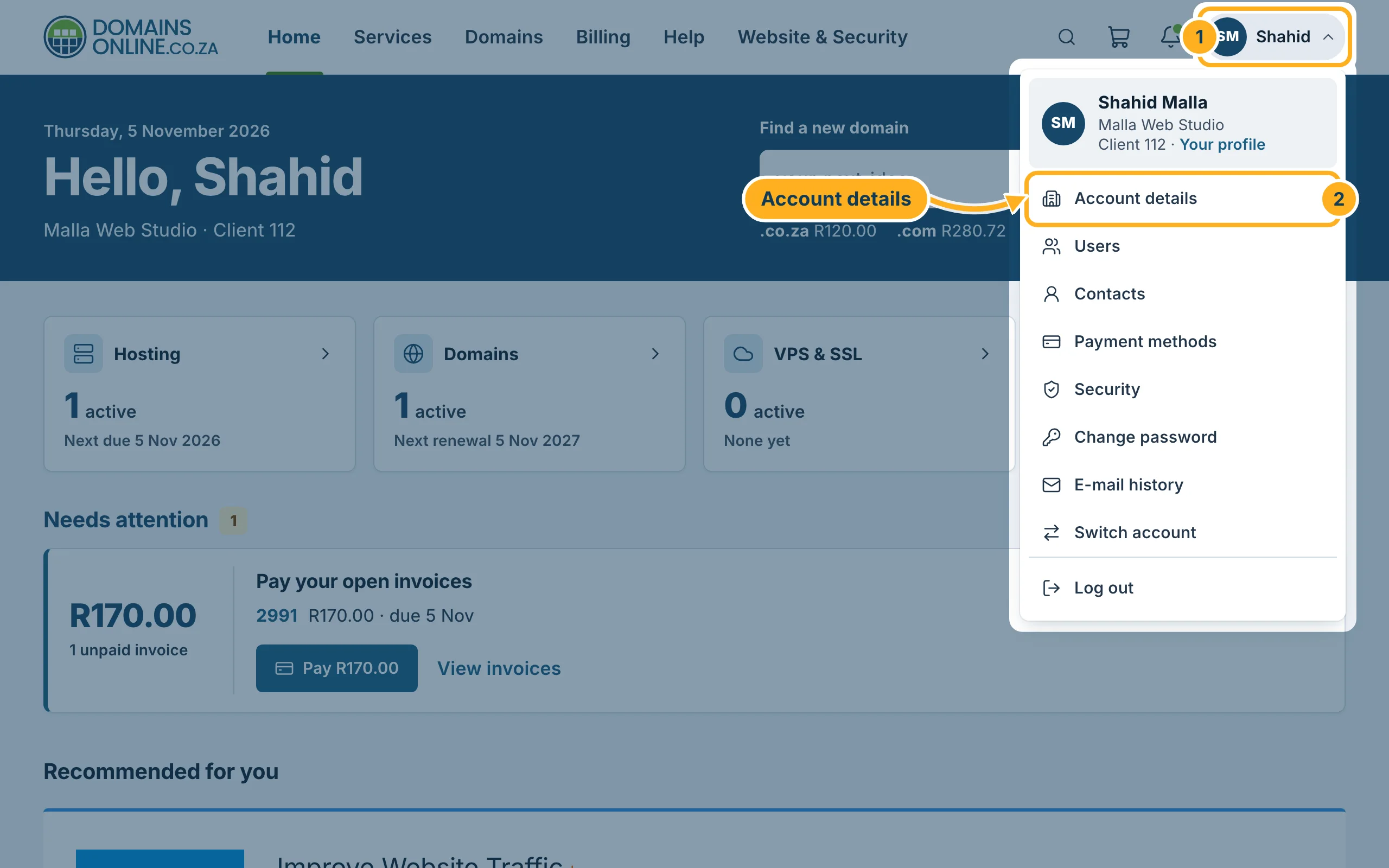
Sign in to the client area, click your initials and name at the top right and choose Account details.
-
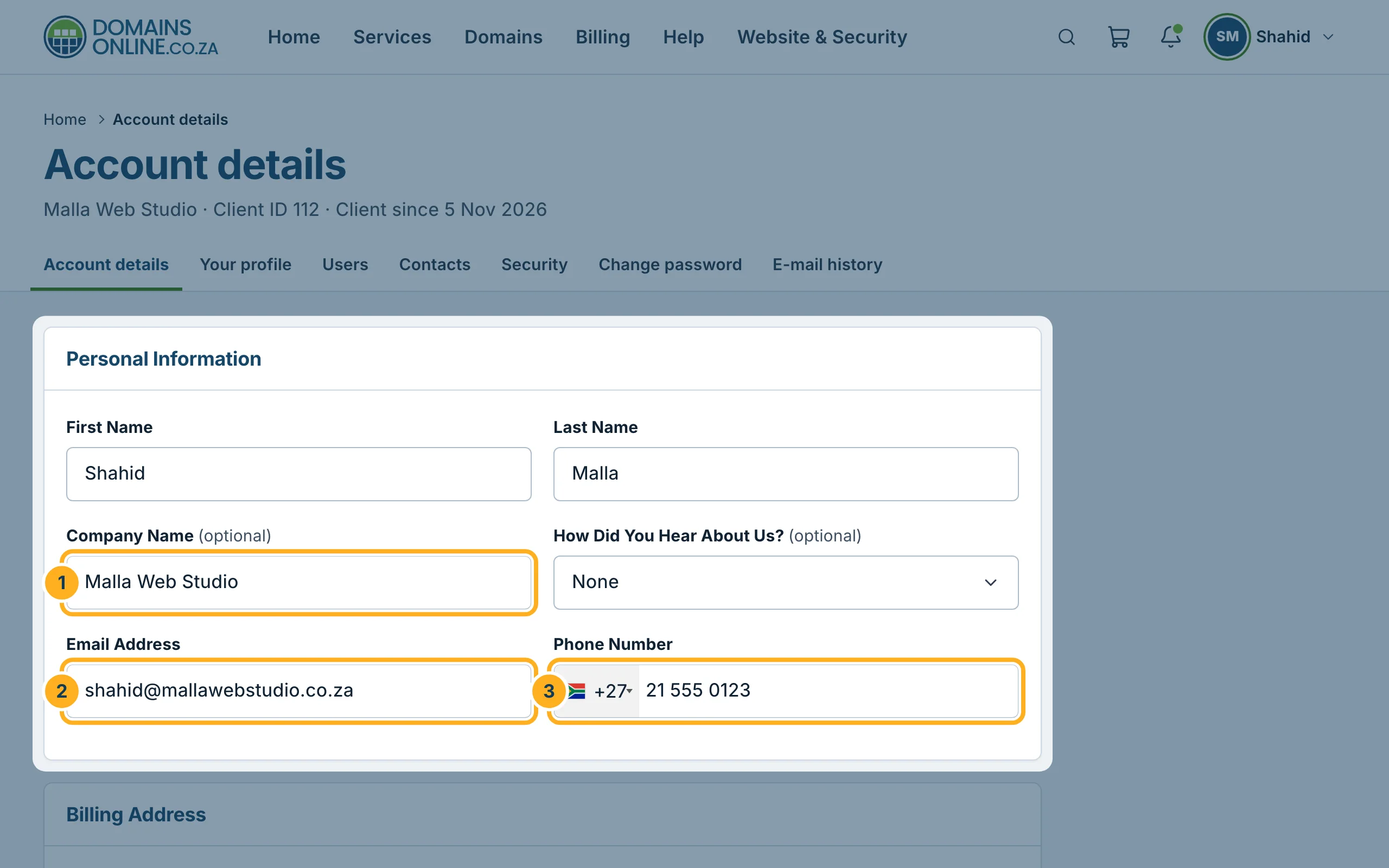
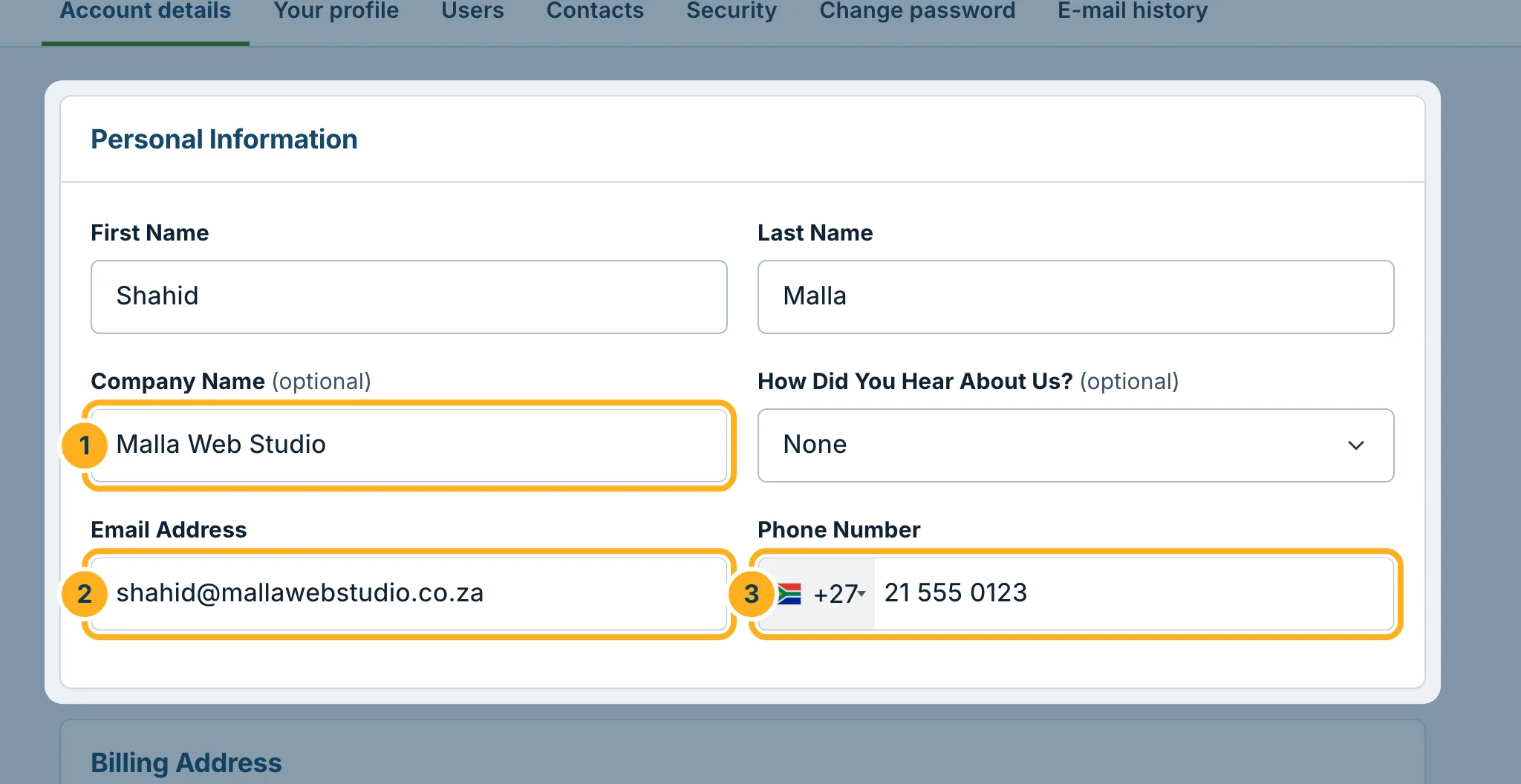
Under Personal Information, change what you need:
- Company Name – the business name for your invoices (optional).
- Email Address – the address for invoices, reminders and other account e-mails.
- Phone Number – the flag in front of the number sets the country code; for South Africa it shows +27.
-
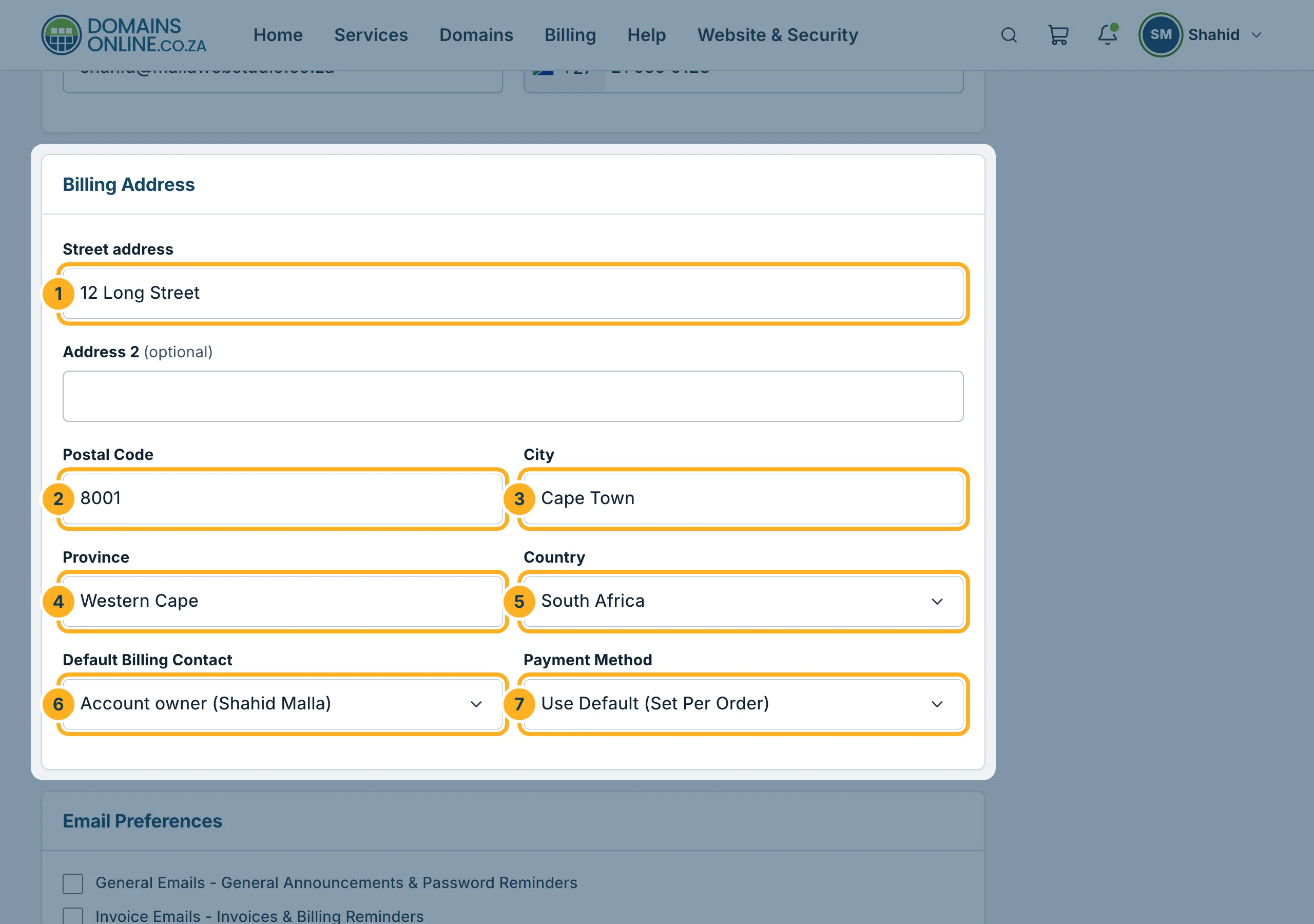
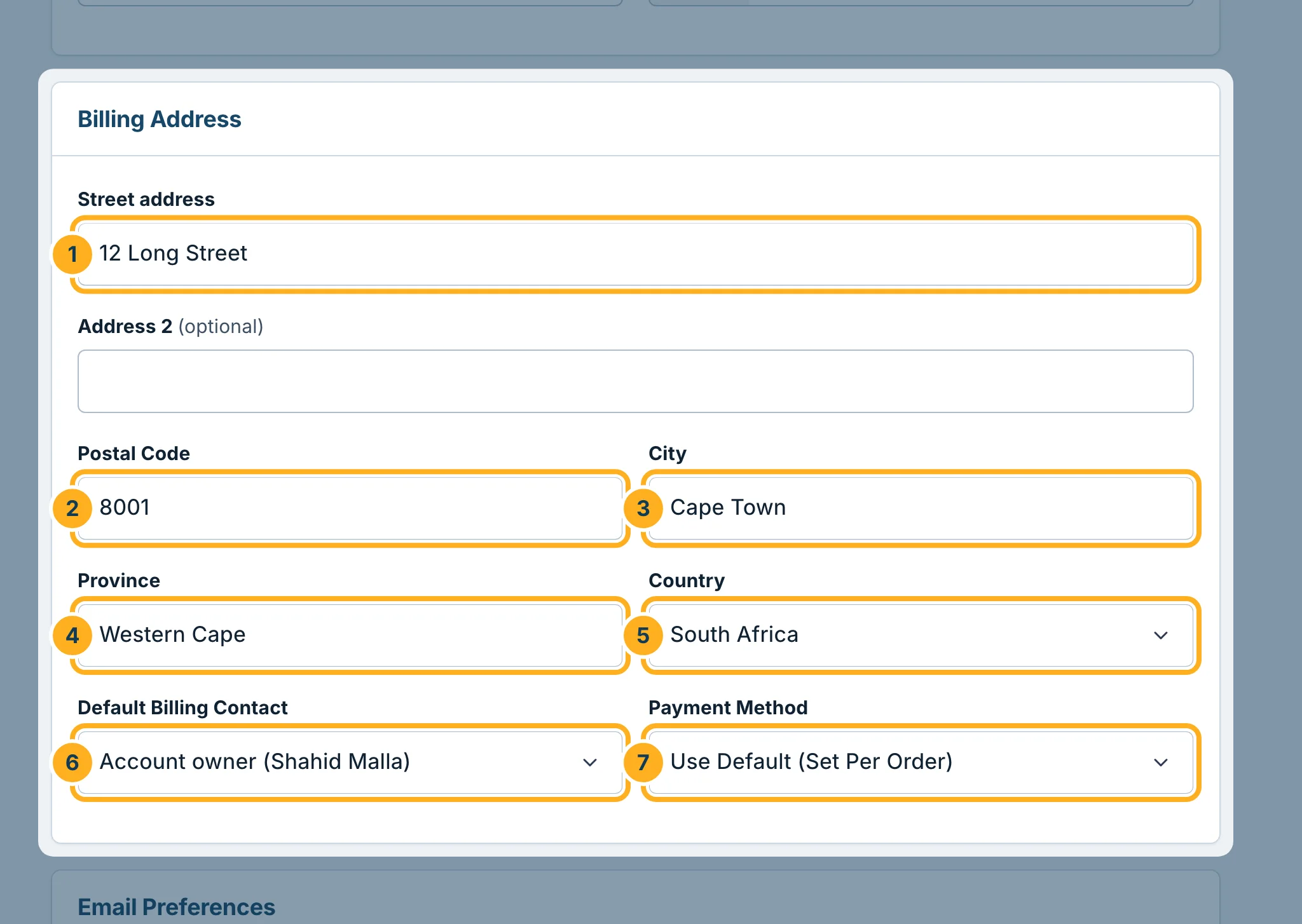
Under Billing Address, change the address that appears on your invoices:
- Street address – Address 2 below it is optional.
- Postal Code – four digits.
- City
- Province
- Country
- Default Billing Contact – who the invoices are addressed to: the account owner, or one of your contacts. To add a contact, see Add contacts (for example a billing contact).
- Payment Method – leave it on Use Default (Set Per Order), or choose Credit Card (PayFast). Both lead to PayFast, our only payment option.
-
Scroll to the bottom of the page and click Save Changes. Cancel leaves everything as it was.
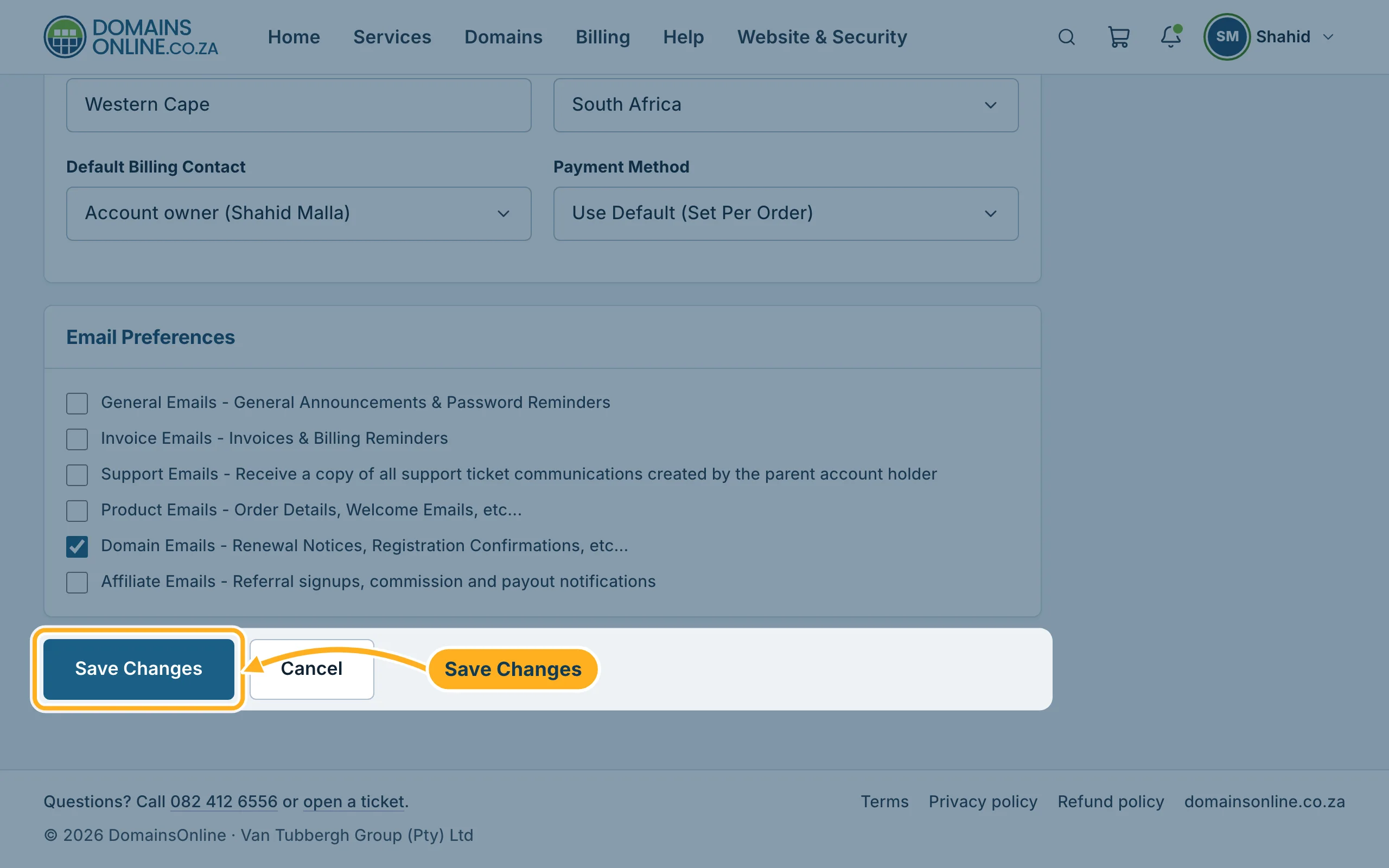
The Email Preferences section on the same page sets which e-mails you receive – see Choose which e-mails you receive.
Something not working?
- The page shows a red message under a field: correct that field and click Save Changes again.
- You left the page without saving: nothing was changed. Open Account details again and make your changes once more.
Related articles
Need help? Open a ticket or call us on 082 412 6556.
