

Every hosting service has its own page in the client area. It shows your plan, what you pay, when the next invoice is due and your cPanel login details, and it opens cPanel and webmail with one click.
Watch the video (2 min 13 s, with narration) – or follow the steps below.
Open the page
Click Services in the top menu, then Manage next to the service – or click the domain name of the service. See My services: overview and status.
What you find on the page
-
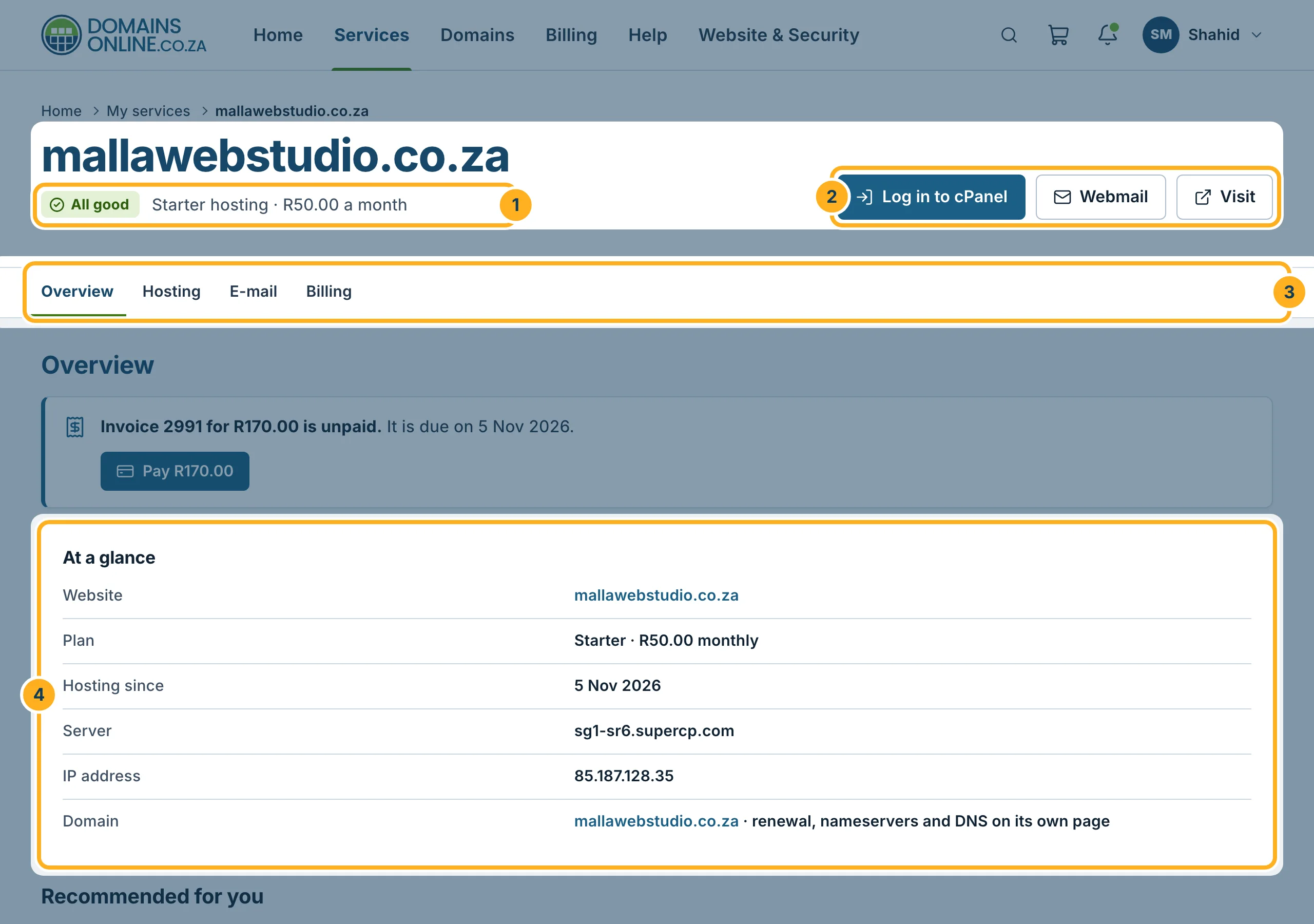
At the top:
- The status of the website (for example All good), the plan and the price, for example Starter hosting · R50.00 a month.
- The buttons Log in to cPanel, Webmail and Visit (opens your website). All three open in a new tab.
- The sections of the page: Overview, Hosting, E-mail and Billing. Click one to jump to it.
- At a glance: your website address, the plan, the date since when you have the hosting, the server name, the IP address and a link to the domain's own page (renewal, nameservers and DNS are there).
If an invoice for the service is open, a box above At a glance shows it with a Pay button.
-
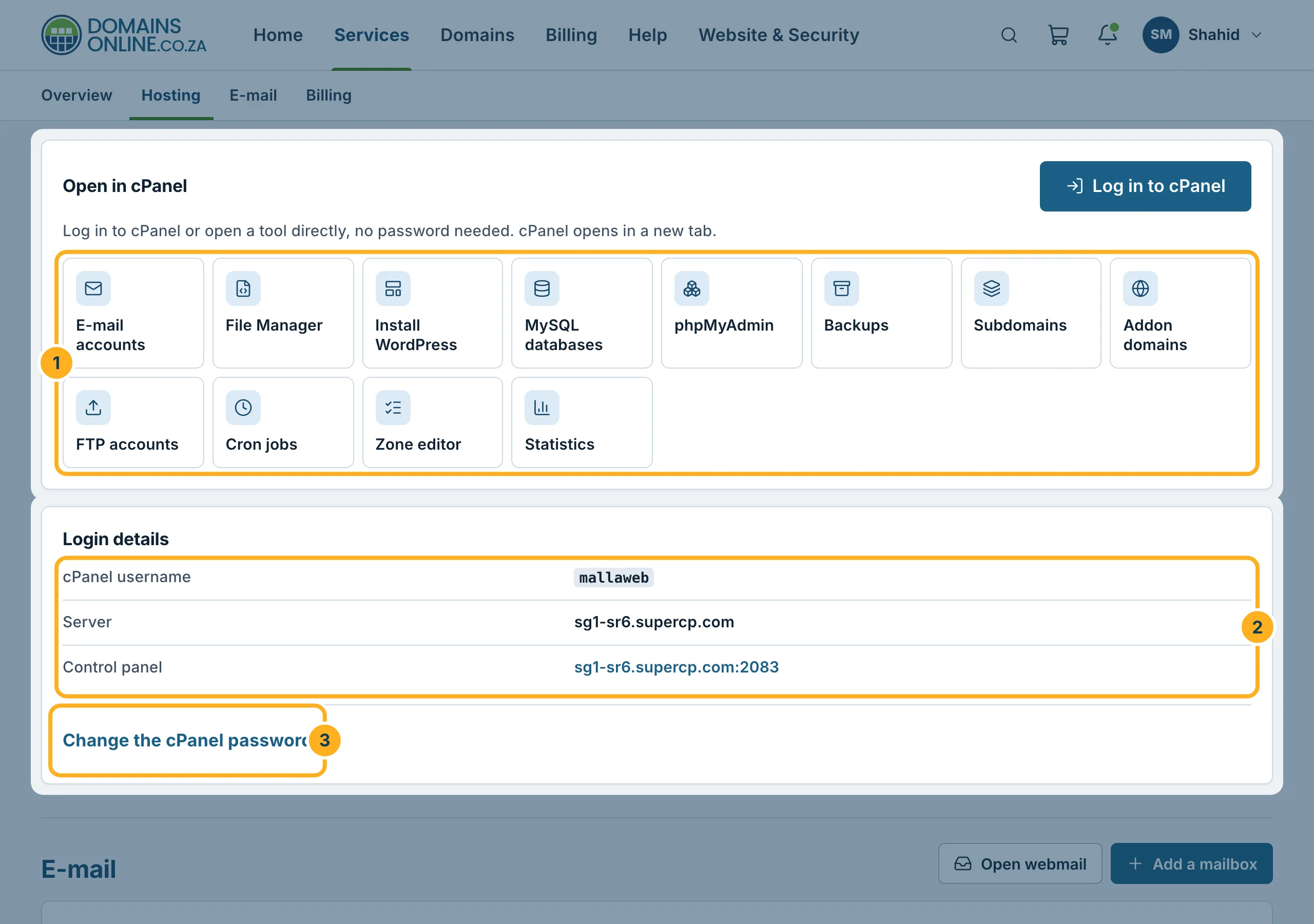
Under Hosting:
- Open in cPanel: shortcuts that open a cPanel tool directly, no password needed – for example E-mail accounts, File Manager, Install WordPress, MySQL databases, Backups or Cron jobs.
- Login details: your cPanel username, the Server and the Control panel address. You need these to sign in to cPanel directly or to set up an FTP program.
- Change the cPanel password: click it to open a form for a new cPanel password (at least 10 characters). The password is for cPanel and FTP, not for your mailboxes.
-
Under E-mail you find the buttons Open webmail and Add a mailbox and the server name for mail apps. Your username in mail apps is always the full e-mail address. See E-mail settings for your devices (IMAP, SMTP, ports).
-
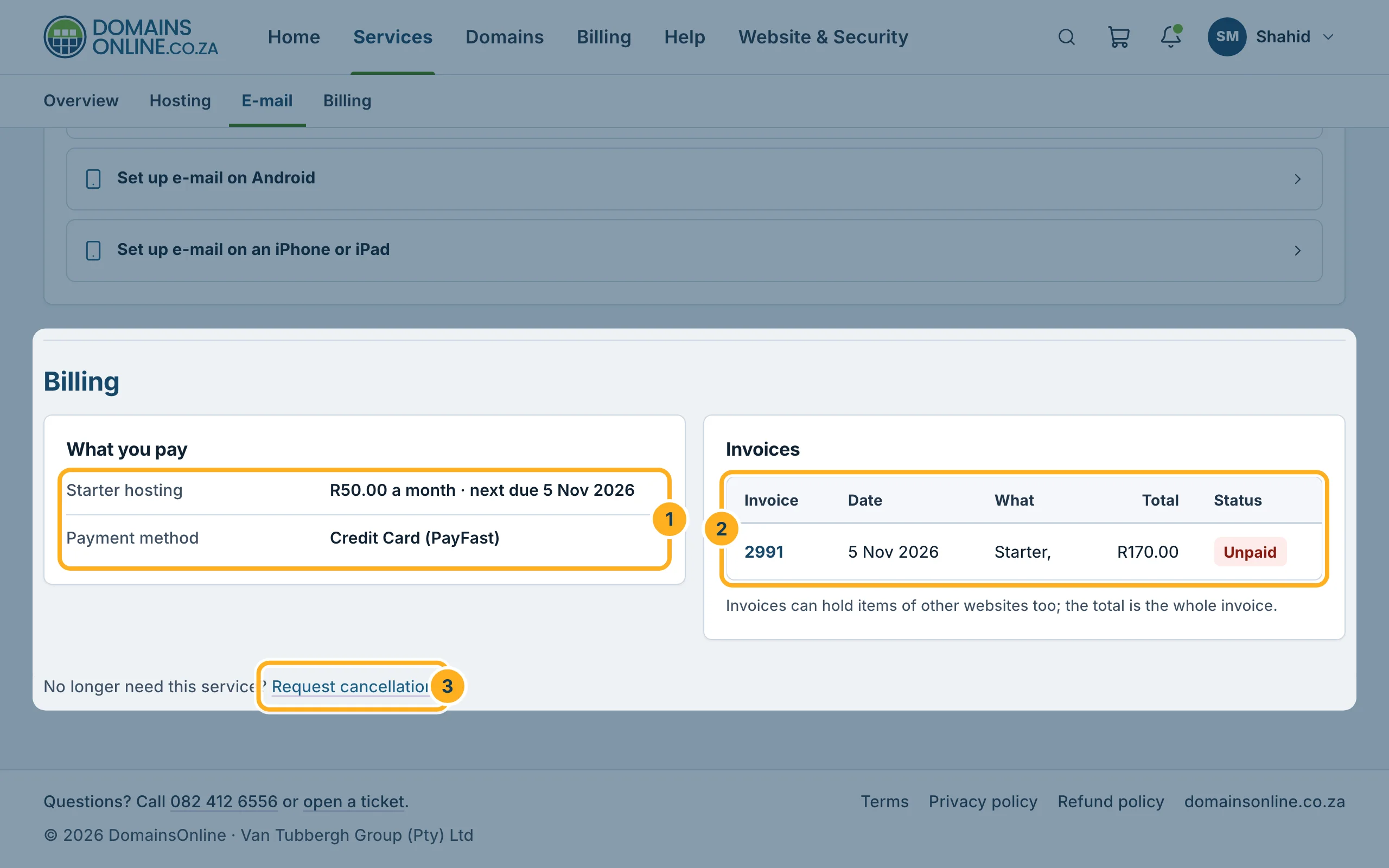
Under Billing:
- What you pay: the price, the next due date and the payment method.
- Invoices: the invoices that contain this service, with their status. Click an invoice number to open it. An invoice can also contain other items – the total is for the whole invoice.
- Request cancellation at the bottom of the page, if you no longer need the service – see Request a cancellation.
Related articles
- My services: overview and status
- Log in to cPanel from the client area
- cPanel at a glance
- View, download and print your invoices (PDF)
Need help? Open a ticket or call us on 082 412 6556.
