

cPanel is the control panel of your hosting. This is what you see after logging in and how to find a tool quickly.
Watch the video (1 min 34 s, with narration) – or follow the steps below.
The cPanel home page
-
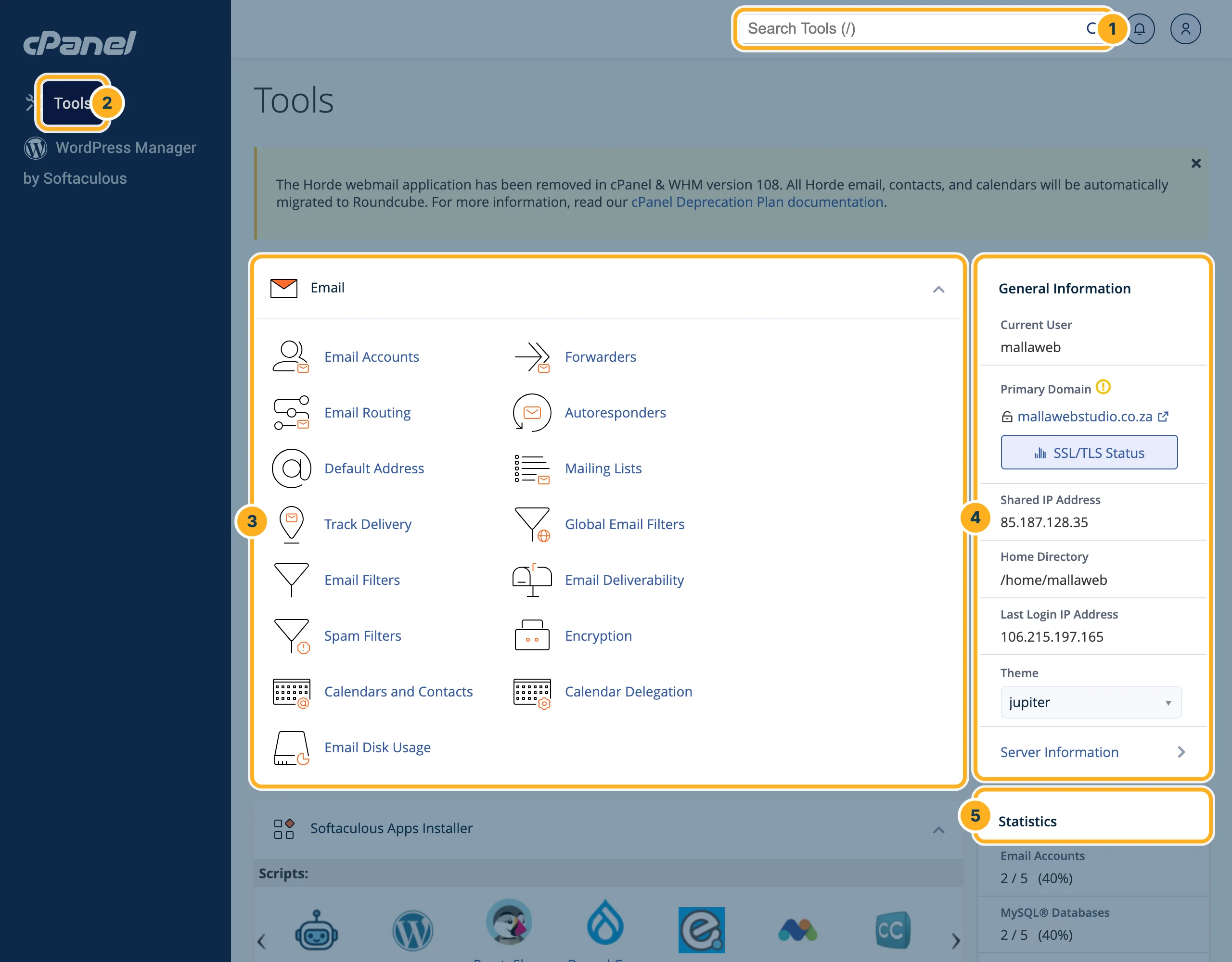
Log in to cPanel (see Log in to cPanel from the client area). The home page is called Tools:
- Search Tools at the top – type part of a tool name to find it.
- Tools in the menu on the left brings you back to this page from anywhere in cPanel.
- The tools are grouped in sections, for example Email, Files, Databases, Domains, Metrics, Security, Software and Advanced. Click the arrow at the right of a section heading to fold it in or out.
- General Information: your cPanel username (Current User), your Primary Domain, the server's Shared IP Address and your Home Directory.
- Statistics: what your account uses and the limits of your plan, for example disk space, e-mail accounts, databases and domains – see Check your disk space.
-
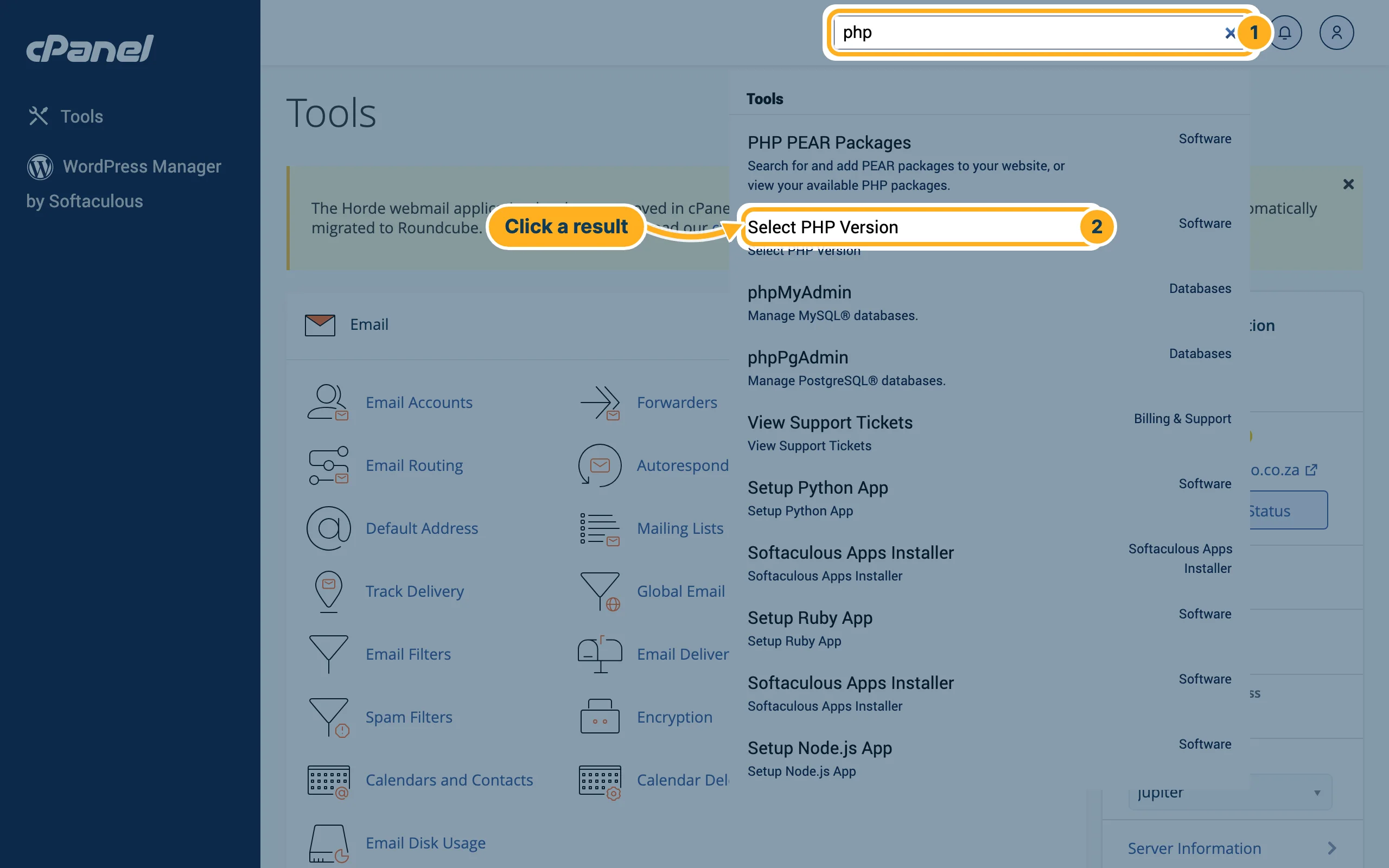
To find a tool quickly:
- Click into Search Tools and type a word, for example php.
- Click the tool in the list of results, here Select PHP Version.
The tools you need most
| Section | Tool | What for |
|---|---|---|
| Email Accounts, Forwarders, Autoresponders | Mailboxes and e-mail settings – see Create an e-mail account | |
| Files | File Manager, FTP Accounts, Disk Usage, JetBackup 5 | Website files and backups – see Upload files with File Manager |
| Databases | MySQL® Databases, phpMyAdmin | Databases for WordPress and other software – see Create a MySQL database and open phpMyAdmin |
| Domains | Domains, Redirects, Zone Editor | Extra domains, subdomains and DNS – see Add another domain or a subdomain |
| Software | Select PHP Version, Softaculous Apps Installer | PHP settings and installing WordPress – see Install WordPress with Softaculous |
The section Billing & Support has links back to the client area, for example to your invoices or to open a ticket.
Related articles
Need help? Open a ticket or call us on 082 412 6556.
