

With an FTP program such as FileZilla you copy many files between your computer and your hosting at once. You can create extra FTP accounts in cPanel, for example for a web designer, and limit them to one folder.
Watch the video (1 min 47 s, with narration) – or follow the steps below.
Create an FTP account
Log in to cPanel (see Log in to cPanel from the client area). In the section Files, click FTP Accounts. In the client area you can also click FTP accounts on your service page.
-
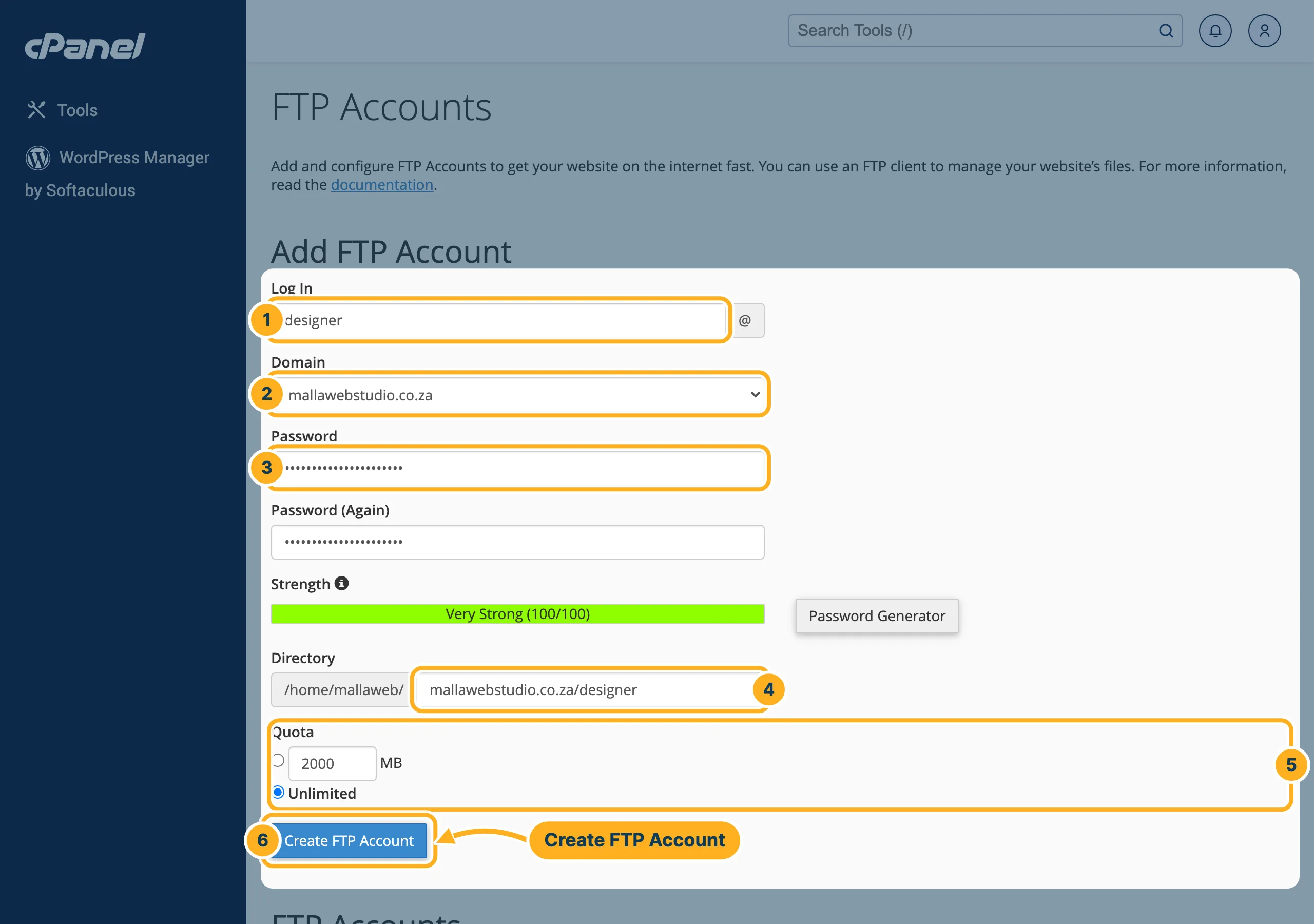
Under Add FTP Account, fill in:
- Log In – a name, for example designer. The full FTP username becomes designer@ plus your domain.
- Domain – the domain the username ends with.
- Password and Password (Again) – or click Password Generator for a strong password. The bar Strength shows how strong it is.
- Directory – the folder this account may use, inside your home folder. cPanel fills in a new folder for the account, for example mallawebstudio.co.za/designer. To give access to your website files instead, enter public_html (or a folder inside it).
- Quota – how much space the account may fill, in MB, or Unlimited.
- Click Create FTP Account.
Find the settings for your FTP program
-
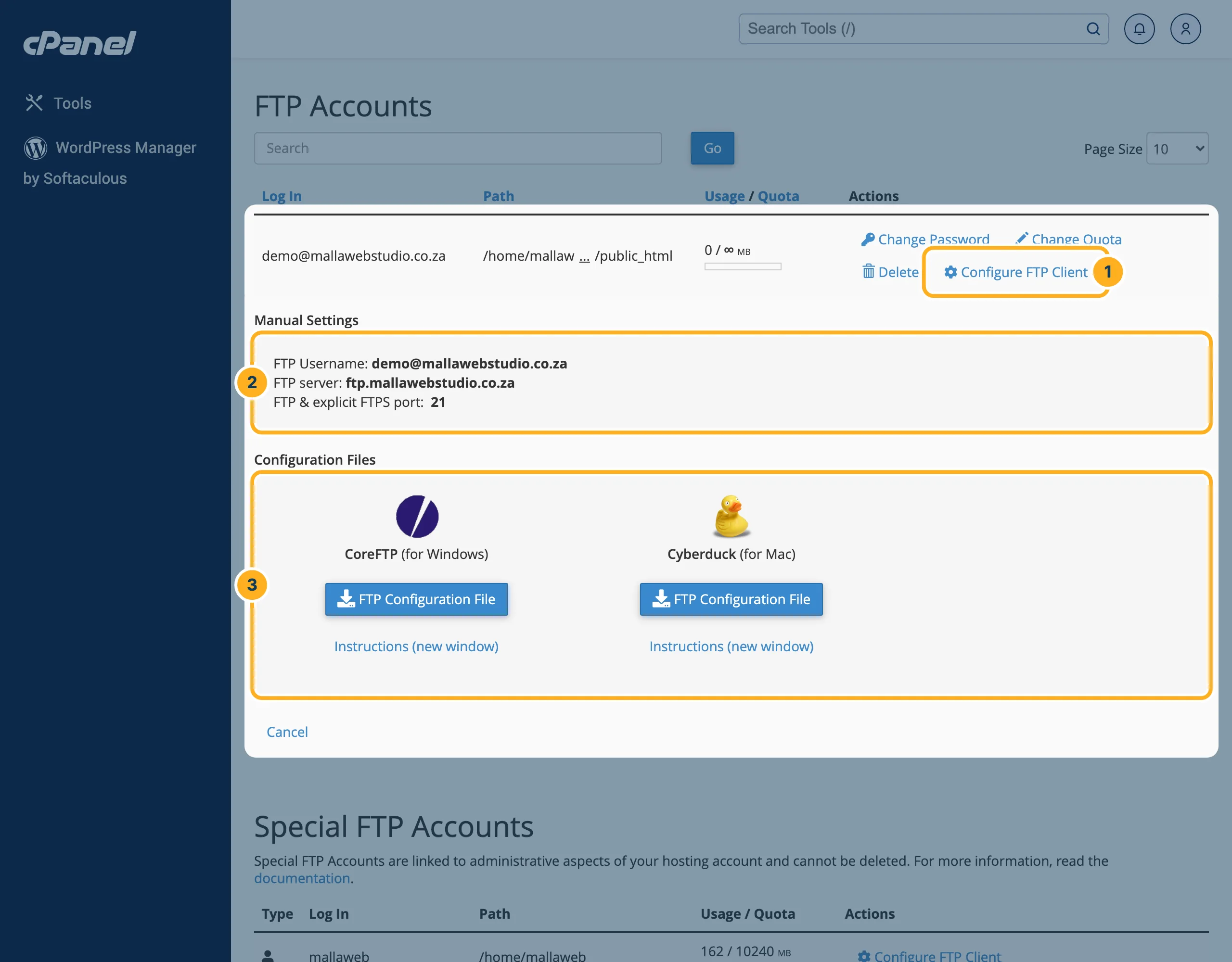
Under FTP Accounts, click Configure FTP Client next to the account:
- Configure FTP Client opens the settings below the account.
- Manual Settings: the FTP Username, the FTP server and the port (FTP & explicit FTPS port: 21).
- Configuration Files: ready-made files for CoreFTP (Windows) and Cyberduck (Mac).
Connect with FileZilla
- Install FileZilla Client from filezilla-project.org and open it.
- In the bar at the top, enter:
- Host: the FTP server from cPanel, for example
ftp.mallawebstudio.co.za - Username: the full FTP Username, for example
demo@mallawebstudio.co.za - Password: the password of the FTP account
- Port:
21
- Host: the FTP server from cPanel, for example
- Click Quickconnect. On the right you see the folders on your hosting, on the left the files on your computer. Drag files from left to right to upload them.
Your main cPanel login also works for FTP. It is listed under Special FTP Accounts and has access to your whole home folder.
Something not working?
- The connection fails with a new domain:
ftp.plus your domain only works once the domain points to our servers. Until then, use the server name from your service page as host (Login details > Server:sg1-sr6.supercp.com) – see Why isn't my domain working yet? (DNS propagation). - Login incorrect: use the full username including @ and the domain. To set a new password, click Change Password next to the account in cPanel.
Related articles
Need help? Open a ticket or call us on 082 412 6556.
