

Many website programs, for example a shop or a forum, need a MySQL database. You create the database and a database user in cPanel, give the user access to the database, and enter both in your program.
Watch the video (1 min 59 s, with narration) – or follow the steps below.
Step by step
Log in to cPanel (see Log in to cPanel from the client area). In the section Databases, click MySQL® Databases.
-
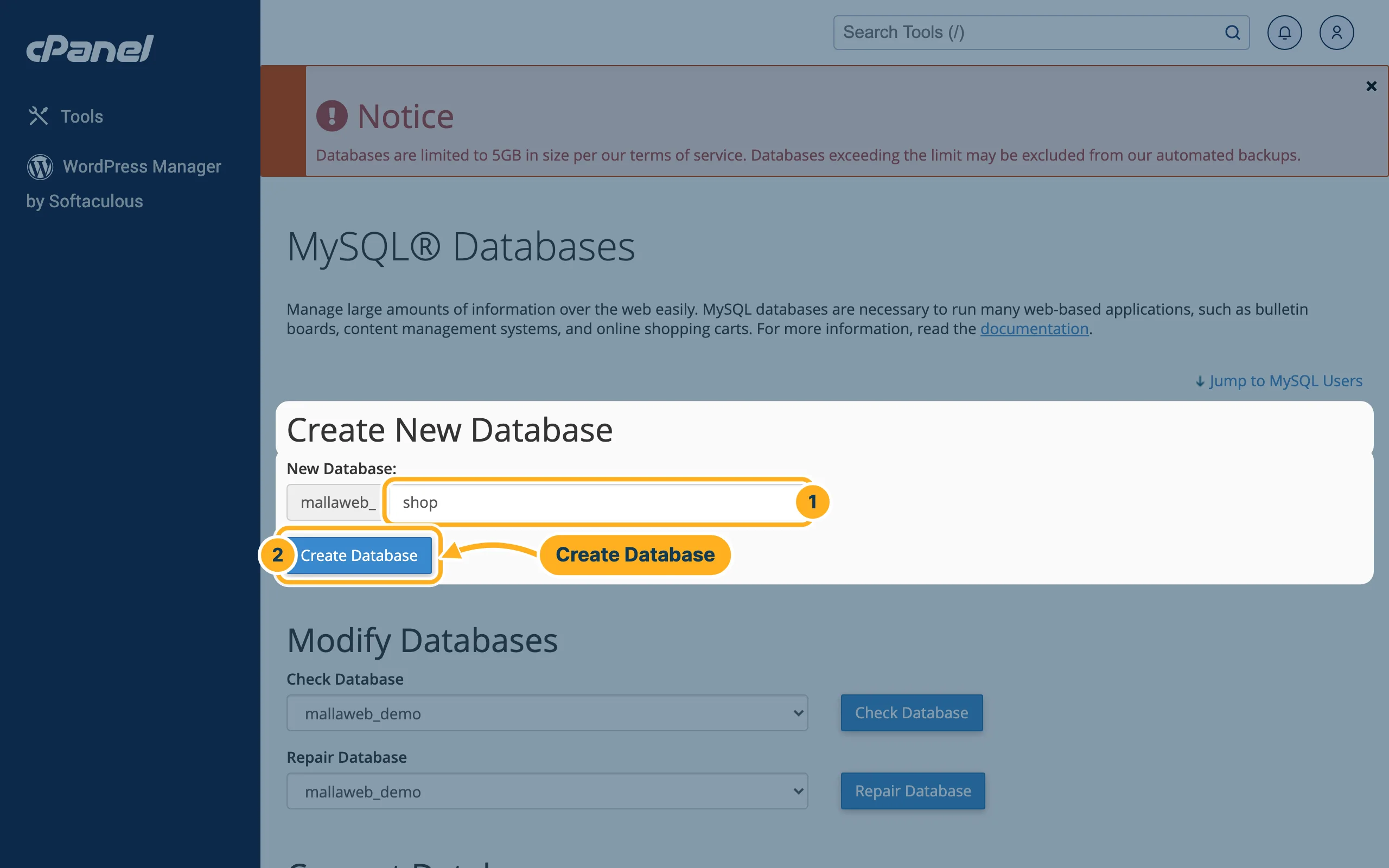
Under Create New Database:
- New Database – type a short name, for example shop. cPanel puts your cPanel username and an underscore in front, so the full name becomes, for example, mallaweb_shop.
- Click Create Database.
-
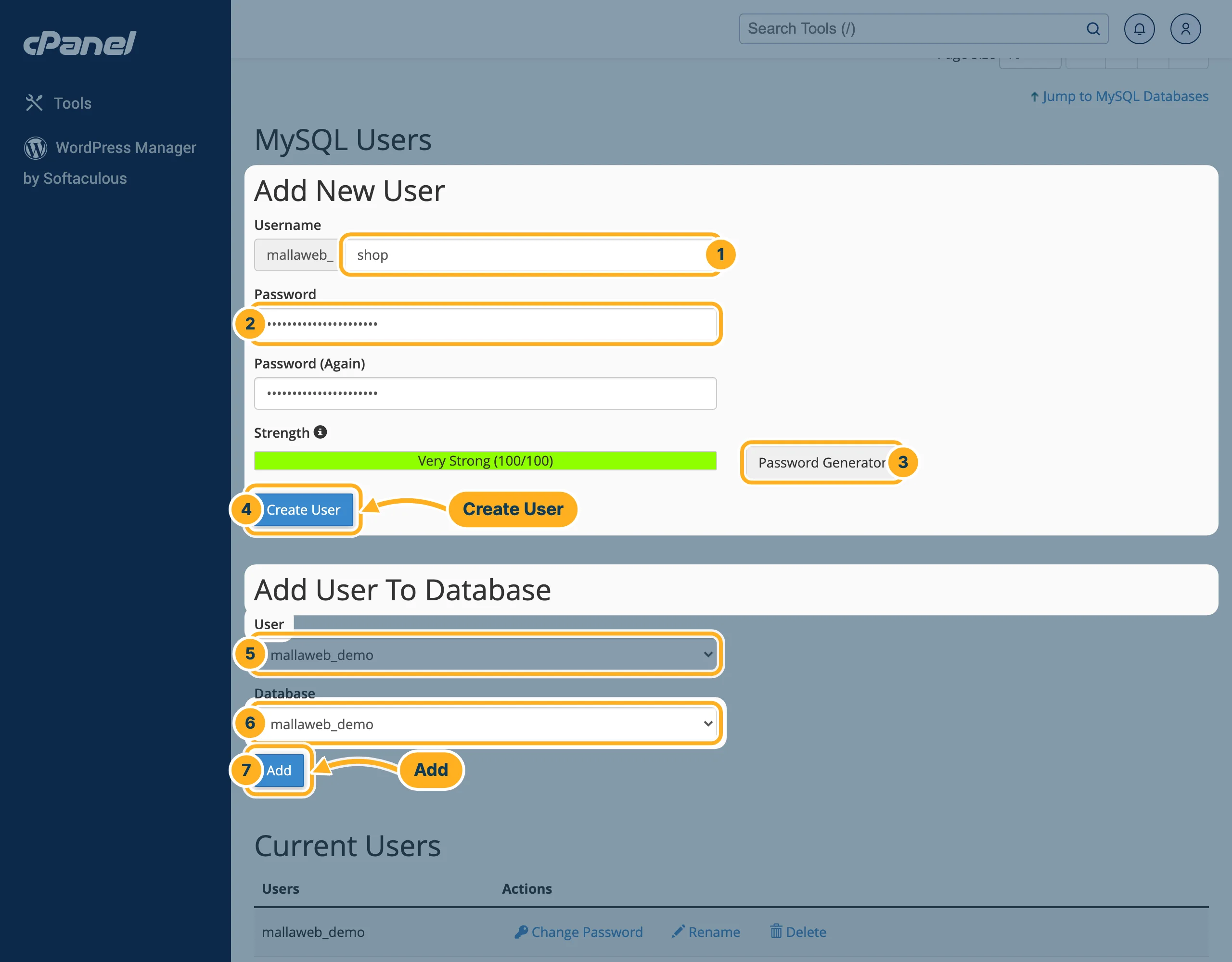
Further down, under MySQL Users:
- Username – a name for the database user. It also gets your cPanel username in front.
- Password and Password (Again).
- Or click Password Generator for a strong password. Write the password down – your program needs it.
- Click Create User.
- Under Add User To Database, choose the new User,
- choose the new Database,
- and click Add.
-
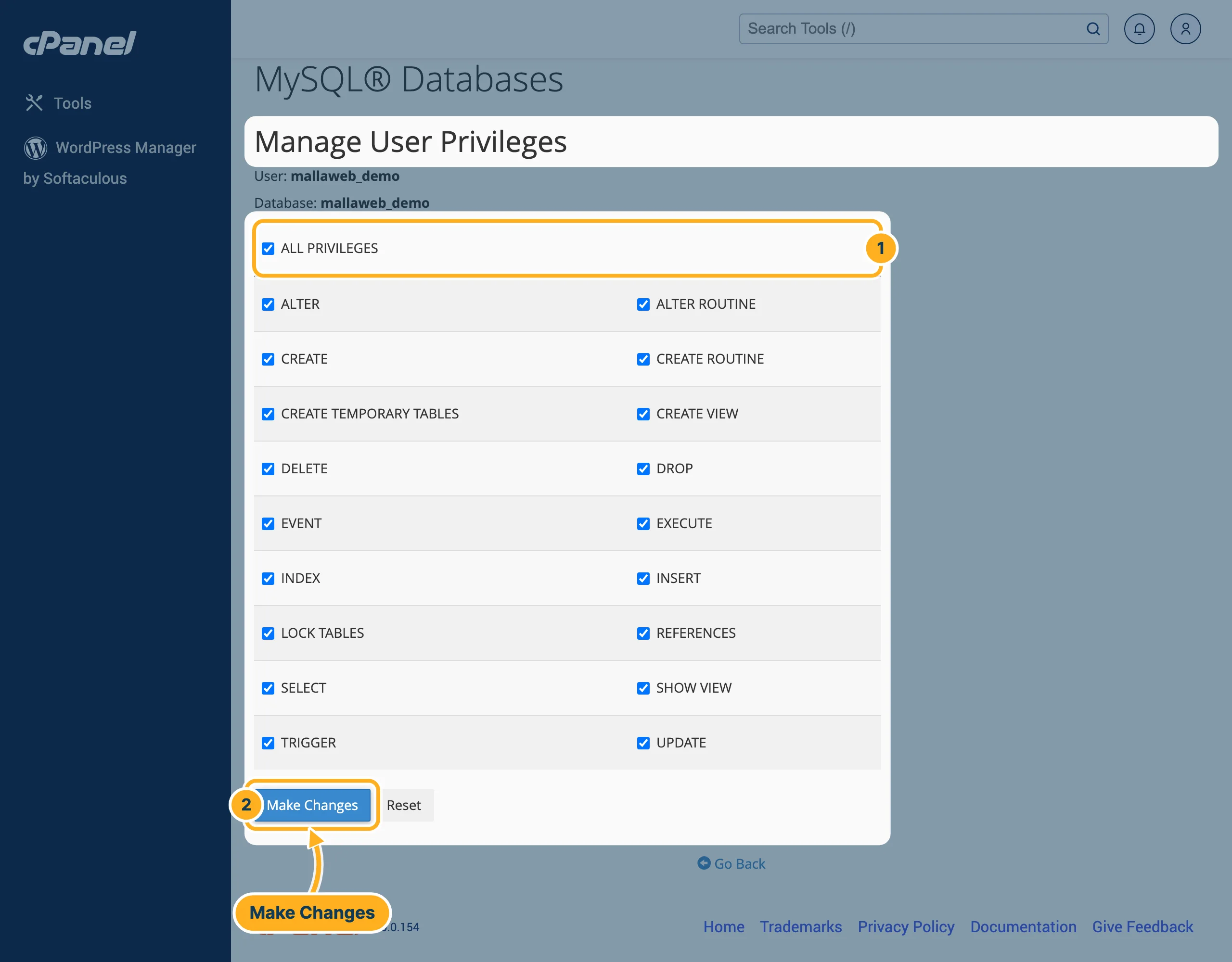
The page Manage User Privileges opens:
- Tick ALL PRIVILEGES (unless your program's instructions say otherwise),
- then click Make Changes.
-
Enter these details in your program's setup: the full database name, the full database username, the password and, as database server (host),
localhost.
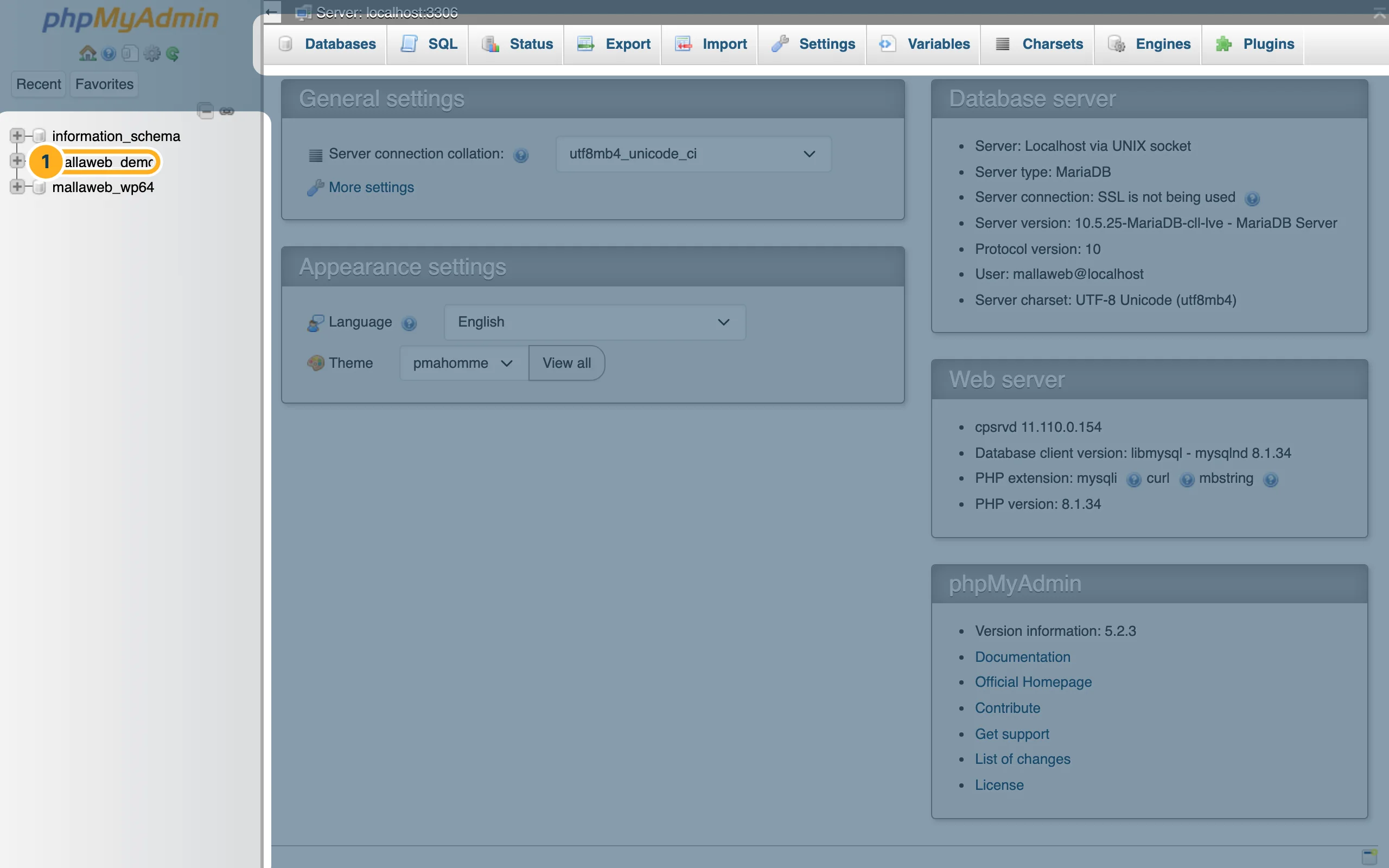
Open phpMyAdmin
-
In cPanel, in the section Databases, click phpMyAdmin (or phpMyAdmin on your service page in the client area). It opens without another password. Your databases are listed on the left – click one to see its tables.
Related articles
Need help? Open a ticket or call us on 082 412 6556.
