

Your website software (for example WordPress or a shop) runs on PHP. If the software asks for a newer or a certain PHP version, you choose it yourself in cPanel with Select PHP Version.
Watch the video (50 s, with narration) – or follow the steps below.
Step by step
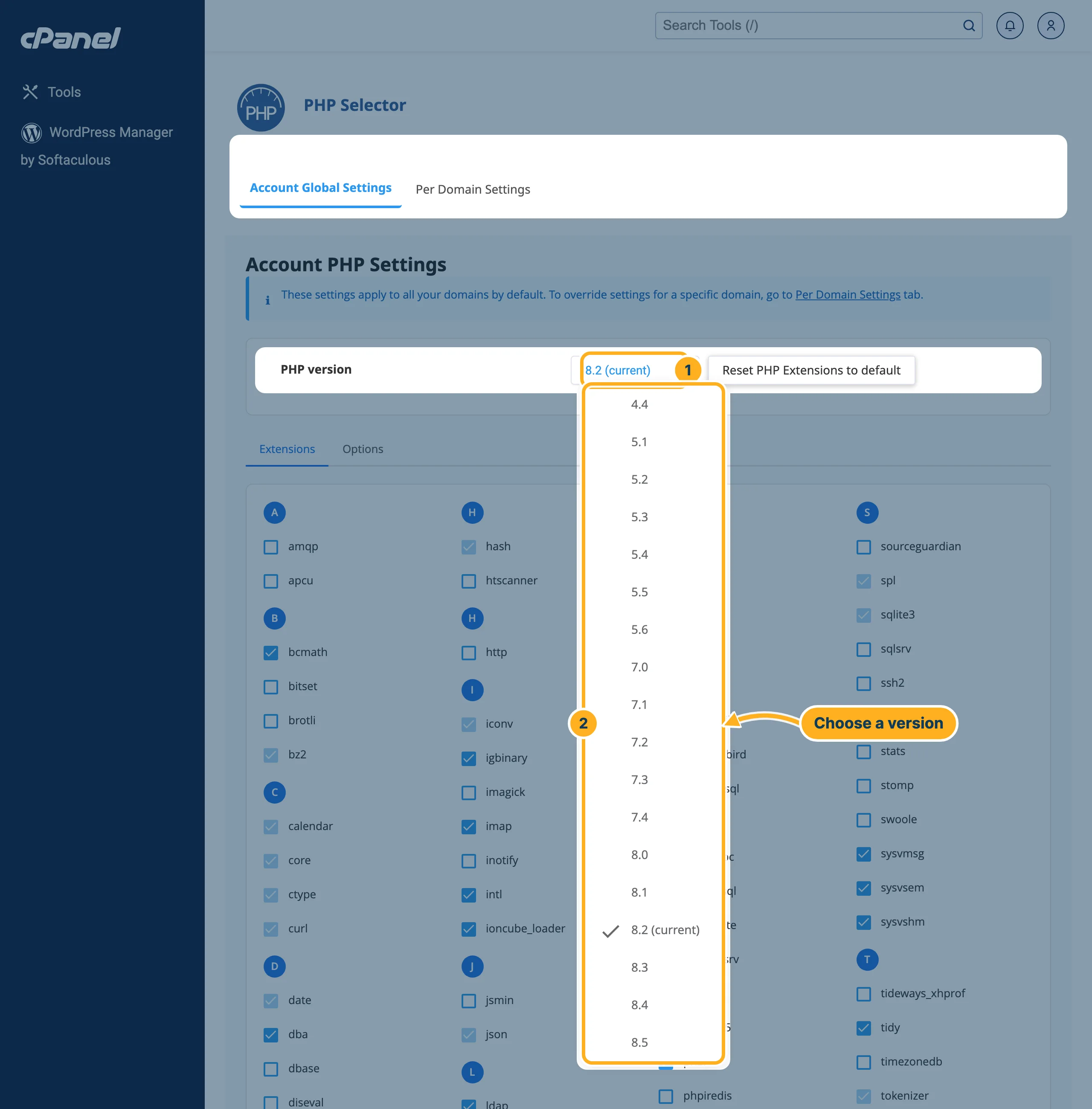
Log in to cPanel (see Log in to cPanel from the client area). In the section Software, click Select PHP Version. The page PHP Selector opens.
-
On the tab Account Global Settings (these settings apply to all your domains):
- Next to PHP version, click the current version, for example 8.2 (current).
- Click the version you want in the list. There is no separate Save button for the version.
Open your website and check that it works.
Extensions and options
Below the version, the tab Extensions lists the PHP extensions with a tick box each. Only change them if your software asks for a certain extension. Reset PHP Extensions to default next to the version sets them back to the standard selection.
Which version does each domain use?
-
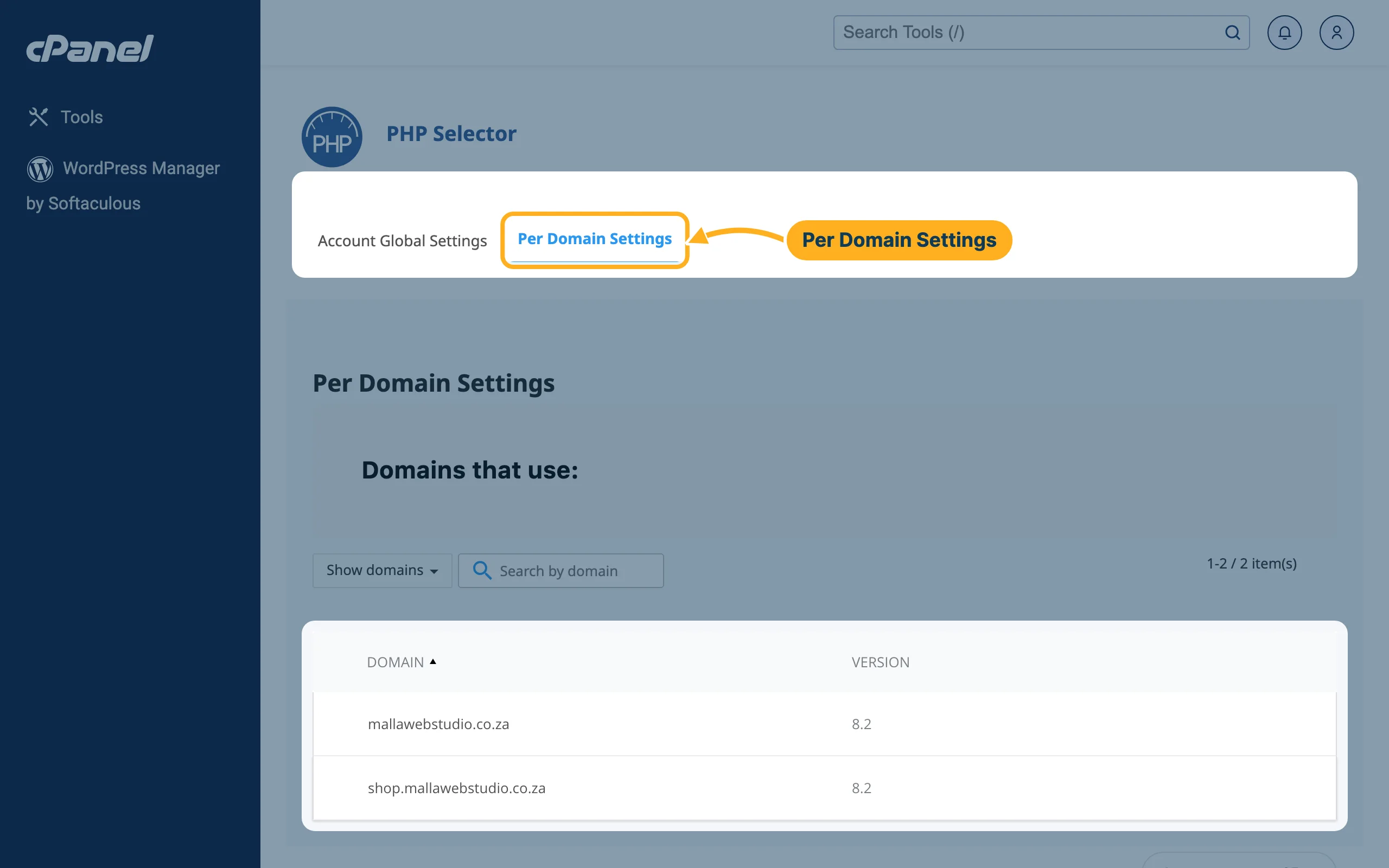
Click the tab Per Domain Settings. It lists your domains and subdomains with the PHP version each one uses.
Something not working?
- Your site shows an error after the change: switch back to the previous version, then look at the error log – see Look at your site's error log.
- WordPress: update WordPress, your theme and your plugins before you switch to a newer PHP version – see Update WordPress, themes and plugins.
Related articles
Need help? Open a ticket or call us on 082 412 6556.
