

On one hosting account you can run more than one website: with another domain (for example mallawebdesign.co.za) or with a subdomain of your domain (for example shop.mallawebstudio.co.za). Both are added in cPanel under Domains.
Watch the video (1 min 59 s, with narration) – or follow the steps below.
Step by step
-
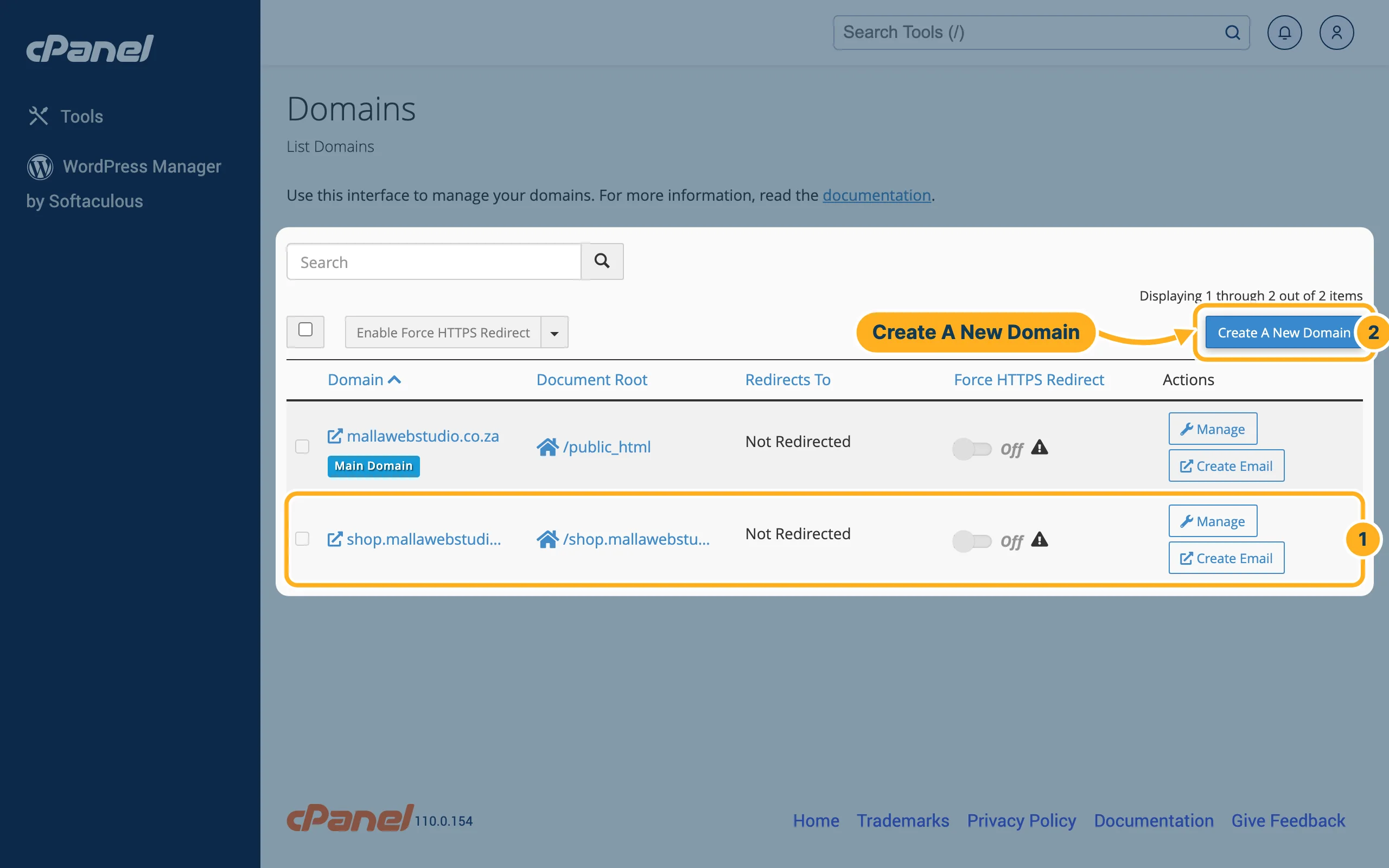
Log in to cPanel (see Log in to cPanel from the client area). In the section Domains, click Domains. The list shows all your domains; the column Document Root shows the folder with the files of each website (click it to open the folder in File Manager).
- Each row is one domain or subdomain – here the subdomain shop.mallawebstudio.co.za.
- Click Create A New Domain.
-
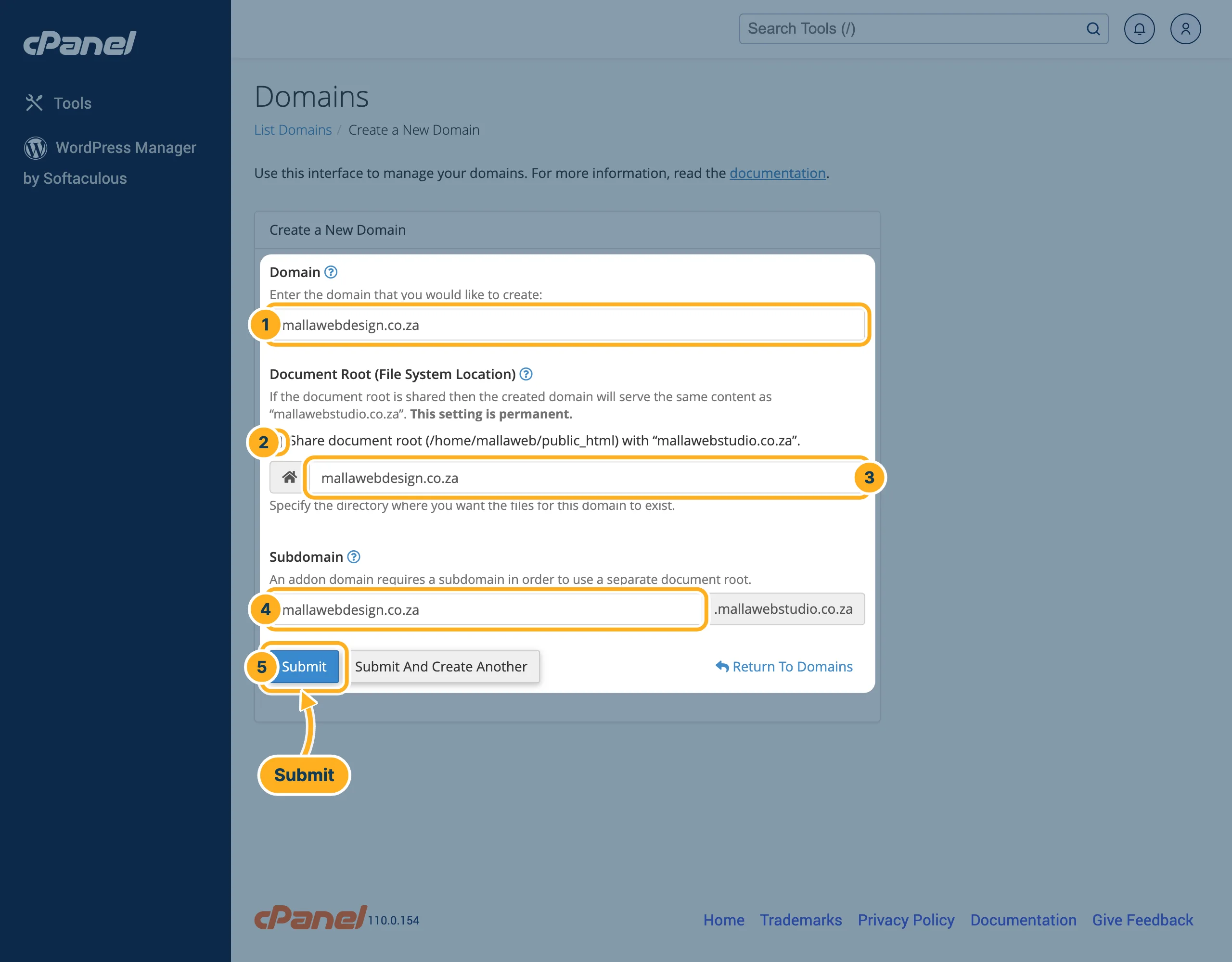
Under Create a New Domain:
- Domain – type the new domain, for example mallawebdesign.co.za, or a subdomain, for example blog.mallawebstudio.co.za. If cPanel asks Did You Mean …?, click Just Use “…” to keep what you typed.
- Share document root (/home/…/public_html) with “…” – leave it ticked only if the new domain should show exactly the same website as your main domain. For a separate website, untick it. cPanel warns that this setting is permanent.
- After unticking, the folder for the new website appears, in your home folder – for example mallawebdesign.co.za. You can change the name.
- For another domain, cPanel also fills in Subdomain: as the page says, an addon domain needs a subdomain to use its own folder. Leave it as it is.
- Click Submit.
Upload the website files into the new folder (see Upload files with File Manager) or install WordPress for the new domain (see Install WordPress with Softaculous).
Something not working?
- The new domain shows nothing or another provider's page: the domain does not point to our nameservers yet, or the change is still spreading – see Why isn't my domain working yet? (DNS propagation).
- The browser warns about the certificate: the free certificate (AutoSSL) can only be issued once the new domain points to our servers – see Free SSL certificate (AutoSSL).
Related articles
- Use a domain you have with another provider
- Edit DNS records (A, CNAME, MX, TXT)
- Redirects and custom error pages
Need help? Open a ticket or call us on 082 412 6556.
