

With Directory Privacy in cPanel, visitors need a username and password to open a folder of your website – useful for a site that is still being built or for files only some people should see.
Watch the video (1 min 44 s, with narration) – or follow the steps below.
Step 1: switch on the protection
-
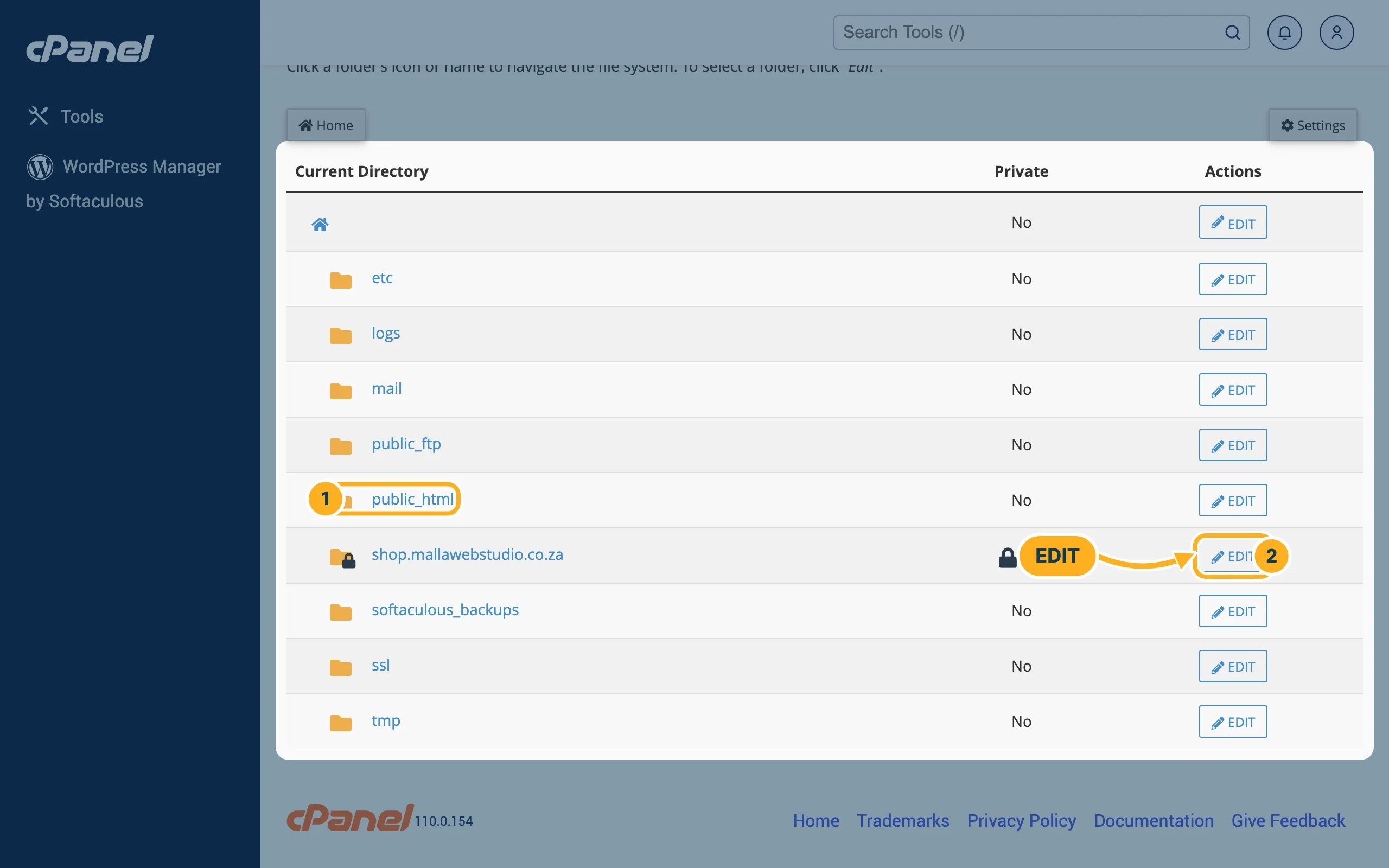
Log in to cPanel (see Log in to cPanel from the client area). In the section Files, click Directory Privacy. The list shows the folders of your account; the column Private shows whether a folder is protected.
- Click a folder name, for example public_html, to see the folders inside it.
- Click EDIT next to the folder you want to protect – here the folder of the subdomain shop.mallawebstudio.co.za.
-
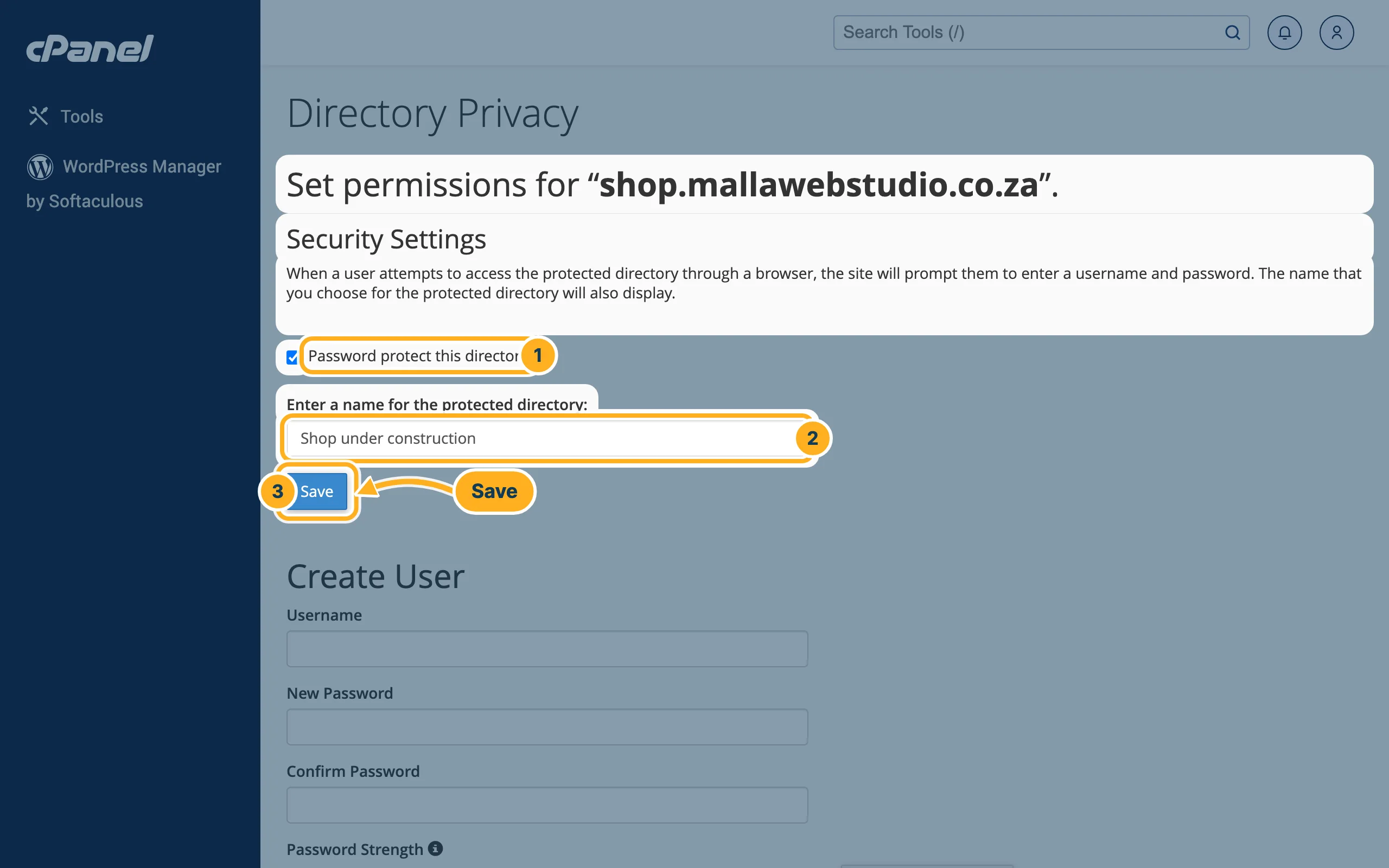
Under Security Settings:
- Tick Password protect this directory.
- Enter a name for the protected directory – visitors see this name in the password window, for example Shop under construction.
- Click Save.
Step 2: create a user
-
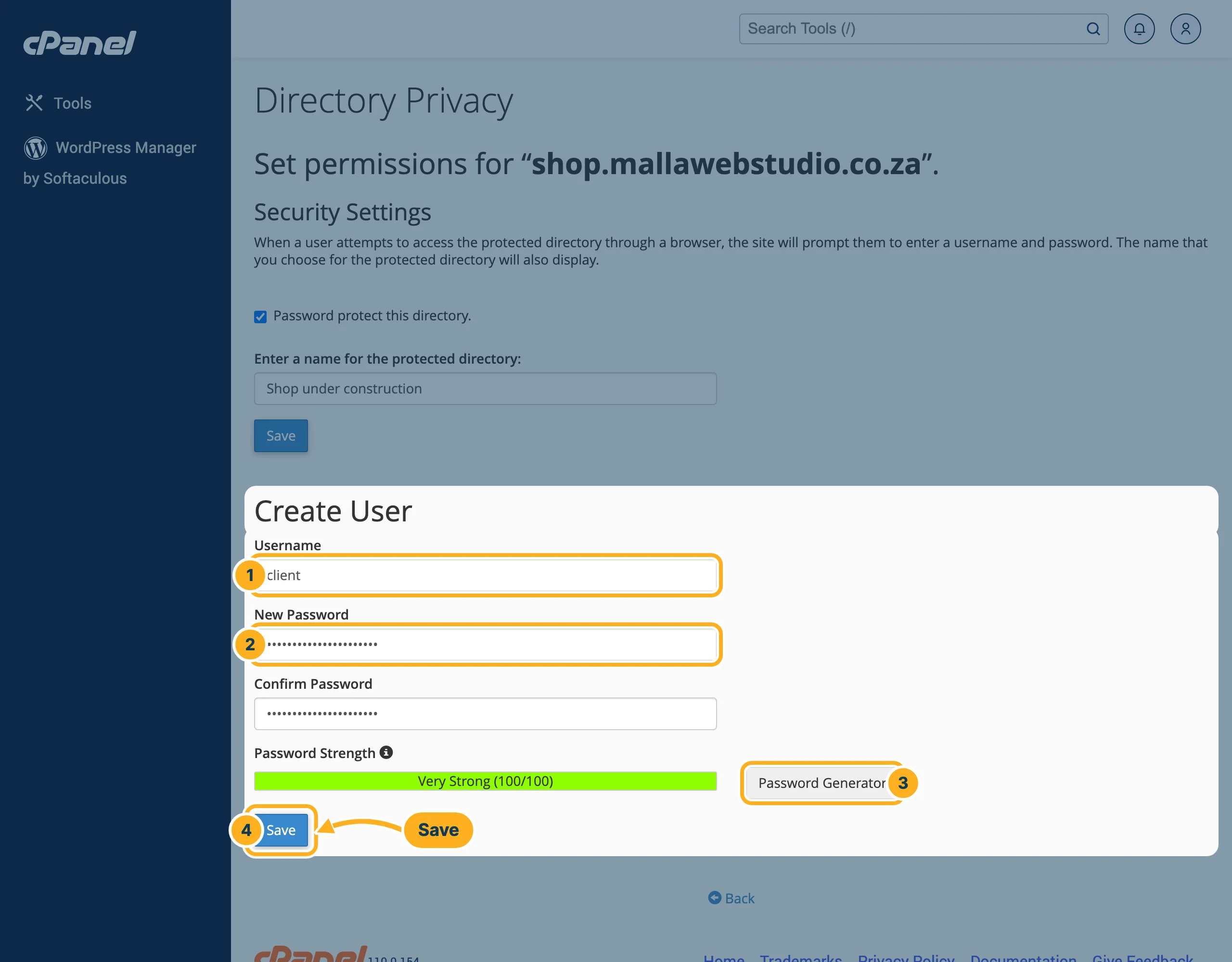
After saving, click Go Back. On the same page, under Create User:
- Username – the name people type to open the folder, for example client.
- New Password and Confirm Password.
- Or click Password Generator for a strong password. The bar Password Strength shows how strong it is.
- Click Save.
Give the username and password to the people who may see the folder. When they open the address, their browser asks for both.
These users only work for this folder. They are not FTP or cPanel users and can't change anything on your hosting.
Remove the protection
Open the folder again with EDIT, untick Password protect this directory. and click Save.
Related articles
Need help? Open a ticket or call us on 082 412 6556.
