

You can change your client area password at any time while you are signed in. You need your current password for this. If you have forgotten it, see Forgot your password? Set a new one instead.
Watch the video (1 min 5 s, with narration) – or follow the steps below.
Good to know: this is the password for the client area only. cPanel and your mailboxes have their own passwords – see Change a mailbox password.
Step by step
-
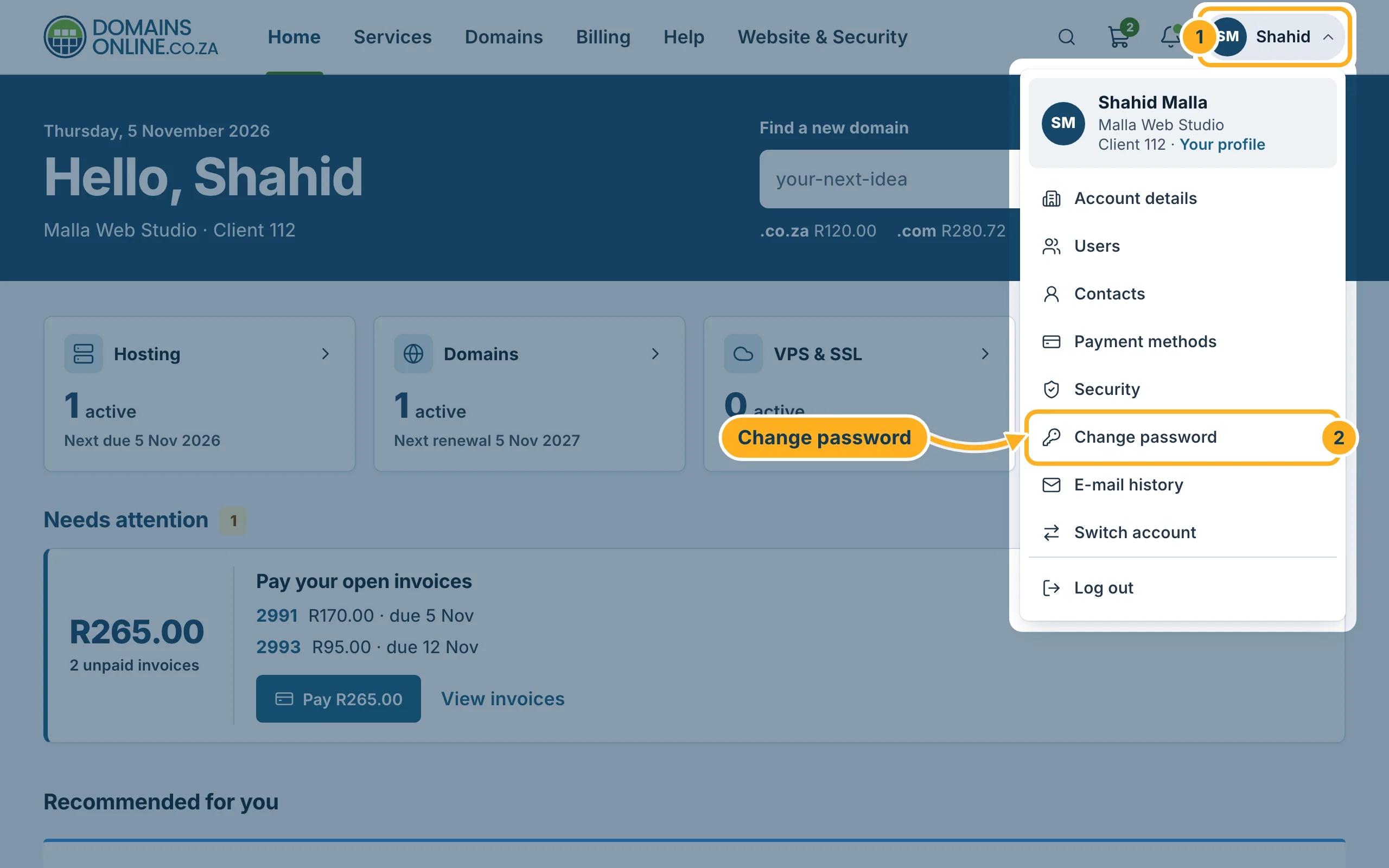
Sign in to the client area, click your initials and name at the top right and choose Change password.
-
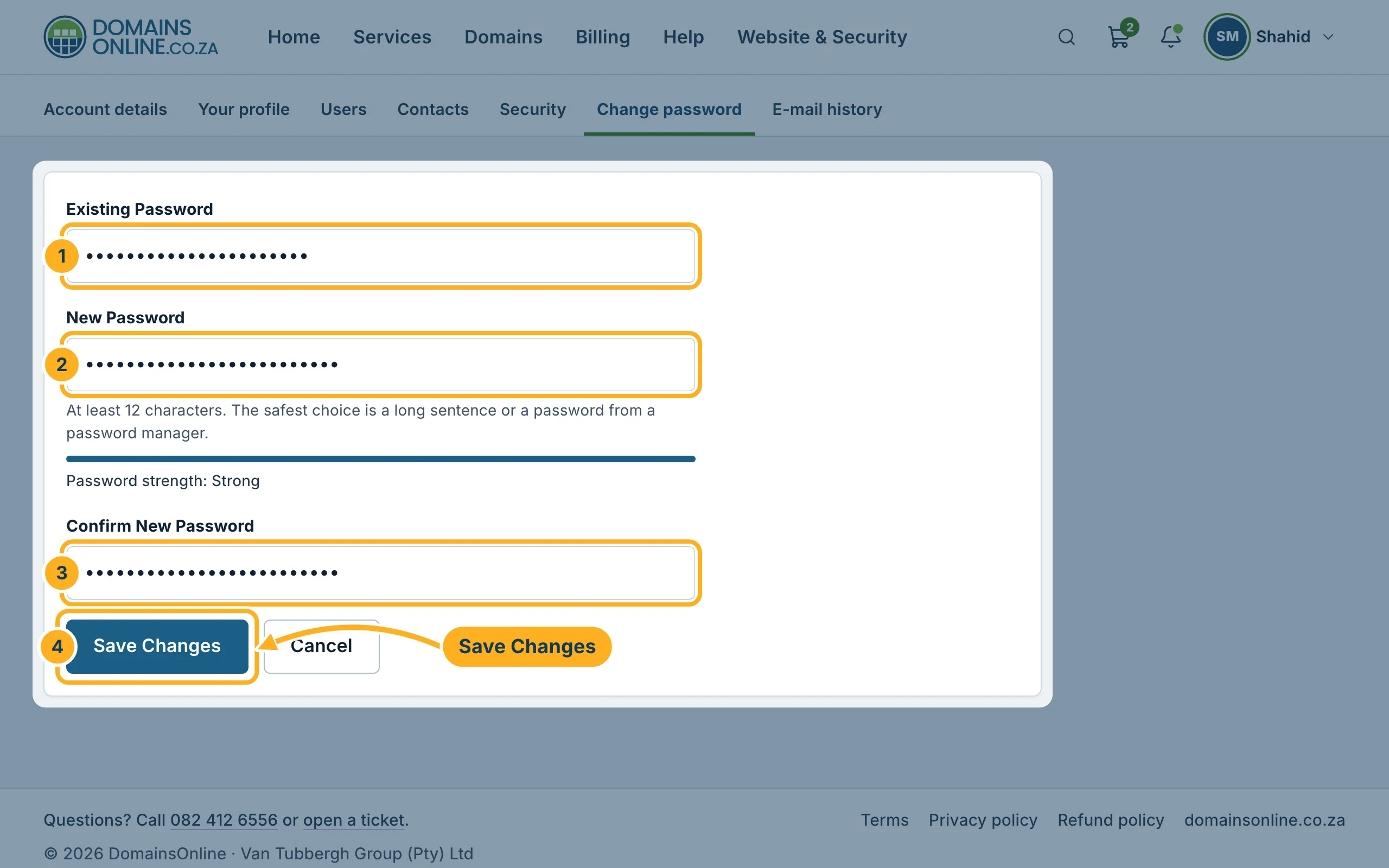
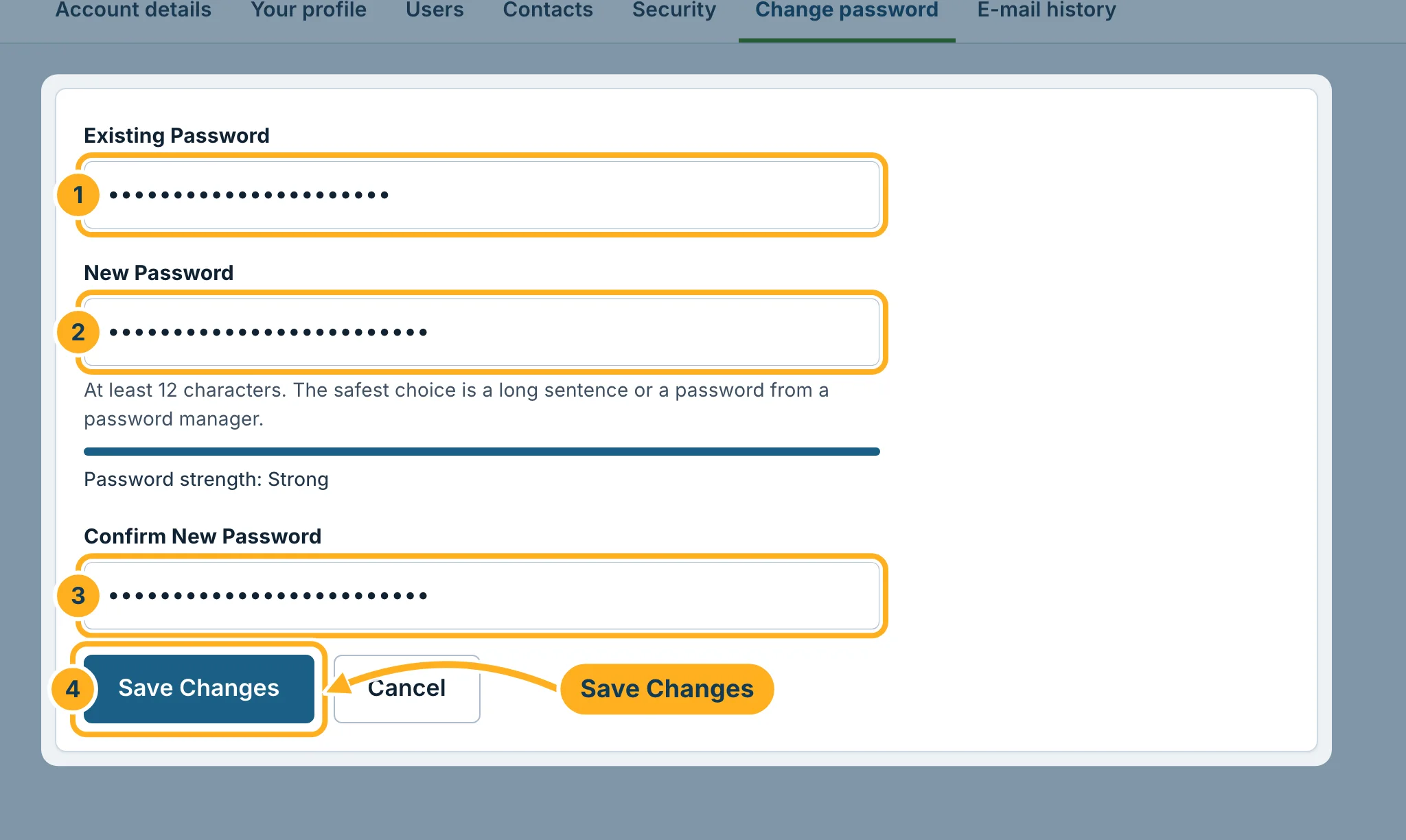
Fill in the form:
- Existing Password – your current password.
- New Password – at least 12 characters. The bar below the field shows how strong it is. A long sentence or a password from a password manager is the safest choice.
- Confirm New Password – the new password once more.
- Click Save Changes.
Next time you sign in, use the new password. If your browser or password manager saved the old one, update it there too.
Something not working?
- The change is refused: check the existing password, and that both new passwords are exactly the same. Caps Lock must be off.
- The new password is not accepted: make it longer, or mix in numbers and symbols, until the bar shows a strong password.
Related articles
Need help? Open a ticket or call us on 082 412 6556.
